

Common AI Video Mistakes (and How to Fix Them)
Use a risk-based AI video preflight for goals, claims, consent, inputs, output QA, accessibility, disclosure, provenance, and live posts.
Common AI Video Mistakes (and How to Fix Them)
Many AI video faults start with a skipped check. The script may lack proof. A consent file may be missing. The post may use the wrong label. A preflight can catch these faults before release.
This guide gives you a practical preflight. Use it before you render and again before you post.
The preflight mindset: four QA stages
Split quality assurance into four stages. Each catches different problems.
Script QA checks what you plan to say. Are claims supported? Is consent documented?
Source and input QA checks what you feed the tool. Is the face model created with verified consent? Are brand assets correct?
Generated-output QA checks the render. Do visuals match the script? Are captions accurate? Is the disclosure label present?
Live-post QA checks the published video. Do links work? Does the platform display the disclosure correctly?
Treat each stage as a gate. Do not move on until the current stage is clean.
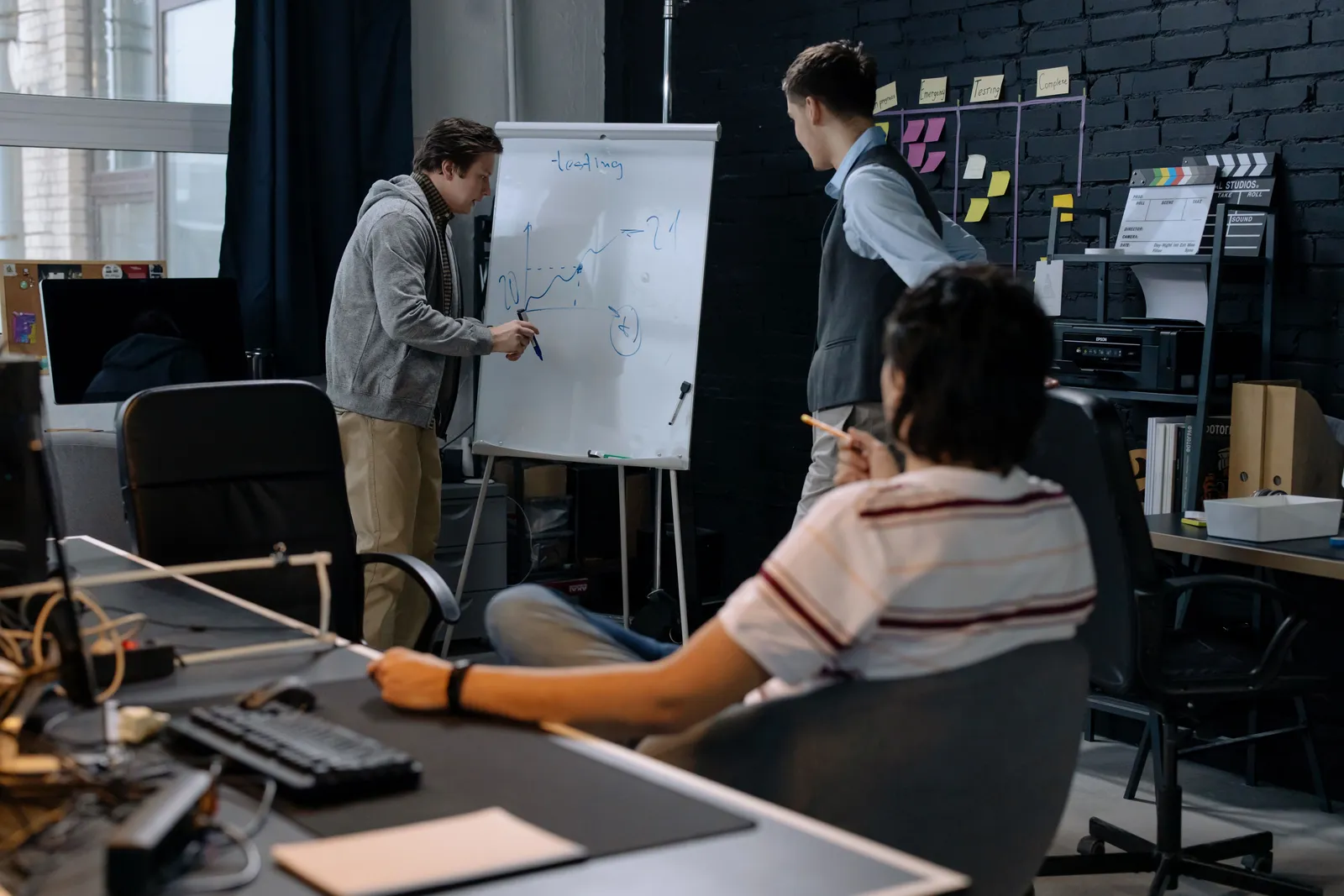
Mistake 1: unclear goal and audience
Why it matters: The team cannot judge a draft when its viewer and job are not clear.
Concrete check: Write one sentence that names the audience, the single action you want, and the platform.
Owner and evidence: The script owner signs off. Store it in the project brief.
Safe fix: If you cannot write that sentence, pause. Define the goal first.
Mistake 2: unsupported script claims
Why it matters: A generated speaker can repeat a false or misleading claim just as a filmed speaker can.
Concrete check: Highlight every factual claim. Next to each, paste a link or document reference. Cut claims with no support.
Owner and evidence: The script owner provides the source list.
Safe fix: Replace unsupported claims with verifiable statements or remove them.
Mistake 3: missing consent and rights
Why it matters: A face or voice needs the consent and rights required for the planned use. A label does not cure impersonation or a rights breach.
Concrete check: For every face and voice, confirm you hold a dated consent record. If a platform creates a digital twin, verify it documents consent. Kyndrify's Terms require recorded likeness consent, retained for at least the life of the Twin plus seven years after deletion, with withdrawal through the supported consent link blocking new renders (Kyndrify Terms). Keep your own copy.
Owner and evidence: The producer or legal contact holds the consent file. Log the filename and date.
Safe fix: Do not render until the required consent is on file. If it is unclear, stop and use an approved asset that fits the tool terms and planned use.
Mistake 4: unverified inputs
Why it matters: A wrong logo, name, or source file can spoil the output.
Concrete check: Create an input checklist. Include brand colors, logo version, name pronunciations, and on-screen text. Have a second person verify each item.

Owner and evidence: The brand or content owner signs off the input sheet.
Safe fix: Run the input check before you open the AI tool. Correct errors in the source file.
Mistake 5: wrong tool or workflow fit
Why it matters: A tool may not meet the brief, rights, output, or review needs.
Concrete check: List your must-have requirements. Match the tool to the list. Do not add a tool just because it is new.
Owner and evidence: The producer documents the tool evaluation.
Safe fix: If the tool fails a must-have, choose a fit before production.
Mistake 6: skipped output QA
Why it matters: The output may have bad frames, wrong text, poor sound, or a missing label.
Concrete check: Run a structured output QA checklist. Cover at least these items:
- Visuals: Does the avatar lip-sync match? Are there distorted frames?
- Audio: Is the voice clear? Are pronunciations correct?
- Captions: Do captions match the spoken words? Are non-speech sounds noted? The W3C describes captions as text for speech and needed non-speech audio (W3C media accessibility).
- Disclosure: Is the required platform label present? For YouTube, use the Altered content setting for realistic altered or synthetic content (YouTube altered content disclosure). For TikTok, label AI-generated content with realistic images, audio, or video (TikTok AI-generated content).
- Provenance: If the tool attaches Content Credentials, verify the file carries them. A Content Credential records asset provenance. It is not proof that every visible claim is true (C2PA explainer). Kyndrify's signed Content Credentials and invisible provenance are still rolling out. They are not guaranteed on every file (Kyndrify Responsible AI).
- Watermark: If the tool adds a forensic watermark, confirm it is present. Kyndrify's signed Content Credentials and invisible provenance are still rolling out. They are not guaranteed on every file (Kyndrify Responsible AI).
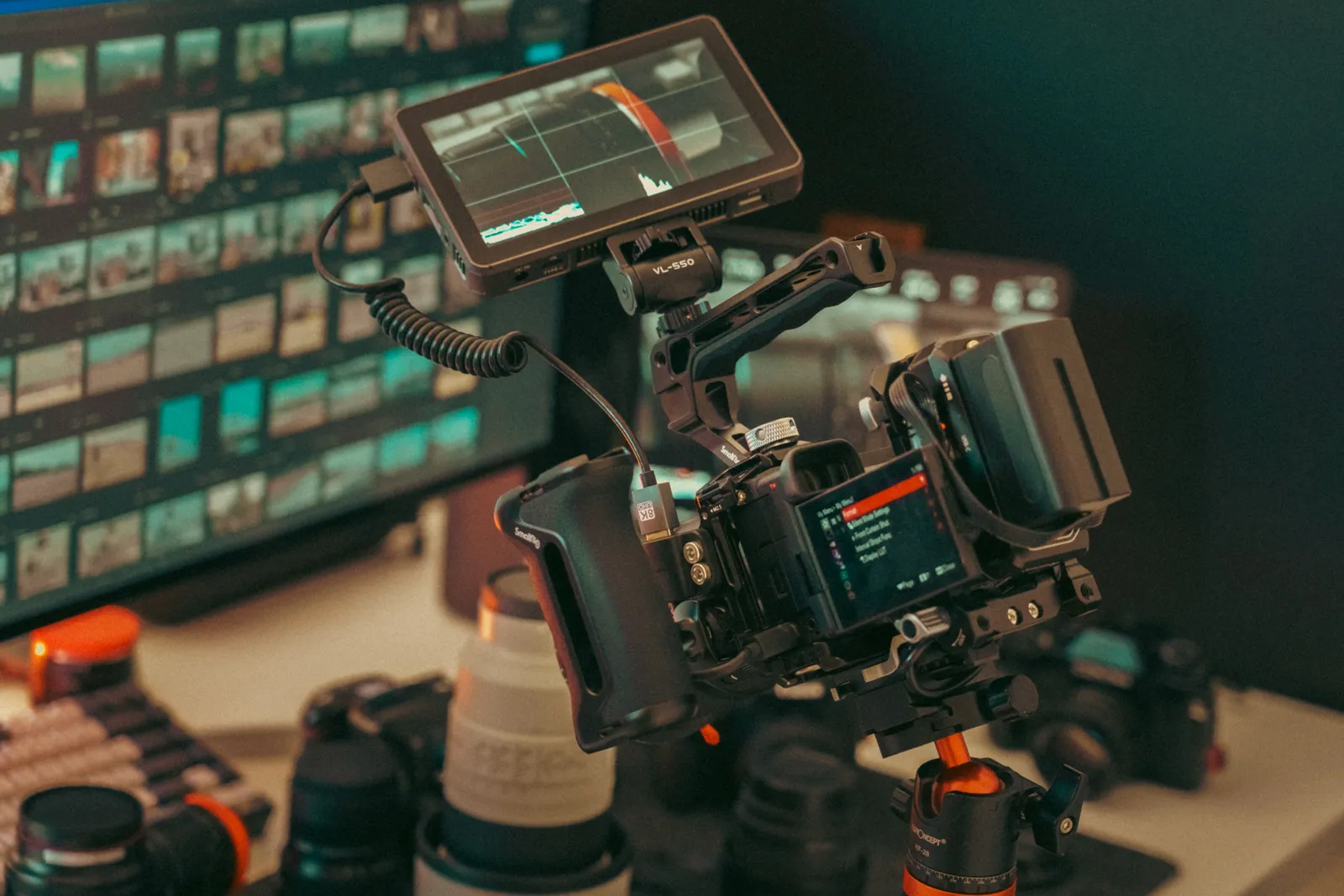
Owner and evidence: A designated QA reviewer signs off the checklist.
Safe fix: Fix any failed item and re-render. Do not publish until the checklist is clean.
Mistake 7: weak accessibility
Why it matters: People who are Deaf or hard of hearing may need captions or a transcript to use the video.
Concrete check: Verify captions are accurate, synchronized, and include relevant non-speech audio. Provide a transcript for longer content. Add a brief audio description if important visual information is not spoken.
Owner and evidence: The QA reviewer confirms accessibility during output QA.
Safe fix: Edit auto-generated captions for accuracy. Add missing non-speech cues. Publish a transcript.
Mistake 8: wrong platform disclosure
Why it matters: Platform rules differ. One label may not meet another site's rule.
Concrete check: Read the live rule before posting. Use YouTube's altered content rule or TikTok's AI content rule only on that site.
Owner and evidence: The publisher confirms the correct setting. Screenshot it for the record.
Safe fix: Stop and check the site's help page when the rule is unclear.
Mistake 9: provenance misunderstood as truth
Why it matters: Content Credentials show how an asset was created. They do not verify that every statement is true. Treating provenance as a fact-check is a mistake.
Concrete check: Confirm every factual claim has its own source, separate from provenance data. The C2PA specification describes Content Credentials as provenance data, not a truth guarantee (C2PA explainer).
Owner and evidence: The script owner maintains the claim-source list.
Safe fix: Add a note: “Provenance shows origin. It does not verify claims.”
Mistake 10: uncontrolled variants
Why it matters: Rendering multiple versions makes it easy to lose track of which one went live. An outdated variant can carry an error you already fixed.

Concrete check: Name every render with a version number, date, and short description. Keep a log that maps each published URL to its render version.
Owner and evidence: The publisher maintains the version log.
Safe fix: Archive old versions. Only keep the published version in your active library.
Mistake 11: broken links and exports
Why it matters: A bad link blocks the next step. A wrong crop may hide key text or the speaker.
Concrete check: After posting, click every link. Watch the published video on the target platform. Check the crop on mobile and desktop.
Owner and evidence: The publisher performs the live check and logs the result.
Safe fix: Fix broken links immediately. If the crop is wrong, re-export and re-upload.
Mistake 12: missing records
Why it matters: If a platform questions your video, you need quick access to consent records, source lists, and QA checklists.
Concrete check: Create a project folder. Include the script, claim sources, consent records, input sheet, output QA checklist, disclosure screenshot, and version log.
Owner and evidence: The producer is responsible for the complete record.
Safe fix: Build the folder as you work. Do not wait until after publication.
Compact risk register
Use this register to decide whether to ship. Assign severity and likelihood for your project.
| Risk | Severity | Likelihood | Owner | Evidence | Release gate |
|---|---|---|---|---|---|
| Unsupported claim published | High | Medium | Script owner | Claim-source list | Every claim has a dated source |
| Missing consent record | High | Low | Producer | Signed consent file | Consent file stored and verified |
| Wrong platform disclosure | High | Medium | Publisher | Disclosure screenshot | Platform setting matches current policy |
| Inaccurate captions | Medium | Medium | QA reviewer | Caption review log | Captions match audio and include non-speech cues |
| Broken post-publish link | Medium | Low | Publisher | Live-click check log | All links tested and working |
| Uncontrolled variant live | Low | Medium | Publisher | Version log | Only approved version published |
Worked illustrative preflight example
This is a process example, not a result or promise. Imagine a team making a product guide for YouTube.

Goal statement: “I want small-business owners on YouTube to visit the pricing page.”
Script QA: The draft includes a time-saving claim. The team checks its evidence and scope. It cuts one claim that lacks support.
Source QA: The face model uses a recorded consent form. The brand logo is the current version.
Output QA: The team fixes names in the captions. It decides the realistic altered video meets YouTube's rule, then turns on the Altered content setting (YouTube altered content disclosure). It also checks the Content Credentials and any available provenance data.
Live-post QA: The description link loads the correct page. The video is watched on a phone to check the crop. The disclosure label appears as expected.
Stop/ship decision: All release gates are green. The video ships. If any gate were red, the video would stop until the gate is cleared.
Frequently asked questions
Do disclosure and provenance cure all legal risks? No. Disclosure tells viewers AI was used. Provenance shows how the asset was created. Neither cures impersonation, rights violations, deceptive claims, or content that a platform prohibits even when labeled. Always secure consent and verify claims separately.
What is the difference between a Content Credential and a fact-check? A Content Credential is a cryptographically bound record of asset provenance (C2PA explainer). It shows where the file came from and how it was edited. It does not verify that statements within the video are true. Fact-checking is a separate process.
Do I need to label AI content on every platform? Not every edit has the same rule. YouTube requires disclosure for certain realistic altered or synthetic content (YouTube altered content disclosure). TikTok requires labels for realistic AI-generated images, audio, or video (TikTok AI-generated content). Check the live rule for each post.
How do I handle accessibility for AI-generated video? Provide accurate captions that include speech and needed non-speech audio. Offer a transcript for longer content. If important visual information is not spoken, add a brief audio description or text alternative. The W3C guidance covers these practices (W3C media accessibility).
What should I do if a platform changes its AI disclosure rules? Read the new rule. Check affected live posts. Fix the setting if needed, then log the change. Keep this check in live-post QA.
Pricing snapshot (Kyndrify product/price check: 26 September 2026)
Kyndrify uses a shared credit balance across supported tools. Subscription credits reset monthly and do not roll over, while pay-as-you-go packs last three months. Free provides 8,400 one-time signup credits that never expire (Kyndrify pricing). Check the live rate and terms before you plan the budget.
Disclaimer
This article provides general educational information about common AI video production mistakes and quality-assurance practices. It does not offer legal advice. For specific questions about consent, rights, platform compliance, or accessibility law, consult a qualified professional.
Related reading
More from Kyndrify



Make your first video without filming.
Say what you need and the studio makes it: video, images, voices. Start free, no credit card.