

Can You Edit AI Avatar Videos After Creation?
Yes, but the path depends on what you retained. Compare source-project edits, new script-based Renders, host trims, and exported-file edits.
Can You Edit AI Avatar Videos After Creation?
Yes, you can edit AI avatar videos after they are created. The path you take depends on what you kept from the original project and what your tool supports. There are four main approaches. You can edit inside the original source project. You can generate a fresh script-based Render. You can trim a published file on a hosting platform. Or you can edit the exported video file in a traditional editor. Each path changes what you can fix, how long it takes, and whether your video’s URL, view count, or embedded credentials stay intact.
Four paths to edit an AI avatar video
First, identify what you still have. The original project file, the source script, and the exported video each unlock different options.
1. Edit inside the original source project
If you built the video in a tool that stores a project file, you can reopen that project and make changes. Adobe Premiere Pro offers Text-Based Editing. It transcribes source footage. You can select, cut, and rearrange text in the transcript. This trims or adjusts linked clips on the timeline. Fine edits still happen on the timeline. Captions are generated from the final edited sequence, not from the transcript view.
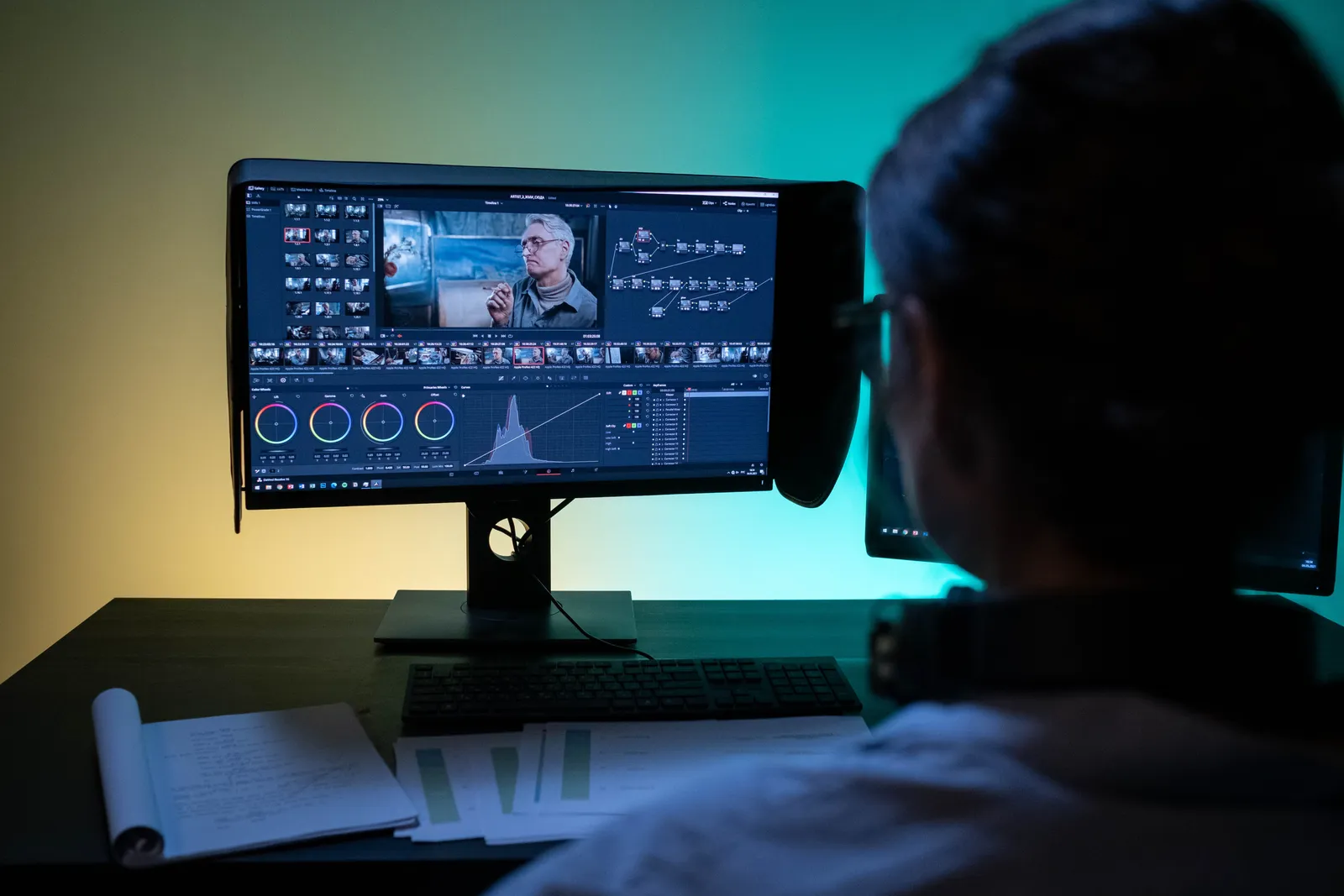
Synthesia documents a Storyboard view. You can edit a whole video script and add scenes. This is a Synthesia feature, not a rule for every AI video tool.
With the project file, you can often fix spoken mistakes, reorder scenes, or swap visuals. You must re-export the video. This may require a new upload if the video is already published.
2. Generate a new script-based Render
Some AI avatar platforms build videos from a script you supply. Kyndrify documents script-to-talking-head video where a user provides a script. A consented real-person Twin can deliver it. The approved Kyndrify pages do not document in-place project editing, partial rerenders, caption editing, B-roll swaps, visual replacement, translation, timeline tools, or revision speed. To change a spoken fact, you edit the script and create a new Render.
This path is simple for talking-head corrections. It produces a new output file. You must replace the old video. A new Render may carry AI disclosure or provenance where supported, but signed Content Credentials and invisible provenance are still rolling out and are not guaranteed on every file. Always inspect the final file. Re-encoding or further editing can strip embedded metadata.
3. Trim a published video on the hosting platform
If the video is live on YouTube, you can trim the start, end, or remove a middle section. YouTube Studio lets you make these cuts. The URL, view count, and comments do not change. The help page documents limits. These include video length and some high-view-count cases. Saved Studio edits cannot be reverted to the original through that feature. This path is narrow but useful for quick trims. It does not help with script errors, visual swaps, or disclosure updates.

4. Edit the exported file in a traditional editor
If you have only the finished MP4, you can import it into any video editor. You can cut, rearrange, or overlay corrections. This is the most flexible path for visual changes. It is also the most work. You cannot change what the avatar says unless you re-record or generate new footage and splice it in. Editing or re-encoding may affect embedded metadata and credentials. Verify the final file. Do not assume preservation.
What kind of edit do you need? A decision matrix
The table below maps common edits to the source asset you need. It shows if a new Render or export is likely. It notes what may change for your audience and the key quality checks.
| Edit class | Required source asset | New Render/export likely? | What may change | Key QA checks |
|---|---|---|---|---|
| Fix a spoken mistake | Original script or project file | Yes, unless you splice a correction | Video file; URL if re-uploaded | Re-watch the corrected segment; confirm disclosure and provenance on new Render where supported |
| Trim start, middle, or end | Published video on YouTube | No (platform edit) | Video duration; original file unchanged | Preview the trimmed version; note that YouTube Studio edits cannot be reverted |
| Reorder scenes | Project file with timeline or scene arrangement | Yes | Video file; URL if re-uploaded | Check scene transitions; regenerate captions from the final sequence |
| Swap B-roll or visuals | Project file that separates visuals from the avatar track | Yes | Video file; URL if re-uploaded | Confirm visuals match the spoken script; check for sync drift |
| Update captions | Final edited sequence or new script Render | Depends on tool | Caption track; video file if re-exported | Regenerate captions after the final edit; do not rely on transcript-mode captions |
| Change avatar identity or voice | Original Twin enrollment and new script | Yes (new Render) | Entire video file; URL if re-uploaded | Re-verify consent, disclosure, and provenance on the new Render where supported |
| Add or update AI disclosure | Source project that embeds credentials, or new Render | Yes | Video file; URL if re-uploaded | Inspect the final file for disclosure and provenance; re-encoding may strip them |
| Full rebuild | Script and any required source assets | Yes | Video file; URL if re-uploaded | Full QA pass: script accuracy, visual sync, captions, disclosure, provenance, platform compliance |
This matrix is a planning tool, not a guarantee. Your tool’s capabilities and platform rules determine the exact steps.

A version-control workflow you can follow
When a video represents your brand, ad-hoc edits create risk. Use a repeatable workflow.
- Freeze the published source. Save the exact script, project file, and exported video. Label it with a version number and date.
- Branch a revision copy. Duplicate the frozen source before making changes. Never edit the only copy.
- Document the change request. Write down what must change and why.
- Recheck claims and rights. Confirm you have the right to use any new claims, statistics, or visuals.
- Create the new output. Re-export from the project, generate a new Render, or edit the exported file.
- Compare old and new. Watch both versions side by side. Check for unintended changes.
- Regenerate captions after the final edit. Always generate captions from the final exported file.
- Inspect disclosure and provenance. Open the final file in a compatible inspector. Do not assume they survived your edit.
- Replace or upload under platform rules. If the platform preserves URLs, use that path. Otherwise, upload the new file and update links.
- Update the live log. Record the new version number, date, change summary, and location of new source files.
Illustrated example: correcting a wrong date
Suppose your published video says “Join us on March 15,” but the correct date is March 22. Here is how the correction might play out.
Path A: You have the original project file. Open the transcript or script panel. Change “March 15” to “March 22.” Confirm the linked clip updates. Re-export the video. Regenerate captions from the final sequence. Replace the old file. The URL may change if you re-upload.
Path B: You use a script-based Render platform. Edit the script text. Create a new Render. Download the file. Inspect it for disclosure and provenance where supported. Upload it in place of the old video. The new Render is a separate output. The old hosted link may need an update.
Path C: The video is on YouTube and the mistake is at the very end. Use YouTube Studio to trim the last few seconds. The URL, view count, and comments stay the same. This only works if the error is in a trimmable section.
Path D: You have only the exported MP4. Import it into a video editor. Cut around the mistake. Overlay a corrected audio clip or text card. Re-export and re-upload. Check that any embedded credentials are still intact. Re-encoding can remove them.
Full QA checklist for edited AI avatar videos
Run through this checklist before you publish an edited version.
- Spoken content matches the approved script exactly.
- Visuals are in sync with the audio.
- Captions are regenerated from the final exported file and match the spoken words.
- AI disclosure is present and visible, if required.
- Content Credentials are embedded and verifiable, if supported.
- Invisible provenance is intact, if the tool adds it.
- Video file plays correctly on target devices and platforms.
- URL, view count, and comments behave as expected after replacement or trim.
- Version number and change log are updated.
Frequently asked questions
Can you edit an AI avatar video without the original project file? You can trim a published video on YouTube or edit the exported MP4 in a traditional editor. You cannot change what the avatar says unless you splice in new footage or generate a new Render from the original script.
Does editing the script always require a full re-render? In script-based platforms, changing the script typically means creating a new Render. The approved Kyndrify pages do not document partial rerenders or in-place project editing. Check your tool’s documentation.
Will my video’s URL change after I edit it? It depends on the platform. YouTube Studio trims preserve the URL. Re-uploading a new file usually creates a new URL. Plan for this if your video is embedded elsewhere.
Can I edit captions separately from the video? In some tools, captions are tied to the script and update when you re-render. In others, like Adobe Premiere, captions are generated from the final edited sequence. Always regenerate captions from the finished export.
Do edits affect AI disclosure or provenance data? They can. Re-encoding or editing in external software may strip embedded Content Credentials, invisible provenance, or disclosure markers. Inspect the final file rather than assuming preservation.
A note on pricing and tool capabilities
This article describes general editing approaches and documents specific facts from official sources as of July 2026. Kyndrify product and pricing facts were separately rechecked on 26 September 2026: Kyndrify uses a shared credit balance across supported tools, with subscription credits that do not roll over and pay-as-you-go packs valid for three months. Other tools have their own models. Capabilities, prices, and limits change. Always recheck the official pages for the tools you use.
Related reading
- Can You Change an AI Avatar's Appearance?
- Can You Make Money With HeyGen AI Videos?
- Can You Make Money With AI Avatars?
Disclaimer: This article provides general information and documents vendor facts as of the checked date. It does not guarantee that any specific tool will behave exactly as described in every scenario. Always test your workflow on a copy of your project and verify the final output before publishing.
More from Kyndrify


Make your first video without filming.
Say what you need and the studio makes it: video, images, voices. Start free, no credit card.