

Freeform video from a sentence.
Freeform video is what editors call b-roll: the supporting footage that carries a scene while nobody is talking to camera.
Already have an account? Sign in
Free to start · No credit card
Freeform video from a sentence.
Freeform video is what editors call b-roll: the supporting footage that carries a scene while nobody is talking to camera. Describe a scene or add a reference still, then pick a model, an aspect ratio, and a clip length. Kyndrify renders a short clip for you to review and layer into your edit, with no location scout or stock search to start.
Free to start · no camera, no crew · no credit card

Part of Product.
What it looks like to use.
One line about the shot, a still to steer the look if you have one, then the model, the shape and the length. The clip comes back in the same place you asked for it.
 A still to steer the lookLight and colour, no real person's face
The model you pick decides the shapes and the clip lengths on offer, so nothing here can be set to something the render will not come back in.
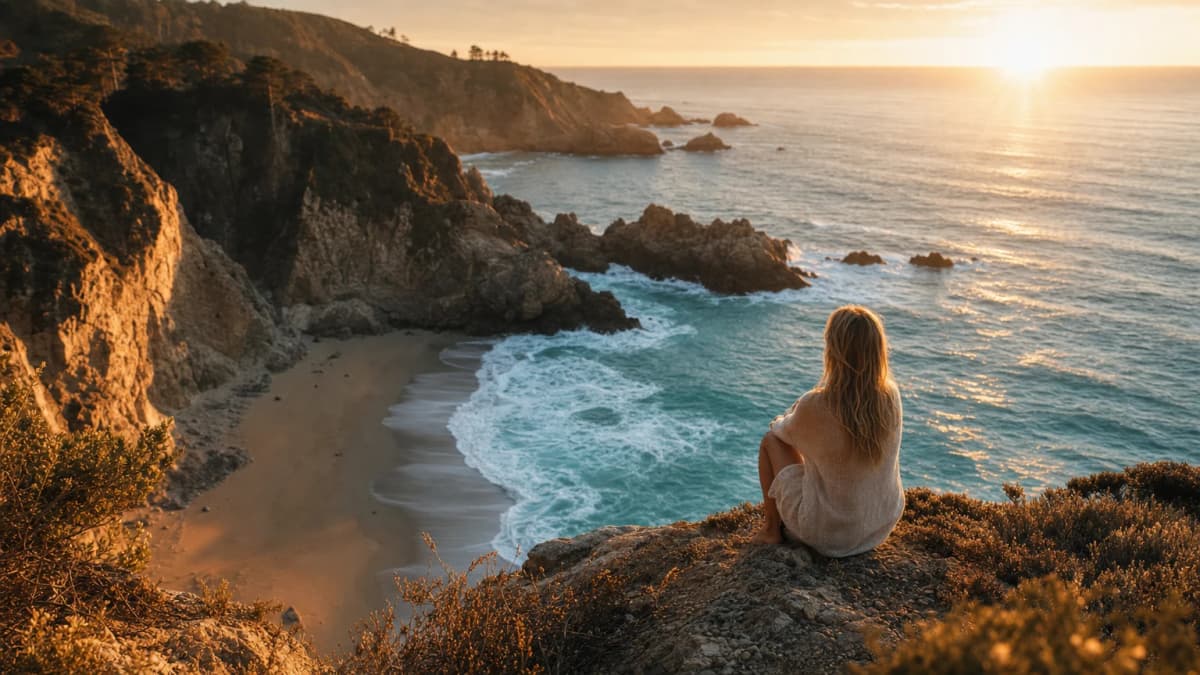 Made with Kyndrify16:9 · 8s
Watch it, keep it, or change a word and render again.
Set the scene for any story.
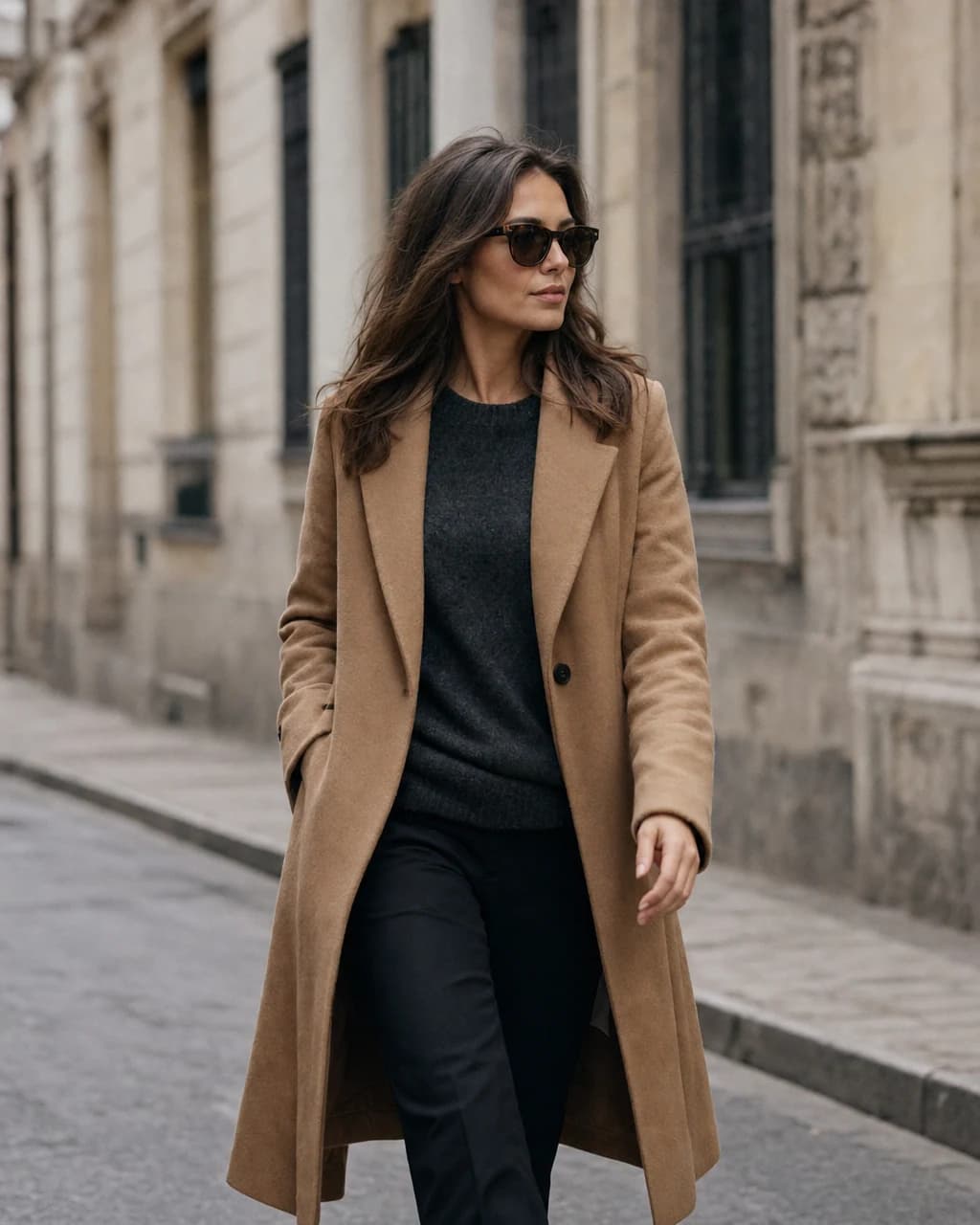 Opening shotA street at first light
Establishing shots
Prompt for a city skyline, a quiet coastline, or a busy street. Use the result as an opening shot after checking that it fits your brief.
 Steam, slowLight on marble
Atmosphere and texture
Ask for rain on glass, steam over coffee, or light through trees. Add visual texture without filming a separate insert shot.

 Your take, then a cutawayDrop it in
Cutaways for any video
Build short cutaways for a talking-head video, an ad, or a social edit. Review the clip, trim what you need, and place it on your timeline.
See what it makes.
Real freeform video made in Kyndrify from a line of text, with no camera and no stock license. Judge the quality for yourself.


From idea to finished, in minutes.
Describe the scene
Rain on a shop window at night, warm light behind the glass.
01Describe the shot
Write the scene, mood, and time of day in plain words. You can also add a reference still to steer the composition, as long as it carries no real person's face.
- Cinematic · Ultra16:98sAlso1:19:164s to 15s02
Set the output
Pick the model first. It decides the shapes and the clip lengths on offer, so the widescreen, vertical or square you choose is one the render will actually come back in.
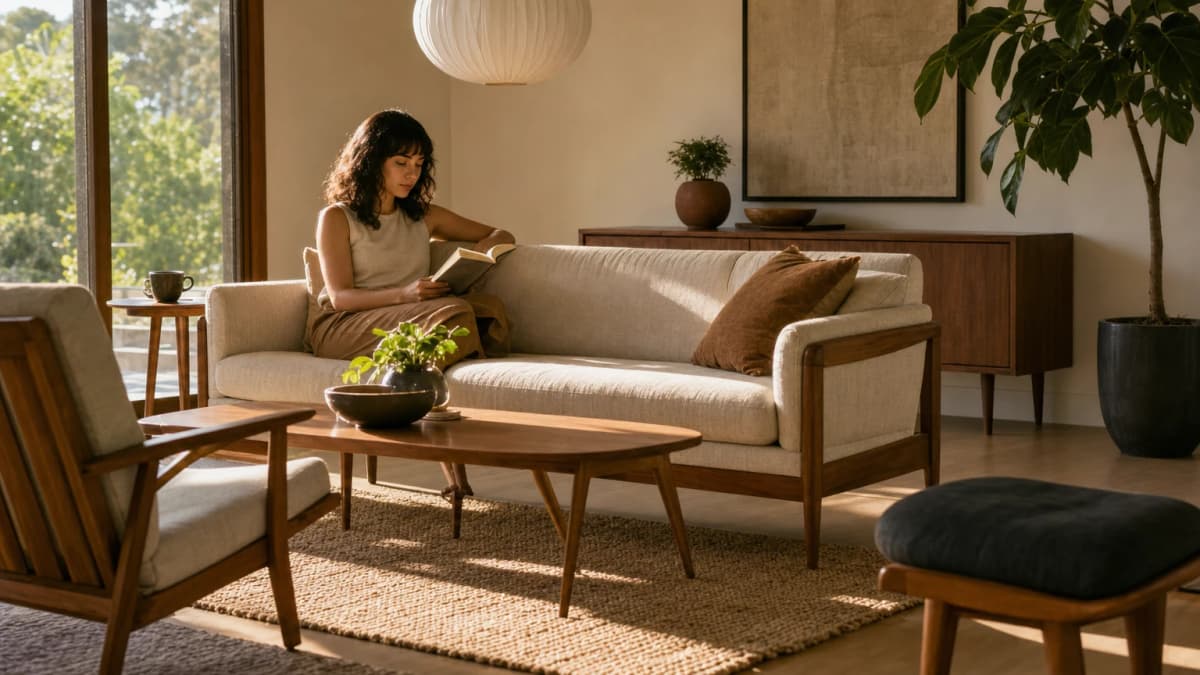 Keep itChange a word, render again03
Render and review
Review the credit cost, render the clip, and check the motion, framing, and details. Download the result you want to use.
Cinematic freeform video from text
No crew
Establishing shots and atmosphere from a line of text, no person needed.
Wherever you create.

Education & training
Teach without filming
Lessons, courses, onboarding, and SOPs. Update the script, re-render, done.
See use case

Marketing & ads
Ads that look shot, never filmed
UGC, product videos, photos, and copy. A whole campaign, no shoot.
See use case

Sales
Prospect videos that stand out
Personalized intros, follow-ups, and recaps at scale.
See use case
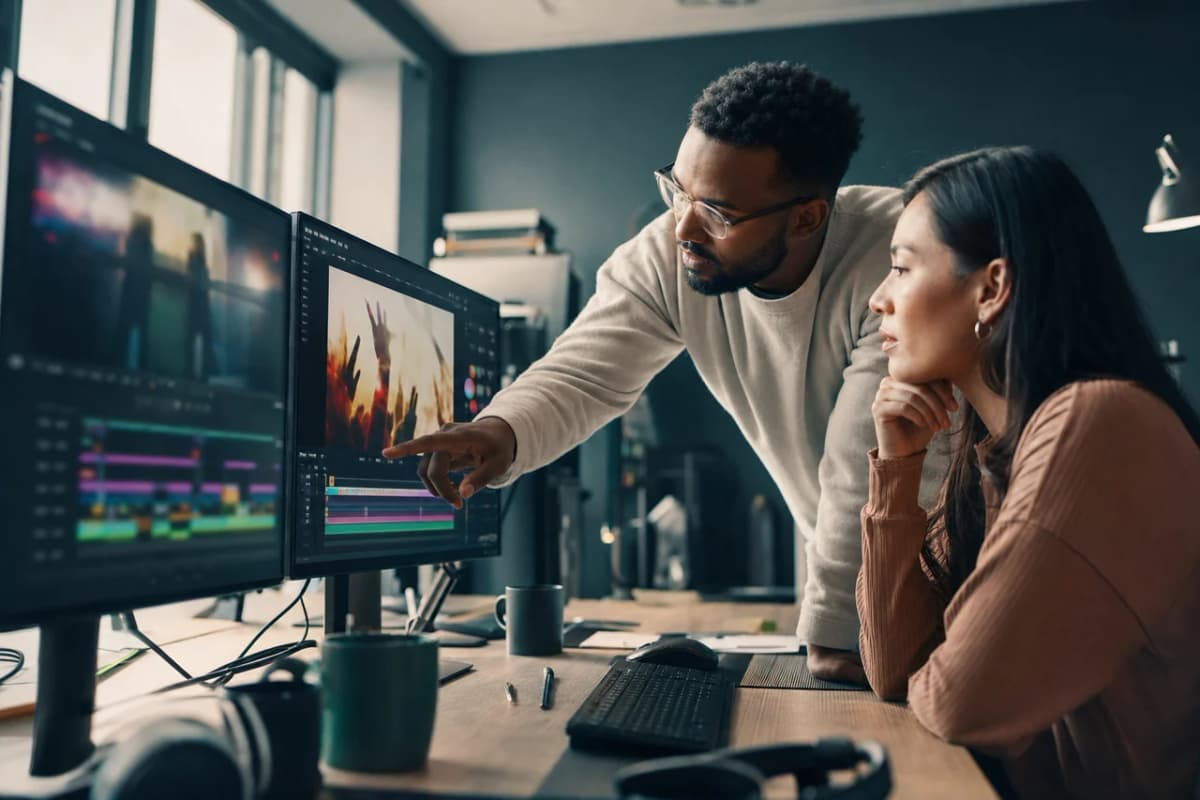
Agencies
Client work, multiplied
A Digital Twin per client, one Workspace, billed your way.
See use case
What people are saying.
From clients of the studio behind Kyndrify. First names and last initials, so people keep their privacy.
We've tried a few AI video tools and this is the one our team kept using. It's fast and the videos look good.
Sarah L.
Creative Director
I don't miss setting up my camera every time I have a new listing lol. This is way easier.
Michael T.
Real Estate Agent
I had to update one lesson after a policy change. Changed the script, made a new video, done.
Emily C.
Course Creator
We use it to explain treatments before appointments. Patients seem to come in with fewer questions now.
Dr. James P.
Dentist
The product changes all the time, so recording new demos was getting old. Kyndrify fixed that problem for us.
Alex R.
Customer Success Manager
Honestly just makes onboarding easier. Everyone gets the same message and we don't have to record new videos all the time.
Nicole V.
HR Manager
It still feels weird seeing an AI version of me, but my clients have been really positive about it.
David M.
Financial Advisor
We've been making quick product videos for launches. It's been working better than I expected.
Olivia S.
Store Owner
Our team is tiny, so anything that saves us time is a win. We've already used it for volunteer updates and donor messages.
Rachel A.
Communications Lead
One small change used to mean re-recording a whole training video. Now we just update it and move on.
Kevin H.
Training Manager
Your face, your voice and your work, handled with care.
Quick answers.
- What is AI freeform video?
- Freeform video is supporting footage rendered from a written scene description or a compatible reference image. It can provide establishing shots, atmosphere, and cutaways that sit around the main subject of a video.
- How do I generate freeform footage?
- Describe the shot, optionally add a reference still that carries no real person's face, and pick a model. Choose one of that model's supported aspect ratios and clip lengths, review the credit cost, then render and inspect the result.
- Do I still need stock footage?
- Not always. Kyndrify can fill gaps when a stock search is slowing down your edit. Stock or original filming may still be the better choice when you need an exact real place, person, product, or documented event.
- What kind of freeform clips can I make?
- You can explore wide outdoor scenes, interiors, objects, natural textures, abstract atmosphere, and other supported concepts. More detail in the prompt and a useful reference composition can guide the result, but every render can vary.
- Can I use the AI freeform video commercially?
- You can use outputs in your projects when you have the right to every source you provide, your plan permits it, and the use follows our Terms and Acceptable Use Policy. Review the footage and add any disclosure your channel or local rules require.
Freeform video for your edit, without a shoot.
Free to start. No camera, no crew, no credit card.