

Upscale Existing Video or Record It Again?
A practical decision guide for choosing between upscaling old footage and reshooting. Includes a keep/upscale/reshoot table and clip tests.
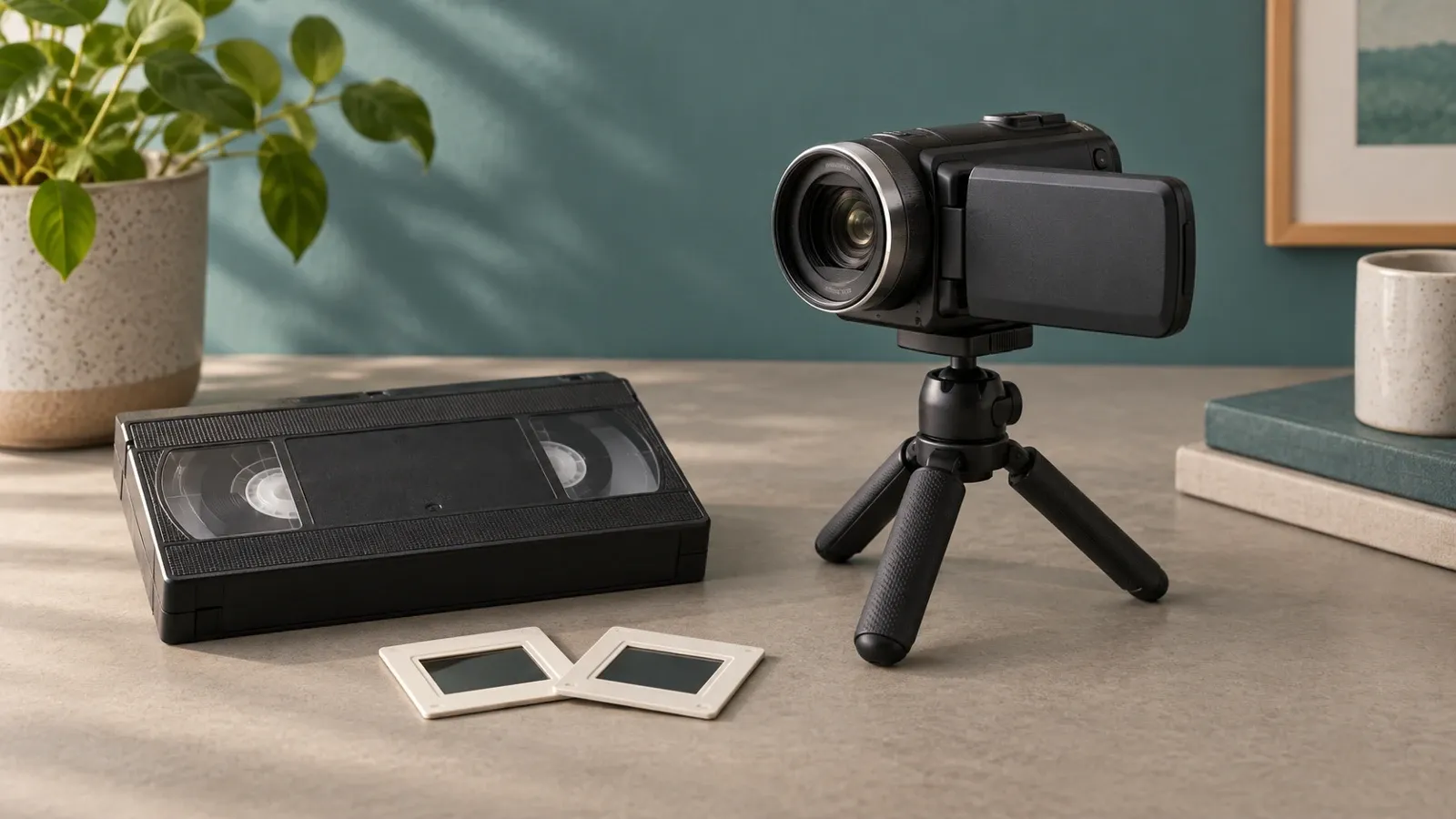
Upscaling can make old footage look bigger. It cannot always make it look true. The right choice depends on your source, your use case, and what you can verify. This guide gives you a practical method to decide. You will learn when to keep the original, when to upscale, and when to record again.
Start with the source, not the tool
Before you open any upscaler, find the best version of your video. Repeated compression may discard useful information. Look for the original file on the camera, phone, or drive where it was first saved. Check your cloud backups and editing project files. A higher-quality source often beats any upscaling pass.
If the original is gone, work with the best copy you have. Keep an untouched source and save tests as clearly named derivatives. Note its resolution, frame rate, and bitrate. These numbers are clues about what upscaling can do. They are not hard ceilings. A clean low-resolution clip can sometimes upscale well. A heavily compressed high-resolution clip can upscale poorly.
Upscaling is not detail recovery
AI video upscaling predicts new pixels. It does not recover pixels that were never captured. The model studies patterns in your footage and fills in what it thinks should be there. This can look natural. It can also invent textures, faces, or text that were not in the original.
Research on real-world video super-resolution shows a key tradeoff. In tested models, carrying information across many frames can help with mild image damage. But severe degradations can be exaggerated as information passes between frames, which hurts output quality. The authors found that a pre-cleaning stage helps reduce noise and artifacts before sharing information between frames. This matters for your decision. If your footage has heavy noise, compression artifacts, or motion blur, upscaling may make those problems worse, not better. See the full paper for details: Investigating Tradeoffs in Real-World Video Super-Resolution.
Do not use guessed letters, faces or textures as forensic evidence. Higher pixel count does not equal verified detail. A 4K upscale of a blurry clip may look sharper. But the new detail is a guess, not proof of what was really there.
Test a short representative clip first
Do not upscale your whole video on a guess. Pick a 10 to 20 second clip that shows the hardest parts of your footage. Include faces, small text, fast motion, and dark areas. Run that clip through your chosen upscaler. Then review it carefully.
Check the clip at normal speed first. Watch for flicker, shimmer, or warping. Then pause on key frames. Look at faces, hands, and text. Ask these questions:
- Does the face look like the same person?
- Can you read the text correctly?
- Do edges stay stable from frame to frame?
- Does motion look smooth or smeared?
If the test clip fails these checks, upscaling the full video will not fix it. You need a better source or a reshoot.
The keep, upscale, or reshoot decision table
Use this table to sort your footage. Answer each question honestly. Do not count columns as votes. One truth failure can veto an upscale. If faces or text look wrong, reshoot or keep the original.
| Check | Keep original | Upscale | Record again |
|---|---|---|---|
| Source quality | Already clean and sharp | Mild issues like slight softness | Heavy compression or missing original |
| Detail needs | No fine text or faces to verify | Some detail, but not critical | Faces, text, or product details matter |
| Motion | Stable, minimal movement | Moderate motion | Fast motion or heavy shake |
| Noise and artifacts | Clean | Mild noise or compression | Heavy noise, banding, or blocking |
| Use case | Internal or small screen | Social media or web | Large screen or client work |
| Time and budget | No time to reshoot | Limited time, moderate budget | Reshoot is possible and affordable |
This table is a guide, not a rule. Your specific footage may cross categories. When in doubt, test a clip and trust what you see.
A worked example: the storefront clip
Imagine a small bakery owner named Ana. She has a 30-second clip of her storefront from three years ago. The clip is 720p, shot on a phone in the evening. She wants to use it in a local ad on a large screen at a community event.
Ana checks her source. The original phone file is gone. She only has a compressed copy from a messaging app. The clip shows her storefront sign, which has small text. There is also a person walking past quickly.
She runs a 10-second test clip through an upscaler. At normal speed, the clip looks slightly sharper. But when she pauses on the sign, the text is smeared. The upscaler invented letter shapes that do not match her real sign. The walking person has a warped arm in one frame.
Ana checks the decision table. Her source is heavily compressed. Fine text matters. Motion is present. Noise is visible. Her use case is a large screen. The incorrect sign and warped arm rule out this test export. She decides to reshoot the storefront on a clear morning with her current phone. The new clip is 4K, stable, and shows the sign clearly. She archives the untouched original with its date and keeps the reshoot as the primary version. She does not reuse the failed upscale.
This example is fictional. It shows the method, not a promised result.
Edge cases to watch for
Some footage sits between categories. Here are common edge cases and how to handle them.
Old family videos. These often have sentimental value and no reshoot option. Upscaling can help mild cases. But faces may warp. Test a clip with faces before committing. If faces look wrong, keep the original and accept the softness.
Screen recordings. Text and UI elements are common here. Upscaling can blur or invent text. If the text must be readable, record again at a higher resolution. If the text is decorative, upscaling may be fine.
Night or low-light footage. Noise is common. Upscaling can amplify noise into visible artifacts. A pre-cleaning pass may help, but results vary. Test before you commit.
AI-generated video. If you made the video with an AI tool, you may be able to render it again at a higher resolution. Check your tool's export options before upscaling. For format and resolution guidance, see AI Video Formats and Export: A Simple Guide.
Interlaced footage. Old camcorder video may be interlaced. Upscaling interlaced footage without deinterlacing first creates comb-like artifacts. Deinterlace first, then test upscaling.
Choppy footage. If your footage stutters, check playback and export settings first. The problem may be a frame rate mismatch, not missing frames. If the source truly has a low frame rate, upscaling will not fix it. You can keep its original motion, test interpolation, or record again if feasible.
Upscaling versus interpolation
These terms are not the same. Upscaling increases spatial resolution. It adds pixels to each frame. Interpolation increases temporal resolution. It creates new frames between existing ones to make motion smoother. Some tools do both. Some do only one.
A resolution change alone does not change the frame rate. Check playback and export faults before choosing interpolation or a new capture. Added frames can also create artifacts; test them separately. Know which problem you have before you pick a tool.
A practical worksheet
Copy this worksheet into your notes. Fill it out for each video you are unsure about.
Video name:
Current resolution and frame rate:
Best available source:
Use case and screen size:
Critical details (faces, text, products):
Motion level (low, moderate, high):
Noise and artifact level (clean, mild, heavy):
Reshoot possible? (yes, no, maybe):
Test clip result (pass, fail, mixed):
Decision (keep, upscale, reshoot):
Reason in one sentence:
This worksheet forces you to check the source and the use case before you spend time upscaling.
Frequently asked questions
Can upscaling recover detail that was never recorded?
No. Upscaling predicts plausible detail based on patterns in the footage. It cannot recover information that the camera did not capture. If the original clip is blurry, the upscaled clip may look sharper. But the new pixels are guesses, not recovered truth.
What resolution should I upscale from?
There is no universal threshold. A clean low-resolution clip can upscale well for web use. A heavily compressed high-resolution clip may upscale poorly. Test a short clip and review faces, text, and motion. Your eyes on your footage are the best guide.
Is it better to upscale or reshoot for client work?
Record again when critical details fail review and a new capture is feasible. A client project does not automatically need a reshoot. Upscaling can introduce artifacts that a client may notice on a large screen. If a reshoot is not possible, test the upscale carefully and share the test clip with the client before committing.
Your next step
Pick one video you are unsure about. Find the best source. Fill out the worksheet. Run a 10-second test clip. Review it at normal speed and paused. Then make your decision based on what you see, not on what the tool promises.
If you are creating new video instead of fixing old footage, start with the right export settings. See AI Video Formats and Export: A Simple Guide for a plain walkthrough. If you want to avoid common production errors before they happen, read Common AI Video Mistakes (and How to Fix Them).
For still images rather than video, the decision process is similar but simpler. See How to Upscale Low-Quality Images With AI for a step-by-step image guide.
The best upscale is the one you verify. Test small, review carefully, and reshoot when the truth matters.
This article provides general educational information about video upscaling decisions. It does not offer legal advice. For questions about rights, consent, or commercial use of footage, consult a qualified professional.
More from Kyndrify


Make your first video without filming.
Say what you need and the studio makes it: video, images, voices. Start free, no credit card.