

What an AI Video Editor Actually Does
Learn what an AI video editor can and cannot do. We cover auto-cutting, captions, reframing, cleanup, and generation, and where human review still matters.

An AI video editor is software that helps you shape footage by proposing or applying edits based on patterns it finds in the audio and picture. It can trim silence, suggest cuts, generate captions, and sometimes create new clips. But it does not replace human judgment. This article explains the main tasks in plain terms, where the tools help, and where they fall short.
Two different jobs: editing and generating
It helps to separate two things that often get lumped together.
AI-assisted editing works on footage you already recorded. The tool reads the audio and video, finds patterns such as long pauses, repeated words, or scene changes, and proposes edits. You review and approve them.
Generative AI video creates something new from a text prompt or an image. This is not editing existing footage. It is making a short scene from scratch. Some products do both, but the workflow and the risks are different.
This article focuses mainly on AI-assisted editing of captured footage.
How AI video editing works
Most AI video editors follow a similar path. You bring in a file. The tool transcribes the speech and analyzes the picture. It looks for silence, filler words, false starts, faces, and motion. Then it proposes changes, usually as a list of cuts or adjustments you can accept or reject.
Controls vary by product. Check whether an edit is proposed or applied at once, and whether you can undo it. You remain responsible for the story and the meaning of each cut.
Core tasks an AI video editor can handle
The exact features vary by product. Some tools focus on one speaker talking to a camera. Others handle multi-camera interviews or vertical reframing. Always check what a specific tool actually does before you rely on it.
Auto-cutting and trimming
Many tools can find dead air, long pauses, and repeated starts. They propose cuts so you can tighten a rough take quickly. This is useful for talking-head videos, screen recordings, and simple presentations.
What to check: the tool may cut a pause that carries meaning. It may trim a breath that helps a joke land. Always watch the full timeline before you export.
Automatic captions
Speech-to-text models turn spoken words into timed captions. This helps with accessibility and keeps viewers engaged when the sound is off. Some tools draw captions directly into the picture. Others export a sidecar file such as SRT or VTT.
W3C guidance on captions makes a key point: automatic captions are not sufficient on their own. They usually need significant editing. A single missed word such as "not" can reverse the meaning of a sentence. The W3C gives an example where spoken audio says "You should not preheat the oven," but an automatic caption reads "You should know to preheat the oven." That is a dangerous error.
Always proofread every caption line. Check names, numbers, and negations carefully. If the video includes meaningful non-speech audio, such as a door slam or a phone ringing, consider whether the caption should note it.
Reframing for vertical video
Some tools can convert a landscape clip into a square or vertical format. They may track a subject and try to keep it in frame. This can save time when you repurpose a video for social media.
But subject tracking is not universal. Some editors do not follow a speaker at all. In those cases, you place the crop window yourself. Even when tracking exists, the tool may miss a key prop, a hand gesture, or a second person entering the frame. Check every reframed shot.
Cleanup and enhancement
Some tools reduce background noise, tidy up audio, or adjust lighting. These fixes work best on small problems. A slightly noisy room can become cleaner. A very dark clip will not become perfect. A muffled voice may still sound odd.
Treat cleanup as a light polish. Do not expect restoration-level results.
Video generation
Some AI video editors can create clips from text or images. You type a prompt, and the model generates a short scene. The results can be surprising and useful as raw material. But generated clips often have problems with fine detail. Hands, text, and complex motion may look wrong. Treat generated clips as a starting point, not a finished shot.
What an AI video editor cannot do well
AI tools have clear limits. Knowing them saves you frustration.
- Storytelling. The tool does not feel pacing or tension. Its proposed story may miss the point you need to make.
- Context. It does not know your audience or which shot matters most.
- Brand voice. It will not match your unique style unless you guide it.
- Final polish. Small errors in captions, cuts, or color still need your eye.
- Consent and disclosure. The tool does not know whether you have permission to use a person's likeness or voice. That responsibility stays with you.
The best results come from a partnership. Let the AI do the first pass. Then you refine.
A simple decision framework
Use this quick guide when you edit video with AI.
- Start with a clear goal. Know where the video will live. A long-form explainer needs different cuts than a short vertical teaser.
- Let the AI make the first pass. Use auto-cut to remove silence. Generate a caption track. Try auto-reframe if the tool supports it.
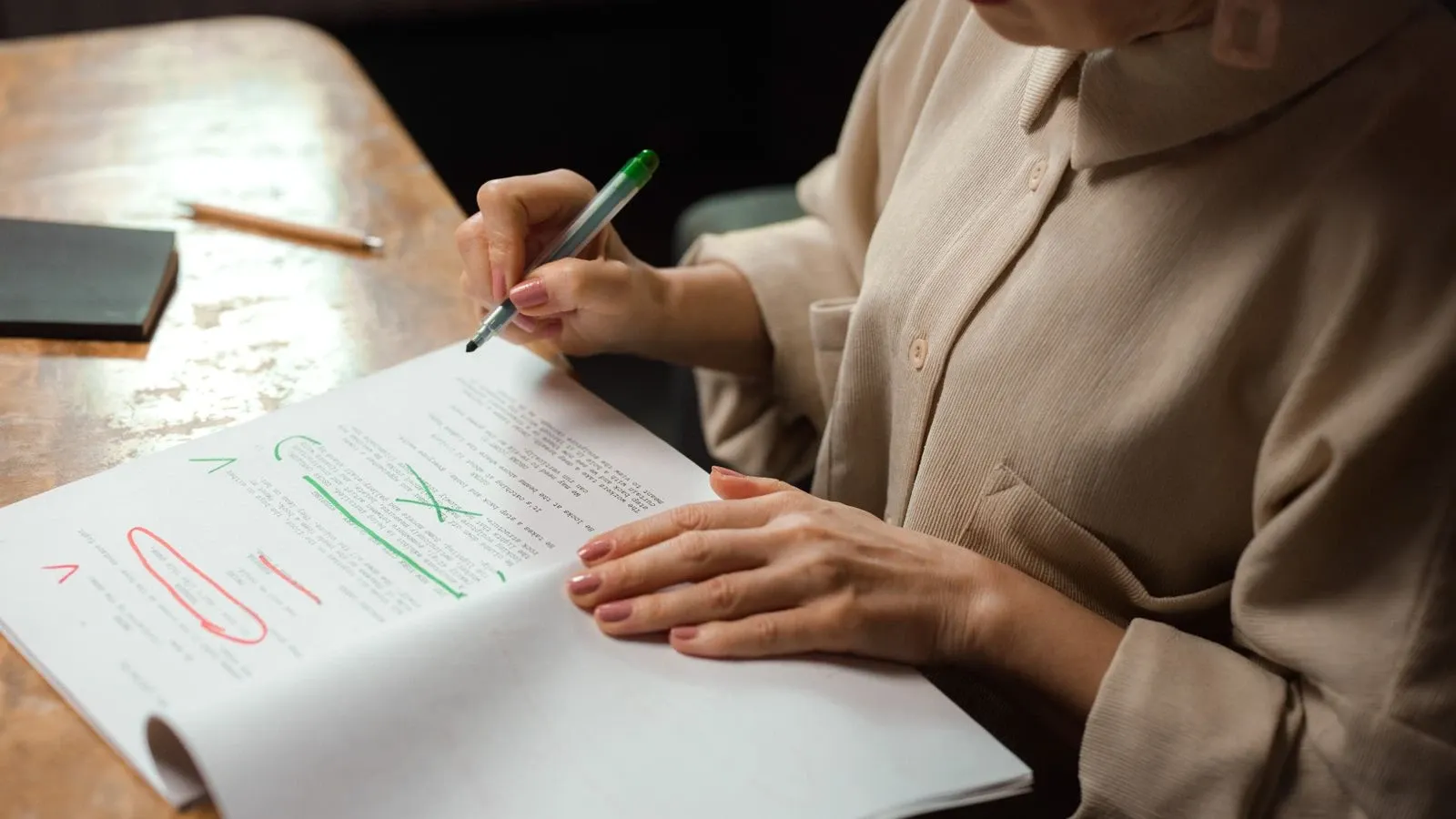
- Review every change. Watch the rough cut. Read every caption word. Check the reframed crop.
- Apply human polish. Adjust pacing. Fix caption errors. Tweak color and sound.
- Export and test. Watch the final file on a phone and a desktop. Check how it feels.
This workflow keeps you in charge. The AI video editor speeds up steps two and three. You own steps one, four, and five.
A worked example: one speaker, one take
Imagine you recorded a four-minute video on your phone. You are the only person in the frame, talking directly to the camera. You said "um" several times, paused for ten seconds at the start while you adjusted the phone, and repeated one sentence twice.
You bring the file into an AI video editor built for one speaker. The tool transcribes the take. It proposes cuts for the long opening pause, the filler words, and the repeated sentence. It shows each proposed cut as a group you can keep or drop.
You review the list. You accept the opening trim and most of the filler cuts. But you keep one pause because it comes right before your main point and gives the line room to breathe. You reject one filler cut because removing it makes the sentence sound rushed.
Then you turn on captions. The tool generates a timed caption track. You read every line. You fix a word the tool misheard and add a note that a phone buzzes in the background, because the buzz matters to the story.
Finally, export with the caption format your editor and destination support. That may mean captions drawn into the picture, or a separate SRT or VTT file. Do not assume every tool offers both. You watch the export on your phone and your laptop before publishing.
This is the realistic workflow. The tool saved you time on the repetitive work. You made the creative calls.
Edge cases to watch for
- Two-person recordings. Some tools can clean up a shared audio track but cannot switch between two cameras. If your podcast needs the picture to cut to whoever is speaking, check whether the tool supports that before you start.
- Non-English filler words. A tool may find long pauses and repeated starts in any language, but its filler word list may be English-only. The "ums" in another language may stay.
- Meaningful non-speech audio. Captions should include sounds that matter to the story, not just speech. Automatic tools often miss these.
- Export compatibility. Caption styling and sidecar file behavior can vary by player and platform. Test the final file where it will actually be watched.
Where Kyndrify fits
The current Kyndrify video editor is built for one person talking to a camera. Its cutting tools propose groups of changes for you to keep or drop. It does not switch between cameras or track a moving speaker for you. The matched filler-word list is English. It does not schedule posts or send exports to social channels, and it does not run an unattended batch of webinar clips. Check those limits against your project before you begin.
Frequently asked questions
Can an AI video editor replace a human editor?
No. It can handle repetitive tasks such as silence removal and caption drafting. It cannot replace human judgment, taste, or storytelling skill. You still need a person to make the final calls.
Is AI video editing hard to learn?
Some tools simplify common edits. You still need to learn their limits and controls. Practice with short clips first.
Does AI video editing work for long videos?
Yes, but with care. Auto-cutting a long talk can save time. However, the tool may miss subtle shifts in tone. Review a long edit in small sections.
Are AI-generated captions accurate enough to post?
Not without a review. Background noise, fast speech, and unusual words cause mistakes. The W3C states that automatic captions do not meet accessibility requirements unless they are confirmed to be fully accurate. Always proofread the full caption track before you publish.
What kind of footage works best with an AI video editor?
Clear, well-lit footage with clean audio works best. The models struggle with dark scenes, shaky video, and loud background noise. Start with the best raw material you can.
Before your next edit
An AI video editor is a smart assistant, not a replacement for an editor. It can find silence, propose cuts, draft captions, and sometimes generate new clips. Do not assume it understands your story or audience well enough to approve the final cut. Use it for the first pass. Keep the final decisions for yourself.
Disclaimer: This article explains general AI video editing concepts. Features and results vary by tool. Always test your own workflow before publishing.
Related reading
More from Kyndrify


Make your first video without filming.
Say what you need and the studio makes it: video, images, voices. Start free, no credit card.