

The AI video editor built for one person talking to a camera
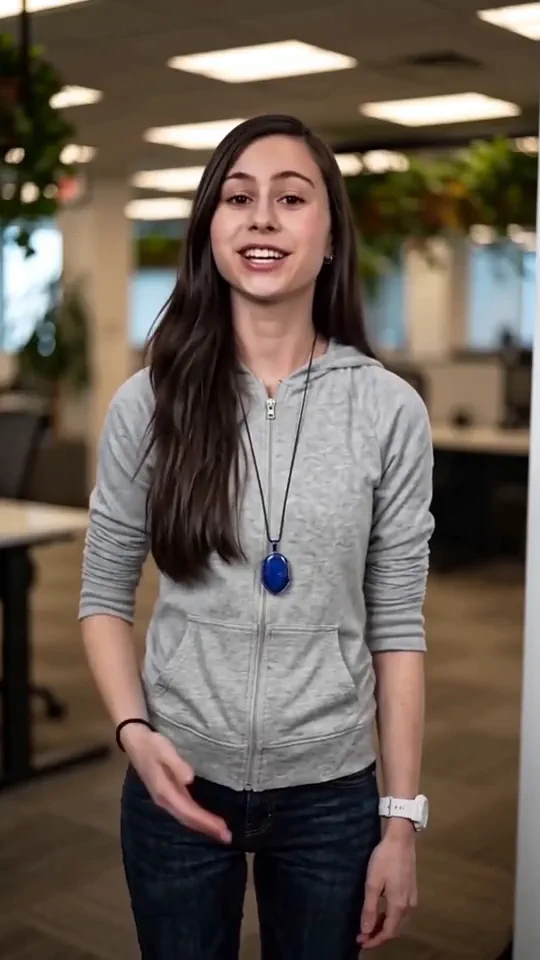
Bring a take. Cut the stumbles, add captions, export a tidy version.
Already have an account? Sign in
Free to start · No credit card
The AI video editor built for one person talking to a camera
Bring a take you already recorded. The shelf finds the dead air, the ums and the sentence you started twice, shows you every cut before it happens, and hands back a tidy version to export.
One person, one camera, captions drawn into the picture in the room.
This room is built for one speaker. It does not switch between two cameras, and nothing follows a speaker around the frame.
Part of AI video generator.
What does the Kyndrify video editor actually do?
Kyndrify's editor is a room for one person talking to a camera. Bring a take you recorded, or a video you rendered here, and a shelf of one-tap tools proposes the cuts, captions, cutaways, music and zooms. You approve each group before anything moves. Opening and editing cost nothing. Exporting costs 20 credits a second.
Who it is for
Anyone with a recording of themselves talking, on every plan, the Free one included.
What you need
A video file, as mp4, mov, webm, m4v or mkv. A video you already rendered here works the same way, and you can open an empty room and add the footage afterwards.
What it costs
The room, the transcript and every tool on the shelf are free. A video export costs 20 credits for each second of finished timeline, with a minimum of 60 credits. A sound-only export costs 5 credits a second, with a minimum of 15 credits.
What it does not do
It does not switch between two cameras, and nothing follows a speaker around the frame. The filler list it matches against is English.
Read the words in the clip above
Hey, welcome! I'm really glad you're here.
This is where I share what I'm learning, in short, simple videos.
If you're new, start from the top and follow along. See you inside.
Who this is for, and who it is not for
One job, done properly. The narrowing is the product, so here it is before you spend a click.
A webcam take, a phone video, a screen recording with your face in the corner, or a video you rendered here. If that is what is sitting on your desktop, everything below fits it.
And here is who should use something else, said now rather than in week three.
You are cutting a two-camera interview. Nothing here switches between cameras.
You want a wide take turned vertical with the speaker kept in frame. Nothing follows a speaker around the frame, so you place the window yourself.
You want the finished file posted for you. There is no scheduler and no connection to the places you publish.
You want thirty shorts out of one webinar, unattended. The room scores the passages worth cutting and then waits for you. Nothing here runs a batch while you sleep.
Everyone else: the take you recorded on Sunday and have not opened since is the exact file this room was built for. It is the same room a creator uses to get a week of content out of one filming session.
How an edit goes.
- 1
Bring the take.
Drop a video file, as mp4, mov, webm, m4v or mkv. Or start from a video you rendered here. You can also open an empty room and add the footage later.
- 2
Let it read.
The room turns your take into words, and that costs nothing. Once the words are there, every tool knows where each sentence sits and where nobody is speaking.
- 3
Review, then export.
Each tool comes back with what it found, laid out as groups. Keep what you want, drop the rest, and export when the cut reads right.
The shelf.
One tap each, in one panel. A few of them appear once the room has read a take with words in it.

Taking things out, putting things in, finishing.
That is the whole shelf, in three jobs. Nothing here is buried three menus deep, and nothing is a separate purchase: the tools are open on every plan, and only an export costs credits.
- Tidy silences. Trims the dead air, including the stretch at the front where you were still getting ready.
- Remove fillers. The ums, the uhs, and the sentence you started, stopped and started again.
- Captions. The lines, their timing, and a wall of styles to pick from.
- Caption style. Choose a look for the words, or build your own.
- Auto Freeform. Cutaway ideas drawn from what you actually said. Rendering a new cutaway works on every plan.
- Auto zooms. Punches in where a line lands.
- Auto sounds. One-shot effects matched to your words.
- Music. A bed from a library we keep ourselves, one tap away.
- Hook title. A first-seconds line across the opening.
- Clean audio. Tidies the talk on the way out.
- Magic clips. Scores shorts out of one long talk, between 30 and 90 seconds each, never starting or ending mid-sentence.

Nothing moves until you say so.
The cutting tools do not cut. They propose. Tidy silences, Remove fillers, Auto Freeform, Auto zooms, Auto sounds and Magic clips each open a window showing what they found, laid out as groups you keep or drop one by one before anything is applied. The groups never overlap, so dropping one does not change what the others do, and turning a tool on never removes a frame on its own.
The jobs this editor does.
Most people arrive with one of these in mind.
What an export costs
Opening a room, reading a take into words and every tool on the shelf cost nothing. The export is the one thing that costs credits, and it costs the same on every plan.
A video export costs 20 credits for each second of finished timeline, with a minimum of 60 credits. A sound-only export hands you a WAV of the mix with no picture, at 5 credits a second, with a minimum of 15 credits.
Re-exporting costs the same as the first time, so what you pay for is the cut and not a subscription to the room. Opening a room does not spend a Kae planning session either: that allowance is only touched when you ask Kae to plan something.
Free starts with 8,400 credits, once, and they do not expire. That covers about seven minutes of finished timeline. A free export carries a small visible mark. Paid plans start at Plus, $49 a month billed yearly or $59 month to month, and a paid export carries no visible mark.
Your footage, and what leaves the room
Your footage is yours, and it is not used to train a Kyndrify model.
Built-in AI labelling is still rolling out across output types, so write the disclosure line yourself rather than assuming the file carries it.
If the take has your Digital Twin in it, there is already a consent record behind that character: the person recorded a short clip agreeing to it, and consent can be withdrawn later.
What it does not do.
No camera switching.
One speaker, one angle. A two-camera interview is the wrong job for this room, and we would rather say so here than let you find out after the upload.
Nothing follows a speaker.
You pick the frame shape, 16:9, 9:16 or 1:1, and place the window yourself. A wide take does not become a vertical one with the speaker kept in the middle of it.
Nothing gets posted.
No scheduler, no calendar and no connection to the places you publish. You export the file and take it from there.
The filler list is English.
A take in another language still gets its long pauses and its repeated starts found. The ums in it have no list to match against, so they stay.
Questions people ask before they bring a take.
- Do I have to make the video in Kyndrify first?
- No. Bring a file you recorded anywhere, as mp4, mov, webm, m4v or mkv. A video you rendered here works the same way, and you can open an empty room and add the footage afterwards.
- What does it cost to use?
- The room, the transcript and every tool on the shelf are free on every plan. A video export costs 20 credits for each second of finished timeline, with a minimum of 60 credits. A sound-only WAV costs 5 credits a second, with a minimum of 15 credits. The 8,400 starter credits on the Free plan cover about seven minutes of finished timeline.
- Can I download a subtitle file?
- Yes. The captions are drawn into the picture, so the video comes back with the words already on it, and the export hands you an SRT and a VTT of the same lines beside the file. Pass either one to whoever needs it.
- Does it work on a two-person podcast?
- Partly. It is built as a talking-head video editor, one person on one camera. The cleanup reads the whole talk track, so it will trim dead air, fillers and false starts across both voices on a two-person recording. Nothing switches between two cameras and nothing follows a speaker around the frame, so if your podcast needs the picture to cut to whoever is speaking, this room will not do that part.
- Will it cut something without asking?
- No. The cutting, cutaway, zoom, sound and clip tools all open a window first and show what they found as groups. You keep or drop each group, then apply. Turning a tool on never removes a frame on its own.
- Does it work in other languages?
- Mostly. The transcript, the long-pause proposals and the repeated-start proposals work on a take in any language. The filler word list is English, so a take in another language gets the pauses and the repeated starts and no filler suggestions.
The tools that do this
More on this from the blog
Bring the take you have been avoiding.
Open a room, drop the file, and see what the shelf finds in it. The room is free, and so is everything it proposes. You pay when you export, and not before.