

Captions that land on the word you just said.
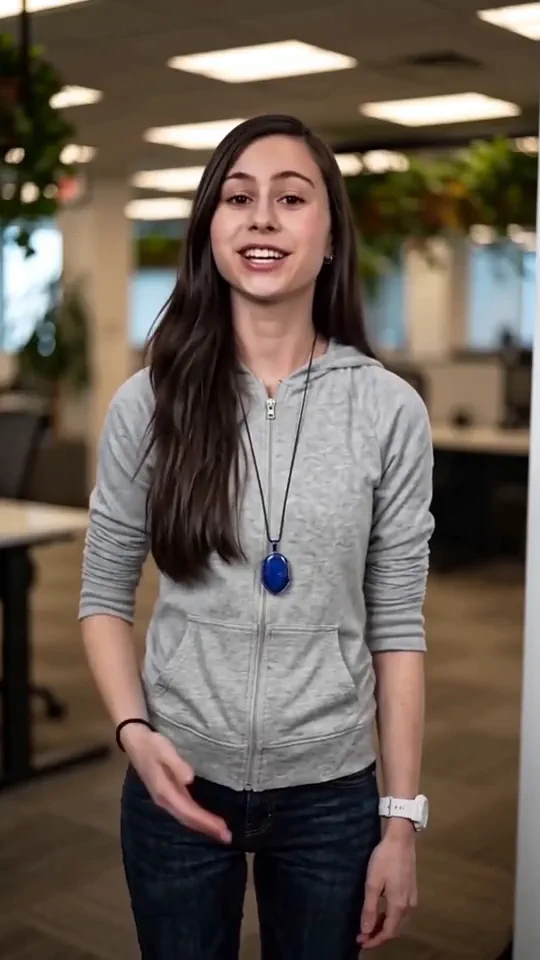
Open a video. Captions appear, timed to each word. Export.
Already have an account? Sign in
Free to start · No credit card
Captions that land on the word you just said.
Most people watch with the sound off. Open a video in the editor and it reads the speech into words, then sets each caption on the moment that word is spoken. Pick a look, drag them where you want them, and export with the captions already on the picture.
An example clip from our showcase stands in here until this page's own video is ready.
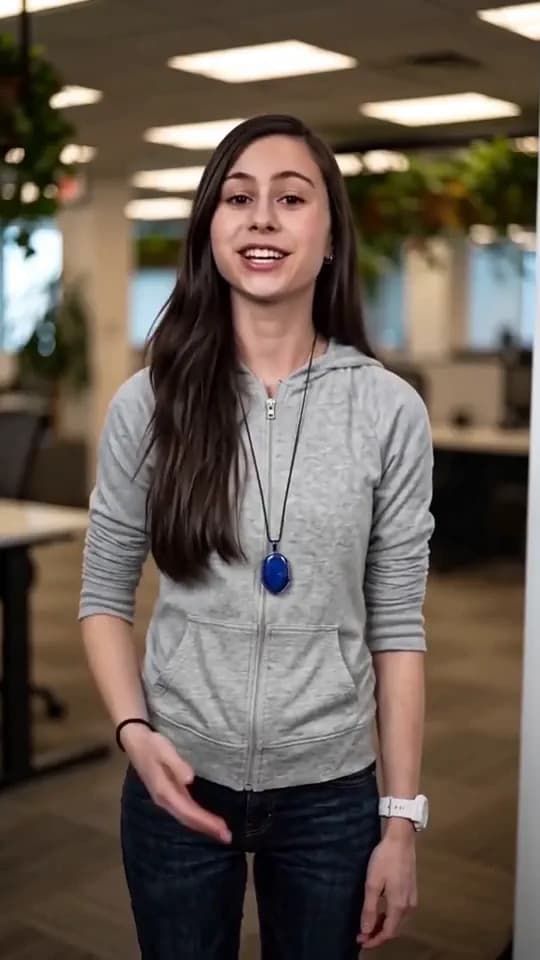
Captions are made inside the editor, from speech in your own video. They are not a separate tool, and they are not translated here.
Part of The video editor.
How do you add captions to a video?
Open the video in the Studio editor. It reads the speech into words and places each caption on the moment the word is spoken. Pick a style, choose where the captions sit, then export. The captions are burned into the picture, and you also get an SRT file and a VTT file. Captions are not translated here.
Who it is for
Anyone posting video that will often play with the sound off: coaches, founders, teachers, and anyone with a talking clip.
What you need
A video with someone speaking in it. Mp4, mov, webm, m4v or mkv all open, and a video you rendered here works the same way. Reading the speech into words costs nothing.
What it costs
Captioning itself is open on every plan, the free one included, and the export is what uses credits: 20 credits a second, with a minimum of 60 credits. The free plan starts with 8,400 credits, once, which cover about seven minutes of finished export.
What it does not do
It is not a caption tool outside the editor, so there is no page where you paste a link and get captions back. It does not translate captions; that is dubbing.
Want the words in another language, spoken? That is Dubbing.
How captions are timed.
The editor listens to the speech in your clip and writes it down word by word, with a start and an end for every word. Captions are built from those words, so a caption does not drift away from the voice and you are not nudging a block of text against the sound by eye.
That reading step costs nothing. It happens once for each clip, not once for each change you make afterwards.
The words are yours to correct. Open a line, change a wrong word, and the timing stays where the voice put it. If a caption breaks in the wrong place, move the break. If a word sits on the wrong line, send it to the line it belongs on.
Styles and placement.
Start from a ready-made look, or build your own. You choose the typeface from a short list of heavy display faces and plain readable ones, the weight, and whether the text reads in sentence case, capitals or lower case.
Outline and shadow each come in four steps, from none to large, so you can keep white words readable over a bright wall without guessing at a number. The size has a floor and a ceiling that keep a caption legible and keep it inside the frame.
Then choose how the words arrive. They can cut in with the line, fade in with it, pop in one at a time as each is spoken, show the whole line with a moving highlight behind the word being said, or fill a bar across each word for exactly as long as it is spoken. The highlight can be a box, a pill or an underline.
You set how many words show at once, from one at a time to a short line, and drag the captions anywhere between the top and the bottom of the frame. They stop short of the very edges, so nothing ends up off the picture.
The export.
When it reads right, export. The captions are burned into the picture, so they show on every platform and every player with nothing to switch on.
The export also hands you two caption files beside the video, an SRT and a VTT, for the places that want captions as a separate file. Each caption line in the editor becomes one cue in the files, with the same words and the same timing.
The export is the one step that uses credits, 20 credits a second with a minimum of 60 credits, and the cost is shown before you press it. Reading the words, styling them and previewing the result are all free to do.
Captions on a phone screen.
Most captions are read on a phone held upright, so a caption has to be short enough to read at a glance. You set how many words show at once, from one up to six, and long lines wrap to stay inside the frame, so a sentence is shown a few words at a time instead of filling the screen.
For a tall video, pick the upright frame, put the captions in the lower third, and keep one or two words a page if the clip moves fast. For a wide video, show a full line at a time. The preview shows the result at the real frame, so you can judge it on the shape it will be watched in.
What this does not do.
It is not a separate caption tool.
Captions are made inside the editor. There is no page that takes a link or a file and returns captions with no editing room around it.
It does not translate captions.
The captions are in the language spoken in the clip. A version in another language is dubbing, which re-voices the video.
The export costs credits.
Captioning, styling and previewing are open on every plan. Burning the captions in and exporting uses credits, 20 credits a second.
It reads speech, not on-screen text.
Captions come from what is said. A clip with no speaking in it has no words to caption.
A wrong word is yours to fix.
Speech reading is good, not perfect. Names and unusual words are the likeliest to need a correction, so read through once before you export.
Questions people ask before they caption.
- How are the captions timed?
- The editor reads the speech in your clip into words, and every word gets its own start and end. Captions are built from those, so each one lands on the moment its words are spoken. Reading the speech costs nothing. You do not line text up against the sound by hand.
- Can I change the style and where they sit?
- Yes. Pick a ready-made look or build your own: the typeface, the weight, capitals or lower case, outline and shadow in four steps, and how many words show at once. Words can fade in, pop in one at a time, or be highlighted as they are spoken. Drag the captions anywhere between the top and the bottom of the frame.
- Do I get an SRT or VTT file?
- Yes. Captions burn onto the picture, and the export also hands you an SRT and a VTT file. Use the files where a site wants captions separate from the picture. Each caption line becomes one cue, with the same words and timing.
- What does it cost?
- The editor and the cleanup are open on every plan, the free one included; only an export costs credits. Reading the words and styling them cost nothing. The export uses 20 credits a second, with a minimum of 60 credits, and the cost is shown before you press the button. The free plan starts with 8,400 credits, once, enough for about seven minutes of finished export.
- Can I fix a wrong word?
- Yes. Open the caption, change the word, and the timing stays where the voice was. You can also move a line break or send a word to the next line. Read the captions through once before you export, because names and unusual words are the likeliest to need a fix.
- Can it translate the captions?
- No. Captions here are in the language spoken in the clip. If you want a video in another language, that is Dubbing, a separate tool on the Plus plan and above. Dubbing works on a video that was made in Kyndrify, not on a file you upload.
The tools that do this
More on this from the blog

Open the video. The words are already there.
Start free with 8,400 credits that do not expire. Captioning is open on every plan, and you pay only when you export.