

One product photo in. A whole set back.
One clear photo of your product is enough. New settings, looks and angles.
Already have an account? Sign in
Free to start · No credit card
One product photo in. A whole set back.
Most guides start by asking for your product photos, plural. You have one, and it came from your supplier or your kitchen table. That one photo is the input. From it you can change the setting, change the look, change the camera, or take the background away, one picture at a time.
One photograph, and a picture made from it. Nothing else went in.
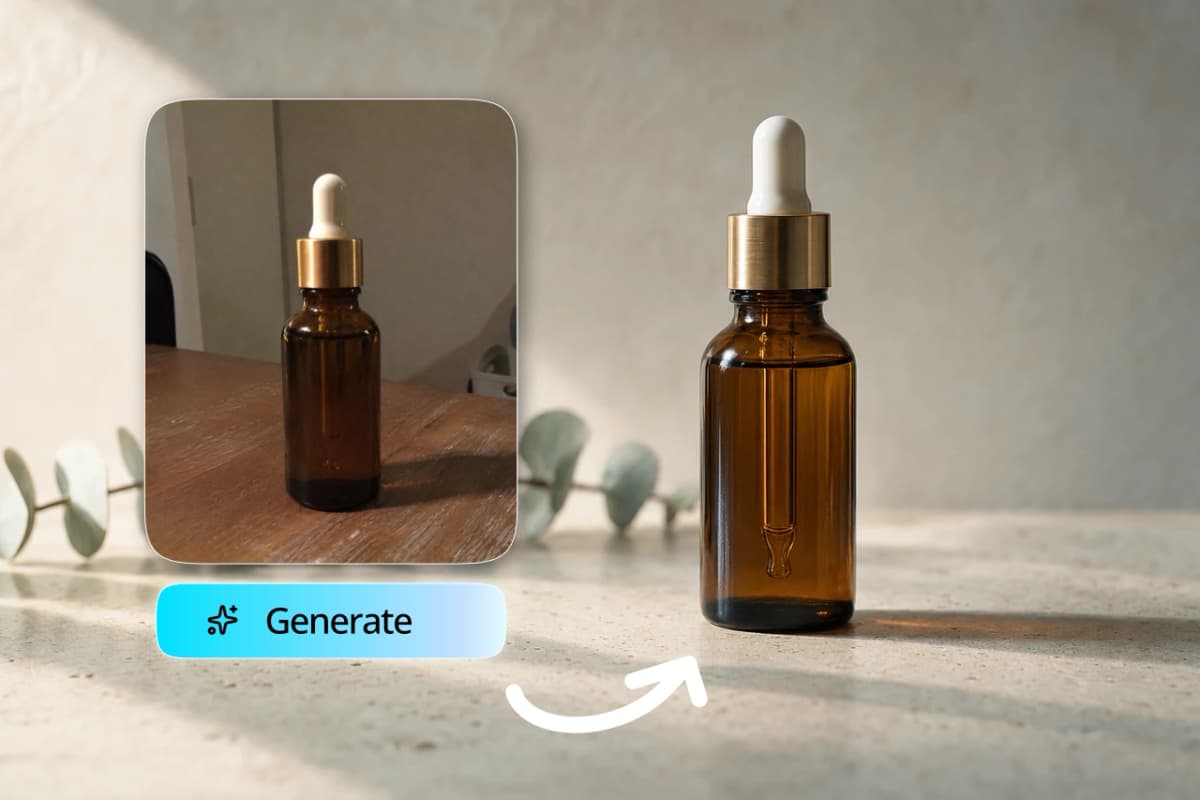
One picture at a time, inside a studio you sign in to. Every result is a new picture rather than a retouch of yours.
Part of Product photos.
Can I make product photos from one image?
Yes. One clear photo is all the studio needs. You bring it in as a reference, say where the product should sit, and get a new photo back. Restyle changes the look of a shot you already have, Reframe re-shoots it from another angle, and Remove background hands you the product on its own. One render gives you one picture.
Who it is for
Anyone with exactly one usable photo of something they sell. Makers, small brands, sellers working from a supplier image, and marketers handed a single packshot and asked for a month of posts.
What you need
The one photo, as a PNG, a JPEG or a WEBP, and close to normal proportions: a picture wider than five to one or taller than one to five is turned away at the upload step with a line asking you to crop it closer. One sentence about the setting you want, for the moves that take words.
What it costs
A picture made from a square photo costs 40 credits on Light, 152 on Standard and 600 on Premium. A wide or tall photo costs half again as much, and the canvas matches whatever you brought in. Six pictures is six of those. Premium is on the Basic plan and above. See plans and pricing.
What it does not do
It does not run a folder or a whole catalogue at once, and fine detail such as printed labels, small type, stones or glass can drift, so read the label before you publish.
Starting from words instead of a photograph? That is what the image tools do. For the whole job rather than the one-photo case, read product photos, and the showcase is what people have made.
One is the number nobody plans for.
Zero photos and you know where you stand: you need a camera. Twenty photos and any tool will take them. One is the awkward middle. It is the number you have when the supplier sent a single image, when you photographed the first unit on a kitchen counter, or when the good shot from last year is the only one that survived a laptop.
And one is usually enough here, because the studio is not picking through a library looking for angles. It reads the one picture you give it and makes a new one. So the question is not how many photos you have. It is whether the one you have is clear enough to work from, and that is a much easier bar to clear.
Three steps, and you have a set.
- 1
Bring the one photo.
A PNG, a JPEG or a WEBP. It lands in the Image Studio and stays there, so every move below starts from the same picture and you never upload it twice.
- 2
Pick the move and the quality.
Setting, look, camera, background, or variations. Light for trying something, Standard for regular work, Premium for the ones you publish. The canvas matches the photo you brought, and the price sits on the button before you press it.
- 3
Look hard, then download.
Check the label first, then the shape of the packaging, then anything glass or reflective. Keep the ones that hold up, and run the ones that did not again with a clearer instruction.
What a good source photo actually looks like.
You do not need a studio shot. You need a readable one. A phone photo on a plain surface near a window clears every line on the right.
Crop it or reshoot it first
- The product is lost in the corner of a room.
- The label is soft, so nothing can read it back.
- A hard shadow lies across the front of the pack.
- The label faces away from the camera.
- The crop is a panorama or a sliver, past five to one either way.
Worth starting from
- The product fills most of the frame.
- It is in focus where it counts, especially the label.
- The light is even, with no hard shadow across the front.
- The label faces the camera and reads at full size.
- The shape is close to normal proportions.
Five things to do with the same photo.
Each one is its own door in the Image Studio, and each one starts from the picture you already brought in.
A new setting.
Bring the photo in as a reference, write where the product should sit, and render. A stone slab in morning sun. A linen backdrop. A shelf in a shop. Up to four reference pictures can guide one result, so if you do have a second angle or a colour swatch, bring those too.
A new look.
Restyle keeps the shot you already have and changes how it is lit and graded, across 28 looks: warm film, clean white, soft daylight. There is a switch for holding the composition exactly where it is, so you can change the look and nothing else.
A new camera.
Reframe re-shoots the same photo from somewhere else: nineteen framings across shot size, angle and lens, up to three of them on one picture. A close-up for the detail slot, a low angle for the hero image, a longer lens to flatten the background.

No background at all.
Remove background hands the product back on its own, on a transparent PNG, ready for whatever plain backdrop the place you sell asks for. If you want a described backdrop instead of none, Replace background does that on the same photo, and it comes back solid.
More of one you liked.
When a result is nearly right, Variations asks for close cousins of that exact picture rather than starting over, up to four at a time. It is the one move that gives back more than one picture, and it bills for every version it makes.
Check these three things every time.
Every result is a new picture rather than an edit of your original, which is what makes new settings and new angles possible at all. It is also why the review step is not optional.
The printed type. Product names, weights, ingredient lists, small print. This is where things move first, and it is the one a customer will notice.
The shape and the surface. A cap thread, a seam, a weave, a stone setting, a bevel on a bottle. Anything with repeating fine structure is worth a second look.
Reflections. Glass, chrome and gloss can pick up light that was never in your photo.
If the packaging text, the materials or the dimensions have to match the real object exactly, take a photograph. That is not a failure of the tool, it is the right tool for that job, and no amount of re-rendering changes it.
The photo came from your supplier.
Then check what you are allowed to do with it before you start. A supplier image often arrives with terms attached, and building new pictures from it does not reset them. The permission is yours to hold, and the place you sell can ask you about it.
Check the image rules where you sell, too. Shops and marketplaces have their own requirements for what a main image may show, and those rules apply to a rendered picture exactly as they apply to a photograph.
If there is a person in the photo, that is a different question again. Making new pictures or videos of a real person is a Digital Twin, and it starts with a consent recording we keep on file. This page is about objects.
Your uploads and your results stay in your Workspace, and Kyndrify does not use your photos or your finished media to train a Kyndrify model. Built-in AI labelling is still rolling out across output types, so follow the disclosure rules that apply wherever you publish rather than assuming the file carries them.
When you want the picture to move.
A product photo is a perfectly good starting frame for a short clip, so the same picture you have been rendering from can go straight into the video side as a reference. It is the cheapest way to get motion out of a shot you already trust.
And if the one packshot is feeding a month of posts rather than a listing, the marketing and ads page walks the whole run.
What one photo will not do.
Every result is a new picture.
Nothing here retouches the photograph you brought. That is what makes a new setting and a new angle possible, and it is why you read the result before you publish it.
Fine detail drifts.
Printed labels, small type, a logo lockup, a stone setting, a woven texture, anything glass or reflective. Look at those first and run anything that moved again.
One picture per submit.
No folder, no catalogue run. Variations is the only move that returns more than one, up to four close cousins of a result you already have.
A free image carries a visible mark.
Images made on the free plan carry a small visible Kyndrify mark. It comes off from the Basic plan and above, which matters here because a listing image with a mark on it is not a listing image.
It does not dress a person.
Putting a garment on a model is not something this page sells. Bring an object you own, photographed on its own, and the moves above are what you get.
Questions a seller asks in the first minute.
- Can I really make product photos from one image?
- Yes. One clear photo is the input. It comes in as a reference and every move works from it: a new setting, a new look, a new camera angle, or the product on its own with no background. You can bring up to four reference pictures if you have them, but one is enough to start.
- What makes a photo good enough to start from?
- The product fills most of the frame, it is in focus, the light is even, and the label faces the camera. A phone photo on a plain surface near a window clears all four. One shape to avoid: a picture wider than five to one, or taller than one to five, is turned away at the upload step, so crop it closer to normal proportions first.
- Will the label on my product still be right?
- Check it every time. Every result is a new picture rather than an edit of yours, so printed type, small print and fine texture can move. Read the label at full size before you publish, and if the packaging text has to match the real object exactly, take a photograph instead.
- How many pictures do I get from one render?
- One. A picture made from your photo comes back one at a time, so a set of six is six renders. Variations is the only move that returns more than one, up to four close cousins of a result you already have, and it bills for each of them.
- Can I do my whole catalogue this way?
- Not today. There is no folder mode and no bulk mode, so twenty products is twenty passes. If you do work through a set, use the same setting sentence each time so the results look like they belong together.
- What does it cost?
- A picture made from a square photo costs 40 credits on Light, 152 on Standard and 600 on Premium. A wide or tall photo costs half again as much. The free plan starts you with 8,400 credits that do not expire, and images made on the free plan carry a visible Kyndrify mark, so a listing image wants a paid plan.
The tools that do this
You have the photo. Start there.
Bring the one picture you have and make the first new one from it. The free plan starts you with 8,400 credits that do not expire.