

How to Make Podcast Clips With AI
Learn how to make podcast clips with AI, clear rights, accurate context, platform-ready exports, and a practical measurement plan.
How to Make Podcast Clips With AI
Podcast clips can point to a full episode. Their effect must be measured. AI may help with selection or production, but the editorial and rights choices still sit with you.
Here is the quick answer. Pick a suitable moment. Write a short opening. Choose a format that fits your rights and resources. Check the transcript and captions. Export to the platform's current specifications. Link the full episode. Then measure the result against a defined goal.
Three distinct ways to create a podcast clip
Not all podcast clips are made the same way. The right method depends on what you own, what you can record, and what you are allowed to show. These three outputs serve different needs. Do not treat them as interchangeable.
- Excerpt using original episode media. You take a segment from the recorded episode. You need the source files and the rights to use them.
- Host-recorded teaser. You record a new intro to the episode. This needs capture tools, a script, and a new rights and quality check.
- Twin-based scripted teaser. You use a verified digital twin to deliver an approved script. Kyndrify documents setup with a photo or headshot, a short voice clip, and recorded consent. Renders use shared credits, and pay-as-you-go credit packs are also available. Signed Content Credentials and invisible provenance are rolling out and are not guaranteed on every file. Learn more on the Kyndrify pricing page and talking-head video page.
Step 1: Pick a strong moment and score it
Review the transcript and episode. Mark moments that may stand alone, support the episode's goal, and fit the target platform's limits. Do not assume a duration or topic will perform best.
Before you commit, score the moment. Use these five checks:
- Standalone value. Does the clip make sense without the rest of the episode?
- Context risk. Could the clip mislead someone who missed the full conversation?
- Guest sensitivity. Does the moment involve personal stories, mental health, or other delicate topics?
- Rights status. Do you hold the rights to the audio, video, and any music in that segment?
- Link to full-episode job. Can you naturally point viewers to the complete episode?
If a moment scores low on standalone value or high on context risk, revise the edit or pick a different segment. Apply the guest and rights policy before production.
Write down the timestamp and the exact quote. You will use them next.
Step 2: Write a short hook and teaser script
Write an opening that states the topic or question. Treat wording and length as test variables. Here are two illustrative options:
- “Most podcasters get this wrong.”
- “Here is the one tip that changed my show.”
Then write a short teaser that stays true to the episode. End with a clear path to the full episode. Time the script against the target platform's current limit.
Read it aloud. Cut words that do not aid context, accuracy, or the next step.
Step 3: Choose your clip format and build it
Your format depends on what you have and what you are allowed to use. Here is a compact comparison to help you decide.
| Format | What you need | Key check |
|---|---|---|
| Excerpt from episode media | Source audio/video, rights clearance | Context matches the full episode |
| Host-recorded teaser | Capture tool, short script, rights clearance | New statements are approved |
| Twin-based scripted teaser | Verified Twin, approved script, Render budget | Consent, output, and disclosure pass review |
Excerpt using original episode media
This uses the source episode audio or video. Check that the edit does not change the speaker's meaning.
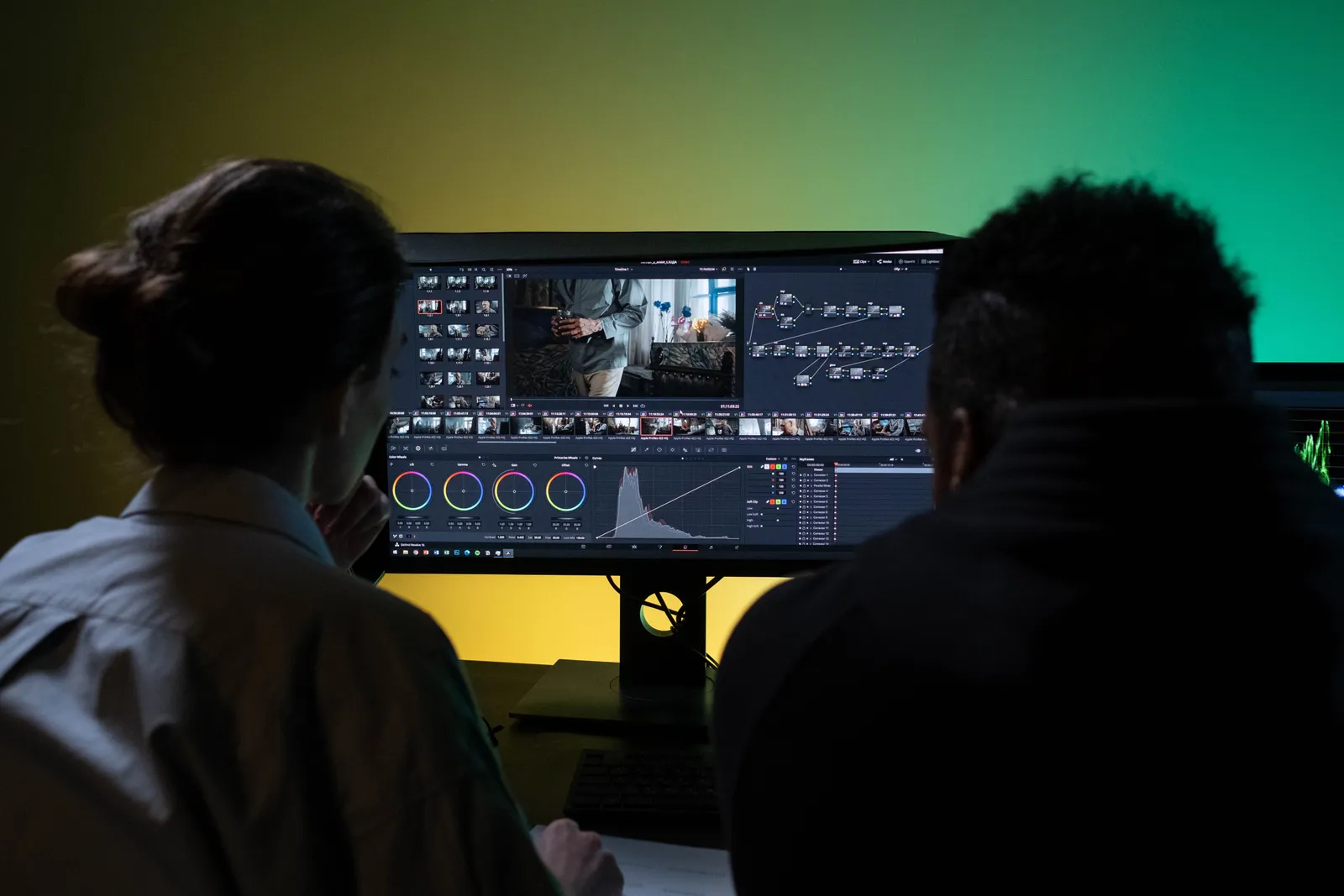
Build it like this:
- Add the audio or video from your chosen moment.
- Add captions when the destination supports them.
- Check the layout on the intended screen size.
- Review the transcript and captions for accuracy.
Host-recorded teaser
You record a new host intro. Treat it as new content with its own script, rights, and quality checks.
Build it like this:
- Record your hook and teaser script.
- Add and verify captions when the destination supports them.
- Review the recording for intelligibility and visual defects.
Twin-based scripted teaser
Kyndrify creates a talking-head video from an approved script and a verified Twin. Its documented workflow uses a photo or headshot, a short voice clip, and recorded consent. Each Render returns a download and a hosted link. Longer scripts can be split and stitched.
Follow these steps:
- Paste your hook and teaser script.
- Select your Twin as the presenter.
- Add and verify captions in the editing or platform workflow you choose.
Step 4: Export for the platform and link the episode
Export to the current rules of each target platform. Do not use one format for every destination without checking it.
Different platforms have different rules. Here are two current official specs.
Spotify Clips. According to Spotify for Creators, you can upload one Clip per episode for scheduled or published episodes. Files must be 15–90 seconds, no more than 1GB, contain audio, and use MP4 or MOV. Vertical is recommended, though horizontal is supported. A Clip needs a description and must follow the Spotify Clips content policy. You must hold all rights needed to use and post the video and comply with applicable law and platform rules.

YouTube Studio video clips. YouTube Studio can create a new video from transcript text, start/end words, or timestamps in an existing long-form video. AI suggestions are limited by language and region. You can adjust start and end points before making a draft. The tool currently creates 16:9, not Shorts. YouTube recommends keeping only full episodes in the podcast playlist and linking a manual clip to its source in the description.
Add a trackable link to the full episode where the destination permits one. Record the destination, export settings, caption text, link, and publish time in the log. Check the live post after publishing.
Step 5: Handle guest and rights approval
Check your contracts, releases, platform rules, and applicable law before posting guest content. A sensible production policy is to send the proposed cut to the guest and obtain approval before publishing. This workflow is not a substitute for legal advice or the terms of your agreement.
Record the approval result, approved cut, date, and any limits in the publish log.
Step 6: Measure your clip’s performance
Posting a clip begins the measurement period. Define the clip's goal, source of truth, and reporting window before reviewing the result.
Watch time and retention. Use the metrics supplied by the target platform. A drop does not prove one cause. On YouTube, the Engagement tab reports watch time, average view duration, and key moments for audience retention.
Engagement. Record likes, shares, and comments when they match the clip goal. Do not treat them as a substitute for full-episode starts or other business outcomes.
Link actions. Use a trackable path to the full episode where the platform permits it. Record clicks and episode starts separately when both are available.
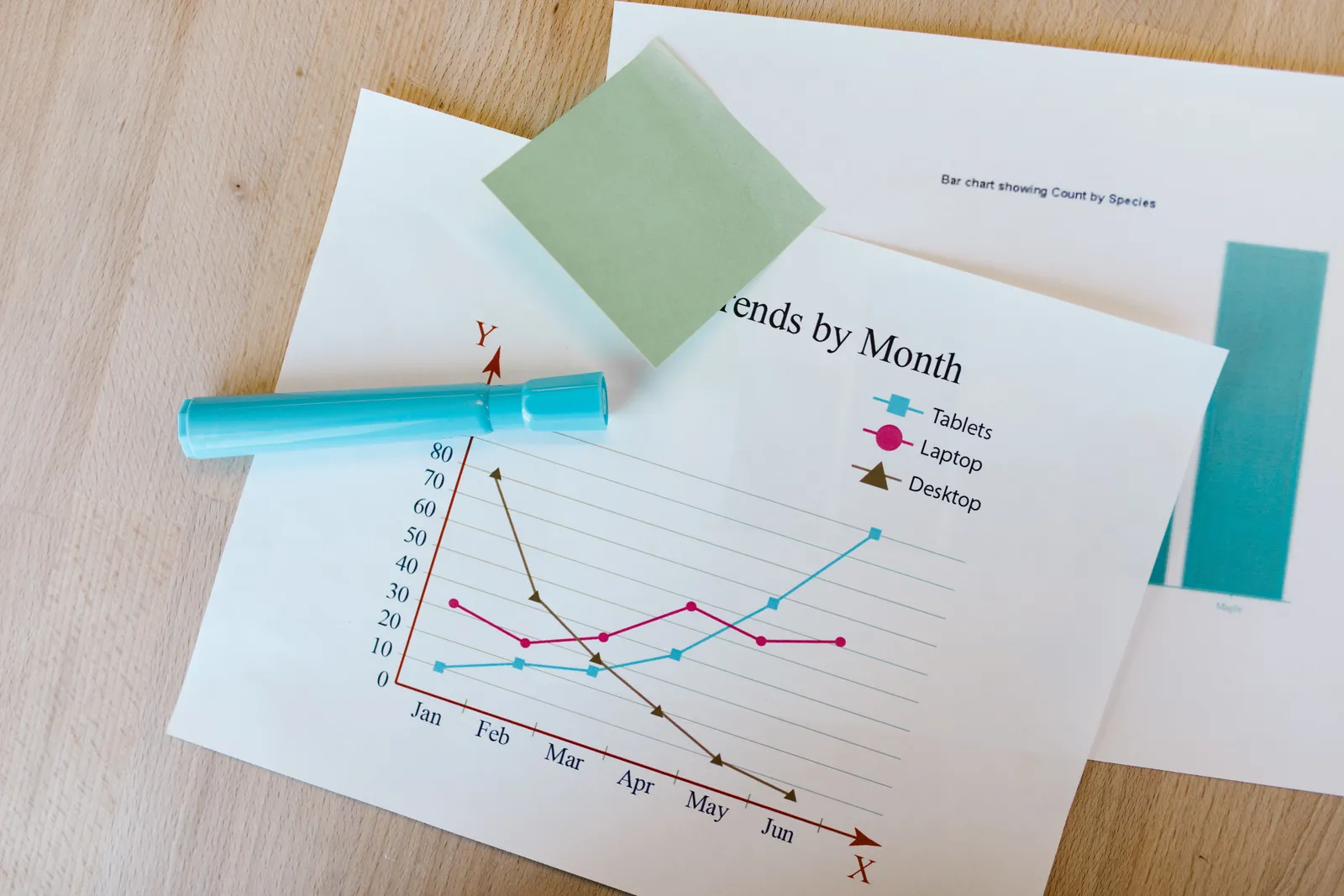
Followers or subscribers. Record change during the test window, but do not assign cause to one clip without a suitable comparison.
Test and learn. Compare one changed variable at a time. Keep the source moment, format, publish conditions, and measurement window fixed where possible. Record exceptions and do not claim that one variable caused a result unless the test design supports that conclusion.
Illustrative clip brief and two test designs
Use a brief to align your team before production. Here is an example.
Clip brief: “The one pricing mistake”
- Source: Episode 42, 18:30–19:15
- Moment score: High standalone value, low context risk, guest approved, rights cleared, links to full episode
- Hook: “Most creators underprice their first offer.”
- Format: Host-recorded teaser
- Duration: 45 seconds
- Captions: Yes, burned-in
- CTA: “Full episode at the link in bio.”
Test design A (question opening): “Are you charging enough for your work?” — same moment, same format, distribution conditions, and reporting window. Compare the platform's watch-time measure with the original opening.
Test design B (excerpt format): Use the original episode audio with a waveform visual and verified captions. Keep the topic, CTA, destination, and reporting window fixed. Compare the predefined primary metric with the host-recorded version.
These are illustrations. Your results will vary.
Common mistakes to avoid when making podcast clips
Use these checks before publishing.
Mistake 1: Leaving unintended dead air. Check the opening for silence or an intro that is not part of the approved edit.
Mistake 2: Skipping caption QA. When captions are used, compare them with the source audio and correct names, numbers, and technical terms.
Mistake 3: Removing needed context. Confirm that the edit does not change the speaker's meaning. Add context or select another moment when needed.
Mistake 4: Publishing an unverified claim. Check that the opening and caption accurately describe the episode and do not add a claim the speaker did not make.
Mistake 5: Omitting the source path. Add the full-episode link or the platform's supported source reference, then test it on the live post.
Mistake 6: Skipping output QA. Review the full export for caption timing, audio level, cropping, unintended cuts, credentials, and required disclosure.
Use these as pre-publish checks, not promises about attention.
Frequently asked questions
How long should a podcast clip be?
Match the current platform limit and the time needed for the selected moment. Spotify Clips currently require 15–90 seconds. Test editorial length within the allowed range.
Do I need to film myself for a talking-head clip?
Not if you use a Twin-based tool. Kyndrify gives you a talking-head video using your verified face and voice on an eligible plan such as Plus. You add a script, not a camera. Free renders use preset avatars and voices. You can also record yourself if you prefer a host-recorded teaser.
Should I add captions to podcast clips?
Add accurate captions when the target format supports them and include them in the access and quality check. Do not assume captions alone change performance.
Do I need consent to clip a guest?
As a production policy, always ask your guest first. Share the clip before you post it live. Also follow your contracts, releases, and applicable law.
How much does it cost to make AI podcast clips?
Costs depend on the tools and production path you choose. Kyndrify uses shared credits across supported tools, and pay-as-you-go credit packs are also available. Check the official Kyndrify pricing page for current details, and verify live terms before buying.
Start making podcast clips today
You now know the steps. Pick a moment. Score it. Write a hook. Choose a format that fits your rights and resources. Build the clip. Add captions. Export for your platform. Link the full episode. Measure what happens and test new ideas.
Related reading
- How to Make a UGC Ad With AI
- How to Make an Explainer Video With AI
- How to Make a Talking Head Video
Disclaimer: This article describes general workflows and third-party platform features as of July 2026. Kyndrify product and pricing details were checked on 26 September 2026. Tool capabilities, pricing, and platform rules change. Always check official sources before you produce or publish clips. The arithmetic examples are illustrations, not promises of results.
More from Kyndrify


Make your first video without filming.
Say what you need and the studio makes it: video, images, voices. Start free, no credit card.