

How to Make an Explainer Video With AI
Learn how to make an explainer video with AI in six simple steps. Write a short script, pick a format, and publish in under 90 seconds.
How to Make an Explainer Video With AI
You can make an explainer video with AI in six steps. Define one core message. Write a short script. Pick a format. Generate the video with AI. Add captions. Keep it under 90 seconds.
This guide walks you through each step. No camera. No film crew. No editing skills. You just need a clear idea and a few minutes.
Let's get started.
What is an explainer video?
An explainer video is a short video that explains one thing. It might explain a product, a feature, or a process. The best ones are simple. They make a hard idea easy to understand.
Most explainer videos run 60 to 90 seconds. Short videos hold attention. They also get watched to the end. That matters when you want people to act.
Step 1: How do you define the one core message?
Start with one message. Just one. Ask yourself a simple question. What do I want viewers to know after watching?

Write that answer in a single sentence. This is your core message. Everything else supports it.
Avoid cramming in extra points. One video, one idea. If you have two big ideas, make two videos.
Here are a few examples:
- "Our app saves you two hours a week."
- "Setup takes five minutes."
- "You can cancel anytime."
Keep it focused. A clear message leads to a clear video.
Step 2: How do you write a short script?
Write your script in three parts. Problem, solution, then call to action. This structure works for almost any explainer.
Start with the problem. Name the pain your viewer feels. This builds instant connection.
Next, show your solution. Explain how you fix that problem. Keep it plain and direct.
End with a call to action, or CTA. Tell viewers what to do next. Make it one clear step.
Here is a simple template:
- Problem: "Managing invoices takes hours."
- Solution: "Our tool sends them in one click."
- CTA: "Try it free today."
Aim for 150 words or fewer. That fits a 90-second video. Read your script out loud. If it sounds clunky, fix it.
Use short sentences. Use everyday words. Write the way you talk.
Step 3: How do you pick a format?
Pick one of three formats. Each one fits a different goal. Choose the one that suits your message.
Talking-head video. This shows a person speaking to the camera. It feels personal and warm. It works well for intros and welcomes.
Narrated slides. This pairs your voice with on-screen text or images. It works well for steps and features. Viewers see and hear the key points.
B-roll plus voice. This pairs a voiceover with stock or AI footage. It feels polished and clean. It works well for product overviews.
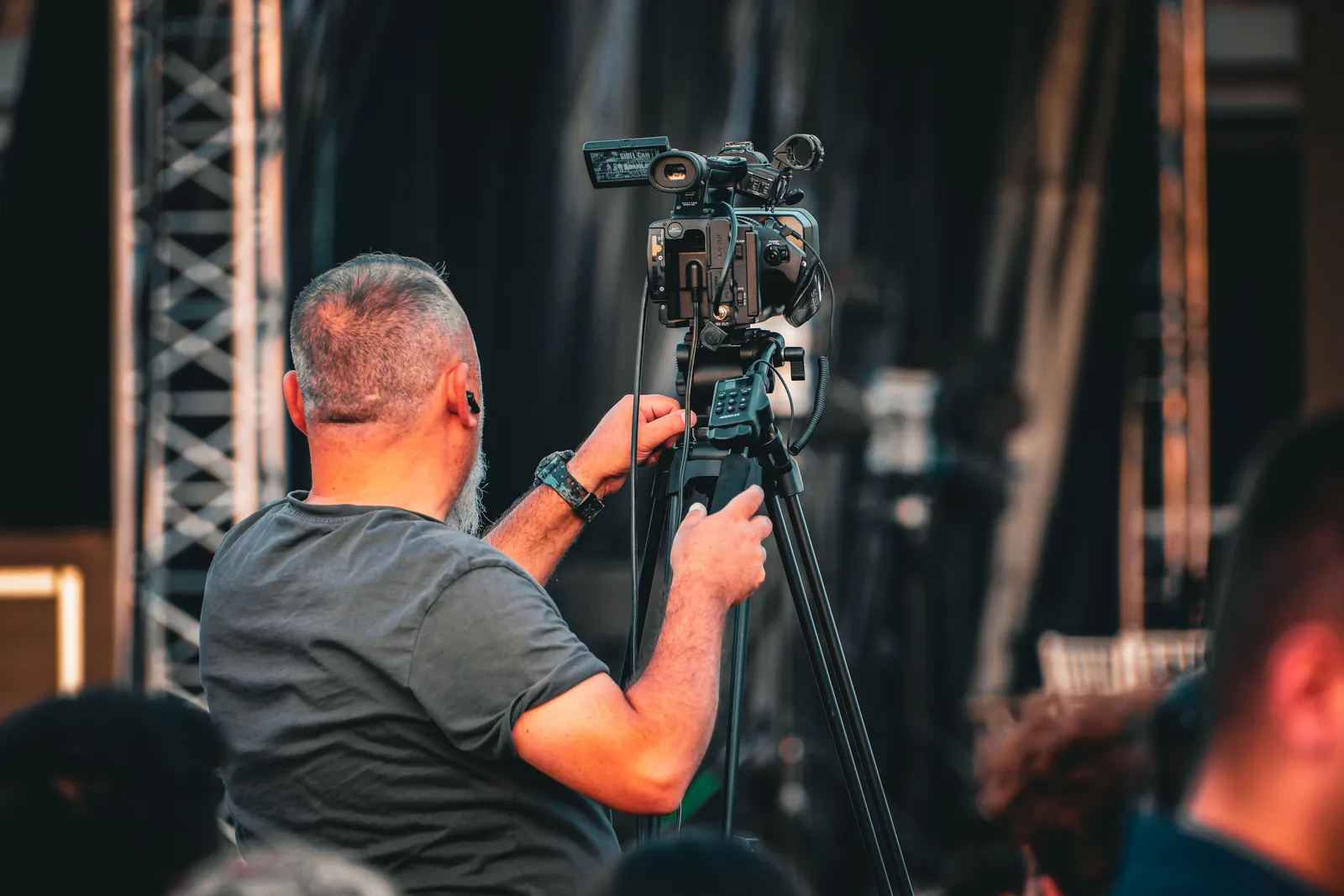
Not sure which to pick? Start with a talking-head video. A real face builds trust fast.
Step 4: How do you generate the video with AI?
Now you bring your script to life with AI. This is where the work gets easy. AI tools turn your words into a finished video.
Here is where Kyndrify helps. The idea is simple. "Be on camera. Without the camera."
You build a Twin from your own real face and voice. Then you paste in a plain script. The tool turns it into video. No prompt engineering needed.
Prompt engineering is built in behind the scenes. You write a normal script. Kyndrify handles the rest. Plain script in, video out.
You can make all three formats with Kyndrify:
- Talking-head videos with your Twin.
- Narrated slides with your voice.
- B-roll and AI images for visual support.
The face models look realistic. Long scripts auto-stitch into one smooth video. You can also create videos in ten documented speech languages.
There is a free tier. No credit card required. Free renders use preset avatars and voices. Own-face rendering starts on an eligible plan such as Plus. See the pricing page for current details.
Step 5: How do you add captions?
Add captions to every explainer video. Many people watch with sound off. Captions keep your message clear.
Captions also help viewers who are deaf or hard of hearing. They make your video reach more people. That is a win for everyone.
Many AI video tools can add captions for you. Turn them on before you publish if your tool supports them. Then check them for accuracy. Fix any wrong words.
Keep captions short and readable. One or two lines at a time works best.
Step 6: How do you keep it under 90 seconds?
Trim your video to 90 seconds or less. Short videos win. They hold attention and drive action.
Cut anything that does not serve your core message. Be ruthless. If a line is nice but not needed, remove it.
Watch your video as a viewer would. Does it drag? Does it repeat? Cut those parts.
Here are quick tips to stay short:
- Use one idea per sentence.
- Skip long intros. Get to the point.
- End right after your CTA.
A tight video respects your viewer's time. That builds goodwill.
A few tips for clarity
Clarity makes or breaks an explainer video. Use these tips to stay clear.
Speak in plain language. Drop the jargon. If a word needs explaining, swap it out.
Show one idea at a time. Do not crowd the screen. Let each point breathe.
Match your visuals to your words. If you mention a feature, show it. This helps memory.
Test your video on a friend. Ask one question. Did they get the main message? Their answer tells you a lot.
Frequently asked questions
How long should an explainer video be? Keep it under 90 seconds. Most viewers lose focus after that. Shorter videos also get watched to the end.
Do I need video editing skills to use AI? No. AI tools handle the hard parts. With Kyndrify, you paste a plain script and get a video. No editing or prompt skills needed.
Can I make an explainer video for free? Yes. Kyndrify offers a free tier with no credit card required. Free renders use preset avatars and voices. Commercial use depends on your rights and current plan and Terms confirmation. Check the pricing page for details.
What should my explainer video script include? Use three parts. State the problem, show the solution, then add a call to action. Keep it to about 150 words.
Can I make videos in other languages? Yes. Kyndrify documents ten speech languages. Script translation lists additional text-only languages, but the saved voice cannot speak those targets yet. You can reach a wider audience with the same script.
Ready to make your explainer video?
Making an explainer video with AI is simple. Pick one message. Write a short script. Choose a format. Then let AI do the rest.
Kyndrify makes it even easier. Build a Twin from your own face and voice. Paste a plain script. Get a clear video back. Try the free tier and see for yourself.
Kyndrify is built by Through the Glass Creatives.
More from Kyndrify

The tools that do this
Make your first video without filming.
Say what you need and the studio makes it: video, images, voices. Start free, no credit card.