

Audio Description for Product Demo Videos
Make product demos clearer for people who cannot see the screen. Plan audio description, improve the script, check the player, and test meaningful visual cues.
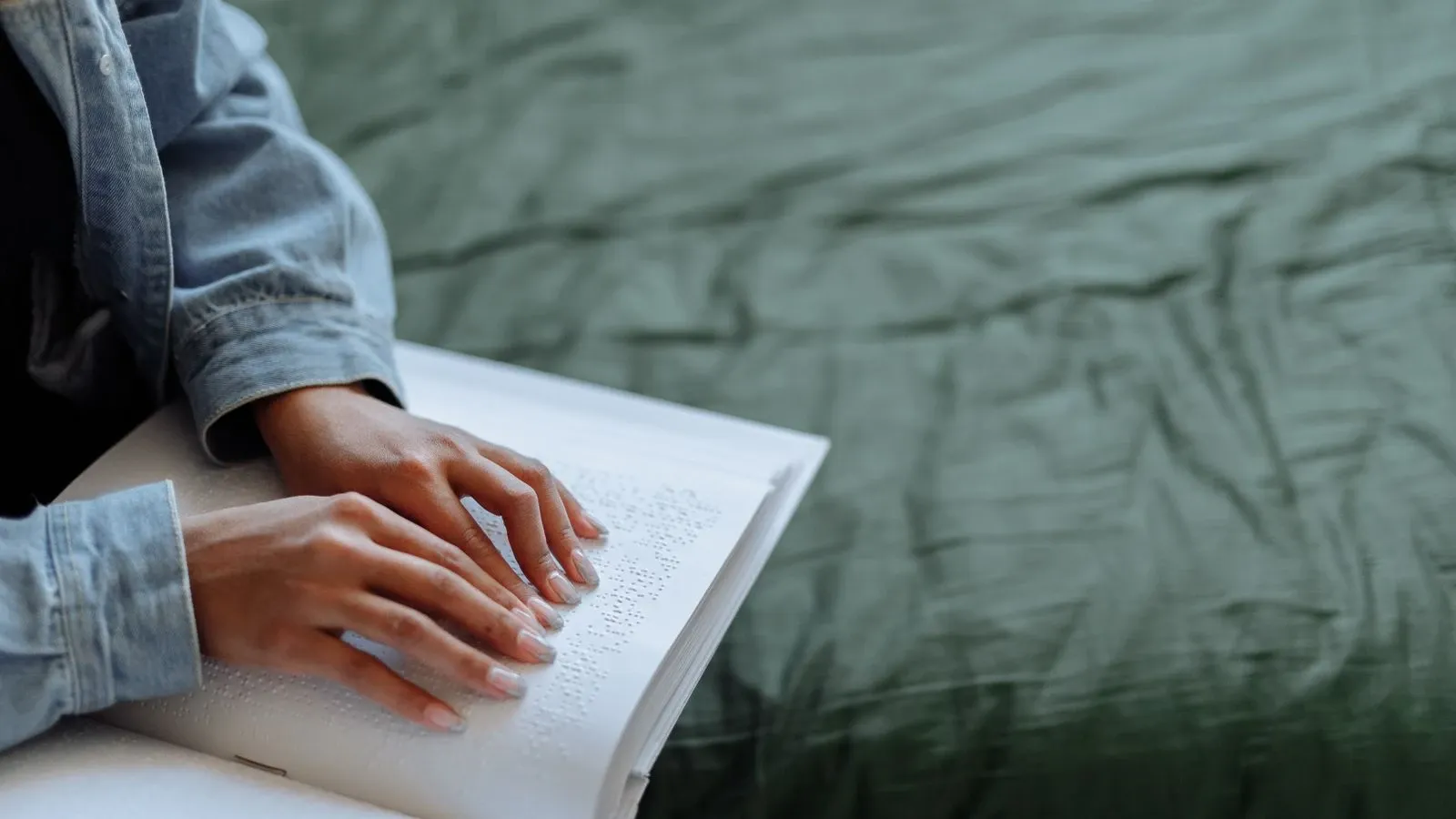
A product demo shows what your service does. People who cannot see the screen miss that when the visuals carry the story. Audio description helps close the gap. It is a spoken narration that tells listeners what matters on screen. This guide shows a practical way to add it without disrupting your production.
What Audio Description Is
Audio description is not captions. Captions turn speech and key sounds into text. Audio description turns meaningful visuals into speech. A descriptive transcript combines both in one written document. These are separate supports. One does not replace the other.
The W3C Web Accessibility Initiative explains that captions convey speech and meaningful non-speech sounds, while descriptions convey important visual information. A descriptive transcript includes both. Player accessibility matters too. None of these are automatic substitutes for each other.
For a product demo, the visual action is often the whole point. You click a button. A screen changes. A chart appears. If your narration says "watch what happens next," a listener who cannot see the screen misses the action. Audio description names it.
When You Need It
The WCAG understanding document for audio description covers prerecorded synchronized media at Level AA. The rule is simple: if important visual information is not already in the main audio, you should voice it. If your narration already says everything meaningful, added description is unnecessary.
Here is a practical check. Play your demo with the screen off. Can you follow the product story? If yes, your narration is doing the job. If no, you need audio description or a script rewrite. This check is a useful diagnostic, but it is not proof of conformance. It tells you where the gaps are; it does not guarantee you found every one.
Do not promise whole-site WCAG compliance from this one change. Audio description is one piece of a larger accessibility effort.
Plan Before You Record
The W3C planning guidance advises thinking about access from the start. Assign responsibilities early. Consider captions, descriptions, transcripts, and the media player together. Captioning alone does not address all access needs.
Planning early saves money. Adding description after editing is harder. You may need to re-record narration or extend pauses. A little thought now prevents that.
Step 1: Mark the Visual Moments
Watch your storyboard or rough cut. List every moment where the screen shows something meaningful that the narration does not say. Common examples:
- A menu opens and a specific option is chosen
- A number changes on screen
- A before-and-after comparison appears
- A color or layout shift signals a state change
- A cursor moves to a specific field
Write these moments down. Give each one a timecode.
Step 2: Rewrite the Narration First
Before adding a separate description track, try folding the visual facts into your main script. This is called integrated description. It often sounds more natural than a separate voice.
Instead of saying "Now click here," say "Now click the blue Export button in the top right." Instead of "See the difference," say "The invoice total drops from 240 dollars to 180." The viewer hears the action and the result in one flow.
Integrated description works when the visual facts fit naturally into the spoken rhythm. It fails when the narration becomes cluttered or slow. Use judgment.
Step 3: Write the Description Track
For moments that cannot fit into the main narration, write short description lines. Keep them factual. Name the action, the object, and the result. Avoid opinion words like "beautiful" or "amazing." Say what is there.
A description line should fit in natural pauses. If there is no pause, you may need to extend one. If your editing tools allow it, you can stretch a gap by a second or two.
Step 4: Record and Mix
Record the description track separately. Use a clear, calm voice. Mix it so it is intelligible at an appropriate level relative to the main audio. Place each line in its pause. Listen to the full track with your eyes closed. Does the story hold together?
Step 5: Build the Descriptive Transcript
A descriptive transcript is a written document that combines the spoken dialogue, the key sounds, and the visual descriptions. It helps people who are deafblind, people who prefer reading, and search engines. Write it after the final cut. Include everything a listener needs to understand the demo without watching it.
Worked Example: Fictional Settings Demo
Before: Original Script
Narrator: "Welcome to Team A's scheduling tool. Let me show you how it works. First, I'll open the settings. Watch this. Now I'll change one thing. See the result? That's how easy it is."
A blind listener learns almost nothing. What settings? What changed? What result?
After: Integrated Rewrite
Narrator: "Welcome to Team A's scheduling tool. I'll open Settings from the left menu. The Settings panel shows five tabs: General, Hours, Staff, Payments, and Alerts. I'll click Hours. The Hours tab shows a weekly grid. Monday through Friday are set to 9 AM to 5 PM. I'll change Friday to close at 3 PM. The grid updates. Friday now shows 9 AM to 3 PM. The Save button turns green. I'll click Save. A confirmation banner appears at the top: 'Hours updated.' That's the whole change."
No separate description track is needed here. The narration carries all meaningful visual information.
When a Separate Track Helps
Suppose the demo shows a drag-and-drop calendar move. The narration says: "You can also drag appointments to a new time." The visual shows a card sliding from 10 AM to 2 PM. A description line in the pause after "new time" could say: "A blue appointment card slides from the 10 AM slot to the 2 PM slot." The listener now knows what the drag looks like and where it landed.
Player Checks
Your video player matters as much as your script. Check these items before publishing:
| Check | Why It Matters |
|---|---|
| Keyboard controls work for play, pause, and volume | Many users cannot use a mouse |
| Integrated narration is in the main audio | No separate toggle is needed for this approach |
| A separate audio description track can be toggled on and off | Users can choose whether to hear it |
| A separate described video version is available if used | Users can select the version they need |
| Captions can be turned on separately | Captions and description serve different needs |
| The player works with screen readers | Buttons need proper labels |
| The video does not autoplay with sound | Sudden audio disrupts screen reader users |
| The descriptive transcript is linked near the player | Users can find it without hunting |
Test the player with a screen reader. Tab through every control. Listen to what is announced. Fix any button that says only "button" with no label.
User Testing
Your assumptions about what is meaningful may be wrong. Test with real users. Find one or two blind or low-vision people who use screen readers. Pay them for their time. Ask them to watch the demo and explain the product back to you.
Listen for gaps. Did they miss a step? Did a description confuse them? Did the pacing feel rushed? Adjust the script based on what you hear. User feedback helps you find gaps you missed, but no single tester will catch everything. Treat testing as an ongoing check, not a one-time guarantee.
Edge Cases
Silent product shots. If your demo has a long section with no narration, you need either added narration or a description track. Silence plus visuals equals nothing for a listener who cannot see the screen.
Fast screen changes. If the screen changes every two seconds, description cannot keep up. Slow the demo down. Show fewer steps. A calmer pace can help many viewers follow along.
Text-heavy screens. If the screen shows a long settings list, do not read every item aloud. Summarize: "The list shows twelve options, including Notifications, Privacy, and Billing." The descriptive transcript can include the full list if needed.
Live demos. This guide covers prerecorded videos. Live demos need a human describer or a very disciplined presenter who narrates every action. That is a different workflow.
Decisions to Make
Choose integrated narration when the visual facts are short and fit the script rhythm. Choose a separate description track when the visuals are complex or the narration is already dense. Choose a descriptive transcript in every case. It is a practical deliverable that helps many people.
Frequently Asked Questions
Does a transcript replace audio description?
No. A transcript is a separate document. Audio description is spoken in the video itself. They serve different situations. A person watching the video needs the description in the audio. A person who cannot watch or listen needs the transcript. The W3C WAI treats these as distinct supports.
How long does this take?
Time depends on the length and complexity of your demo, the number of visual moments, and whether you record in-house or outsource. Planning early tends to reduce the total effort. Build in time for script review, recording, mixing, and a user-testing pass.
Do I need a professional voice actor?
No. A clear internal voice is fine for many small-business demos. The key is a calm, steady delivery. Avoid rushing. Record in a quiet room. If your budget allows, a professional can help, but it is not required.
Next Action
Take one existing product demo. Play it with your screen off. Write down every moment where you lose the story. Rewrite the narration to fill those gaps. If any gap remains, write a short description line for it. Then test the result with one blind user. That single pass will teach you more than reading alone.
For more on related topics, see our guides on AI video accessibility for captions and subtitles, how to make a sales demo video, and how to make a tutorial video.
This guide offers general information, not legal advice. Accessibility requirements vary by jurisdiction and context. Consult a qualified professional for your specific situation.
More from Kyndrify

Make your first video without filming.
Say what you need and the studio makes it: video, images, voices. Start free, no credit card.