

AI Video for Higher Education
A source-checked guide to AI video for higher education, with FERPA, accessibility, claims, rights, and release-review gates.
AI Video for Higher Education
Colleges can use AI video for approved public logistics, course orientation, and broad instruction. Student records, individualized feedback, admissions or aid claims, licensed assets, accessibility, academic policy, and another person’s likeness each need separate gates. This article maps those tiers, explains the checks, and shows how a tool such as Kyndrify fits into a compliant workflow.
Where AI video fits on campus
Group your projects into tiers before you write a script.
Public campus logistics. A library-hours walkthrough or a parking guide. These videos describe facilities. They rarely touch education records or regulated claims.
Generic course orientation. A welcome message or syllabus overview. The content is broad. It does not single out a student or promise an outcome.
Broad instruction. A narrated lecture on a general topic. The material is the same for every learner. No individualized feedback appears.
Admissions, aid, or outcome claims. Any video that states a completion rate, salary figure, transfer pathway, or cost. The Federal Trade Commission requires that advertising claims be truthful, non-deceptive, and supported. Route such scripts through your admissions, financial-aid, and legal reviewers.
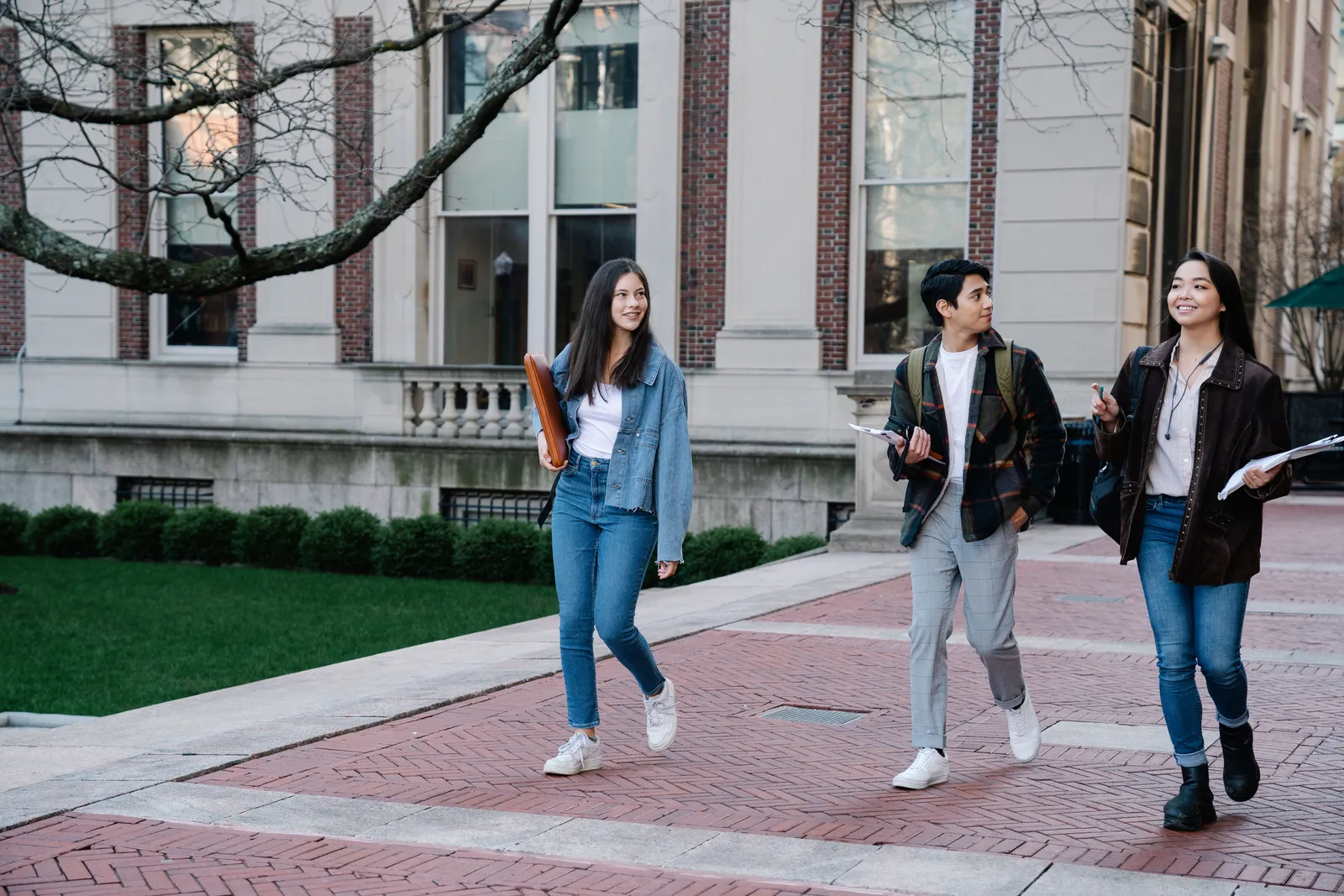
Student story or testimonial. A real student’s face, voice, or story. This tier requires signed consent covering the exact use, platform, and duration. It also needs a FERPA check if the story draws from an education record.
Student-specific feedback. A video commenting on one learner's work may be directly related to a student and maintained by the institution or a party acting for it. Run a FERPA record and disclosure analysis. Do not treat it as public course content.
Restricted course material. Licensed third-party content or material governed by a department policy. Confirm asset rights and approval before production.
Public-entity web and mobile content. The Justice Department's Title II fact sheet says WCAG 2.1 Level AA is the rule's standard for state and local government web content and mobile apps. Its examples include public community colleges and public universities, and it cites captions for video. An April 2026 interim final rule extended the listed dates to April 26, 2027 for entities with populations of 50,000 or more and April 26, 2028 for smaller entities and special district governments. The institution must determine its entity, population basis, content, exceptions, and deadline. This specific Title II rule does not cover every private college.
A release record for every video
Keep a dated release record for each AI-generated video. Include these fields:
- Audience. Public, enrolled students, applicants, or a specific class section.
- Course or unit. The exact course code and unit title, if applicable.
- Exact script and visuals. The final text and a description of every visual element.
- Source and answer check. Who verified facts, citations, and numerical claims.
- Asset rights. Proof of license or ownership for every image, slide, and music clip.
- Student-record decision. A yes/no determination of whether the video contains education records or personally identifiable information from them.
- Consent. Signed releases for any recognizable person, including the Twin subject.
- Advertising claim and evidence. The specific claim and the current institutional data that supports it.
- Accessibility owner and test. The person responsible for captions, audio description, and a dated test result.
- Academic owner. The faculty or staff member who approved the pedagogical content.
- Platform and contract. Where the video will live and whether the vendor agreement permits that use.
- Approval, expiry, archive, and takedown owner. Who signed off, when the video sunsets, where the master file is stored, and who can remove it.
A fictional library-hours orientation script
The script below is an illustration only. It contains no real student, applicant, outcome, cost, aid, or admissions claim. Replace every placeholder with your own institution’s details.

“Welcome to [Library Name]. Our current hours are listed at [approved page]. Hours may change for breaks and special dates, so check that page before your visit. You can find [verified service] at [verified location]. Use [approved route] if you need help. We look forward to seeing you at the library.”
This script fits the public-campus-logistics tier. It describes a facility. It makes no claims about learning, access, reach, enrollment, completion, retention, staff time, or outcomes.
How Kyndrify fits into the workflow
Kyndrify documents a verified face-and-voice Twin reading a user-supplied script. Setup uses a headshot and a short voice clip. Each Render gives a download and a hosted link. Longer scripts can be split and stitched. See the Kyndrify talking-head video page.
Kyndrify documents recorded consent for real-person Twins. Signed Content Credentials and invisible provenance are rolling out and are not guaranteed on every file. These features record provenance and disclosure where available. They do not supply captions, prove accessibility, ensure privacy, or satisfy academic-integrity or policy requirements.
Kyndrify’s public pages do not document rendering speed, templates, slide integration, captions, FERPA safeguards, LMS integrations, analytics, or learning outcomes. Free renders use preset avatars and voices, and own-face rendering requires an eligible plan such as Plus. Verify the current feature set and contract terms directly with the vendor before you commit.
Production cost inputs
Build the budget from actual campus inputs. Count source and script work, faculty or staff review, student-record review, rights clearance, accessibility production and testing, the Render charge, platform work, final review, hosting, updates, archive, and takedown work. For filmed content, add the people, place, recording, edit, and reshoots the plan truly needs.
Compare the same approved script, access standard, and release gate. Kyndrify uses shared credits across supported tools, and pay-as-you-go credit packs are also available. Check the current pricing page to calculate an institution's total cost here.

Frequently asked questions
Does FERPA cover every campus video? No. FERPA's regulations cover education records at institutions in scope and address access, consent, disclosures, exceptions, recordkeeping, and personally identifiable information. A public hours script made from facility facts is different from feedback drawn from a maintained student record. Map the institution, record, source, purpose, recipient, contract, and exception for each project.
Do public colleges need to caption AI-generated videos? Covered public entities need to map the final video and page to the Title II rule, its exceptions, and their applicable 2027 or 2028 deadline. The rule uses WCAG 2.1 Level AA, and the fact sheet lists captions as a video example. AI disclosure and watermarks do not supply captions or prove compliance.
Can I use a Twin of a colleague or a student? Only with that person’s documented, specific consent. A Twin uses a real face and voice. Using someone’s likeness without consent raises legal and policy risks. For students, also check whether the recording draws from an education record.
Does Kyndrify provide a free tier or commercial-use rights? Kyndrify offers a no-card Free plan that uses preset avatars and voices. Own-face rendering requires an eligible plan such as Plus. Commercial use depends on your rights and the current plan and Terms, so confirm both on the official Kyndrify site before you start.
What should I check before I publish an admissions video made with AI? Review every claim with the right admissions, financial-aid, data, and legal owners. The FTC's advertising basics call for truthful, non-deceptive, fair, and supported claims. Employment, salary, completion, transfer, accreditation, cost, and aid statements need current institutional sources. AI disclosure does not validate them.
A practical decision framework
- Tier the video. Use the eight tiers listed above. Write the tier on the release record.
- Draft the script. Keep it factual. Avoid claims you cannot support with current data.
- Check FERPA. Decide whether the script contains education records or personally identifiable information from education records. Document the decision.
- Secure consent. Obtain the required release for each face and voice. Kyndrify documents recorded consent in its Twin process; the institution still owns its broader rights and policy check.
- Verify claims. Route any admissions, aid, outcome, or cost statement through the appropriate office.
- Plan accessibility. Assign an owner for captions and audio description. Test before publication.
- Review the vendor contract. Confirm that the terms cover your intended use, platform, and retention period.
- Approve and date. Have the academic or administrative owner sign the release record. Set an expiry date.
- Publish and archive. Store the master file and the release record together. Name a takedown owner.
Release a public library clip in plain steps
Choose one public fact set. Library hours are a good test case. Do not start with grades, aid, entry, jobs, or a student story.
Find the page that owns the hours. Ask the library lead to confirm the page, term, break dates, help route, and place names. Put a check date by each fact. Do not use last term's slide deck as the source.
Draft with blank fields first. Use [Library Name], [approved page], and [help route]. This keeps a sample from turning into a false campus fact. Fill each field only from the live source.
Keep the script narrow. Say where the hours live. Say that dates can change. Name a help point only if the source page does. Do not add a claim about study, access, grades, or student success.
Now check the source of each item. A room name comes from a map. A service name comes from the service page. An hours line comes from the hours page. Put each link in the release record. A reviewer should not have to guess where a fact came from.
Run the student-record check. The clip should not use a class list, booking list, help log, card record, chat, grade, case, or note about one learner. If a proposed visual shows a real person or screen, ask who the person is and what the screen holds. Stop the public path when the answer is not clear.
Run the rights check. List the logo, photo, map, font, music, slide, and clip you plan to use. Link each item to its owner or licence. A public page does not make each asset free to reuse.
Assign the access owner before the Render. That owner maps the final video and page to the campus rule set. For a public entity, the owner also checks the Title II rule, the right entity and date, any exception, and the WCAG 2.1 Level AA test. Do not wait for the last day to ask for captions or other access work.
Check the Twin consent and campus release. Kyndrify records consent in its Twin flow. The campus may need its own work record, role approval, notice, or release too. Keep both checks in the pack. One does not stand in for the other.
Send the script, screen text, source list, rights list, FERPA decision, access plan, consent record, route, owner, and end date for review. Use one version name. Ask each office to sign that version.
Make the Render after approval. Watch it with the script in hand. Check each word and place name. Pause on each frame of text. Test the final file and the page as required by the access owner. Fix the asset if the test fails. A note in the record does not fix the file.
Publish the exact approved version. Save the Render and release pack in the named archive. Add a date to recheck hours and links. Give one person the right and duty to remove the clip.
Use a campus stop test. Stop if a student can be known. Stop if a source is old. Stop if an asset has no rights record. Stop if an entry or aid claim has no current proof. Stop if the access test is open. Stop if the file and signed version differ.
This path covers one public facility clip. It does not clear a lecture, a graded reply, an admissions ad, a student story, or a licensed course pack. Use the tier table to route those items to the offices that own the record, claim, rights, teaching, access, and policy decisions.
Three quick checks for the final file
First, check the facts. Open each source link. Read the title, date, place, and help route in the file. Match them to the live page. If one item has changed, stop the post. Fix the script and make a new Render. Do not patch the error with a note under the video.
Next, check the people and records. Watch for a face in the hall. Look for a name on a desk, badge, door, screen, or sign-up page. Listen for a voice in the back of the clip. Check the file name too. Send any doubt to the campus record owner. A wide shot can still hold a small clue.
Last, check use and access. Test the real page, not just the file on a laptop. Use the test plan set by the access owner. Check the title, player, text, sound, keys, and small-screen view that the plan calls for. Make sure the version on the page is the version that passed.
Write the result of all three checks in the pack. Add the name and date. A clean check is not a claim that all law and policy needs are met. It is proof that the team ran the named test on the named file.
Disclaimer
This article provides general information and does not constitute legal advice. FERPA scope, Title II applicability, and advertising-law requirements depend on your institution’s specific facts. Consult your campus counsel, accessibility office, and compliance teams before launching an AI-video program.
Related reading
More from Kyndrify



Make your first video without filming.
Say what you need and the studio makes it: video, images, voices. Start free, no credit card.