

AI Video for Construction Companies
AI video for construction companies: create source-checked owner introductions, project updates, proposal explanations, and awareness reminders.
AI Video for Construction Companies
A construction firm can use an approved AI Twin for an owner greeting. It can read a project update or explain a plan. It can also read a job notice or broad site reminder. The Twin reads an approved script. It does not own the job facts. Keep each claim in its project file. Check the scope, bid, price, and work dates. Check permits, licenses, insurance, site facts, progress, risks, staff instruction, gear, skills, and finished work. This guide shows the documented tool facts and a source-led review.
What the tool actually documents
Kyndrify creates a digital Twin from a verified face‑and‑voice recording. You supply a headshot and a short voice clip. You type a script. The service renders a download and a hosted link. Longer scripts can be split and stitched. The talking‑head product page describes that sequence: Kyndrify talking‑head video.

The vendor’s pricing page lists a no‑card Free plan with preset avatars and voices. Custom own‑face Digital Twins and own‑voice cloning are Plus features, not available on every paid plan; Basic and Starter use preset avatars. Up‑to‑1080p talking‑head video is likewise a Plus listing. Kyndrify requires current consent for real‑person Digital Twins in customer Workspaces. Signed Content Credentials and invisible provenance markers are still rolling out and are not guaranteed on every file. Those details are public at Kyndrify pricing and Kyndrify Responsible AI. The same pages do not document construction templates. They do not show bid or project integrations. They do not show LMS delivery. They do not show site or safety data. They do not show certification. They do not show worker comprehension tests. They do not show B‑roll generation. They do not show realistic‑face model selection. They do not show viewer analytics. They do not show render speed. Any statement about those items would go beyond the vendor's published pages.
Where AI video fits in a construction business
A Twin-based video can present facts that the project team has already approved.
- Owner greeting. Share a short, approved note on the firm and its work. Do not imply a license or insurance fact that the viewer should check.
- Plan walk-through. Explain the steps in a fixed-scope bid. The signed plan and bid still control the offer.
- Job update. Read facts from the approved work log and schedule. The clip is not proof of progress.
- Hire message. Invite trade staff to apply. Do not promise pay or benefits that are not in the formal offer.
- Site reminder. Restate a broad site rule. Do not call it task, hazard, tool, or skill training.
What AI video cannot do for a contractor
OSHA says an employer must teach each worker how to spot and avoid unsafe conditions. The lesson must also cover the rules that apply to the work. A sales clip or broad site reminder does not meet that duty on its own. See OSHA 1926.21.
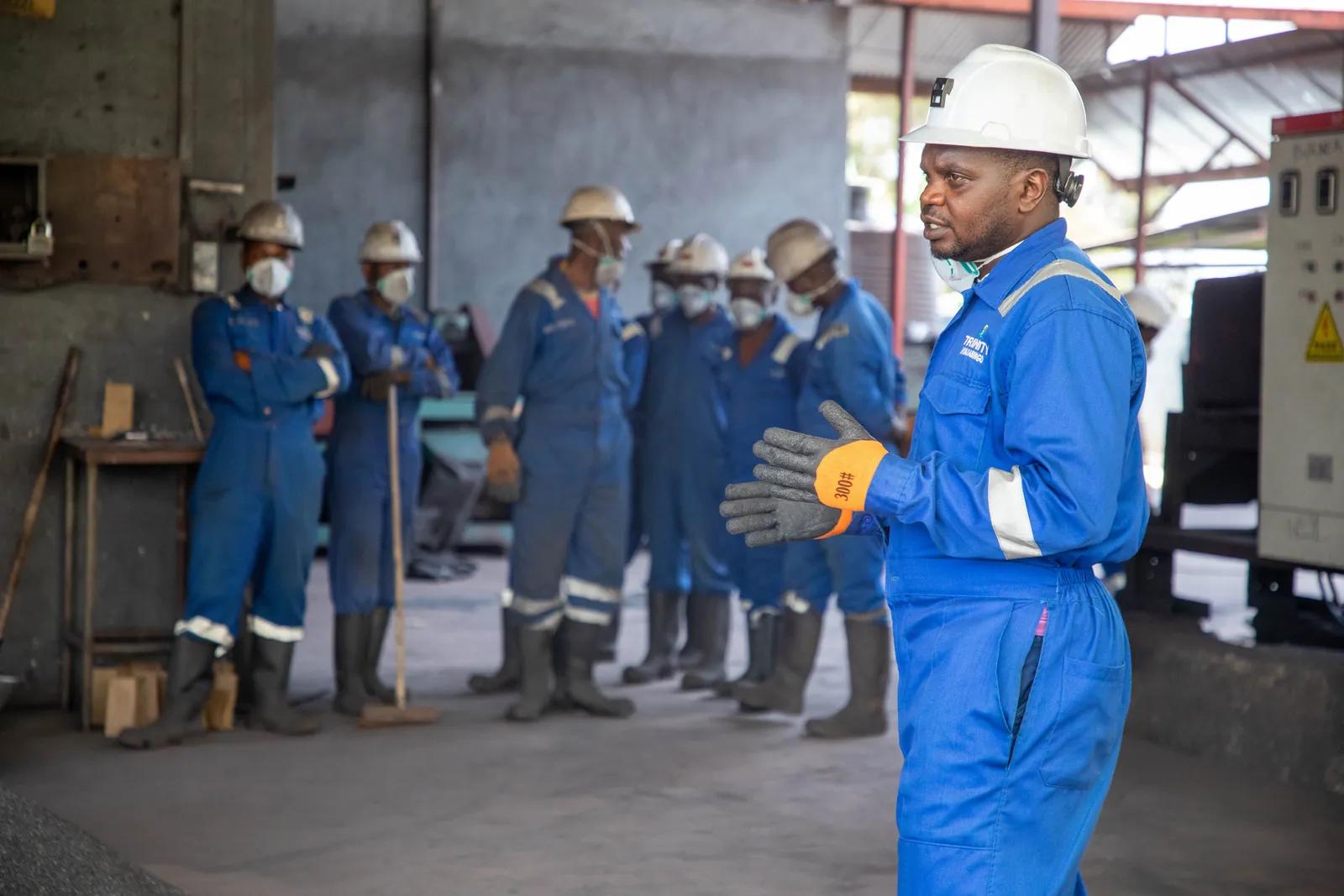
OSHA says staff instruction should cover job risks and controls. It should cover what to do in a crisis. It should cover reports, duties, and worker rights. Use words and a reading level the staff can grasp. A translation alone does not show what a worker knows or can do. See OSHA education and training guidance. A Twin clip may name the topic. The employer must still meet the rules for that worker, task, risk, tool, and site.
A project‑video workflow you can control
Use a repeatable checklist. Every video must stay accurate and compliant. These steps assume you have written consent from the person whose face and voice will appear.
- Choose one project, version, and audience. Define the exact job, the phase, and who will watch.
- Freeze the source documents. Lock the contract scope, drawings, specifications, bid, change orders, price, schedule, permit, license, insurance certificate, progress photos, site‑safety plan, training records, equipment list, and emergency contacts. The video script must match those frozen sources.
- Verify footage against the actual site. If you include B‑roll or stills, confirm they show the real project on the date claimed. Never use generated jobsite imagery that could be mistaken for evidence.
- Review media rights. Confirm you have permission from the client. Confirm permission from the property owner. Confirm permission from any visible worker. Confirm permission from any subcontractor whose work or likeness appears.
- Distinguish awareness from required training. Label the video clearly. If it is a general reminder, state that it does not replace hands‑on instruction or competency checks.
- Set accessibility and language review. Check the language, literacy level, access needs, and how the employer will verify comprehension.
- Set disclosure. YouTube requires disclosure of meaningfully altered or synthetic content when it appears realistic. Review YouTube AI‑content disclosure. Generated jobsites or completed work should not be presented as actual evidence.
- Obtain project and safety approval. Have the project manager or site safety lead sign off on the script and the final render.
- Render, watch, and publish. Watch the full output. Check for visual artifacts that could misrepresent a condition.
- Record version details. Log the project, phase, audience, channel, source‑document timestamps, media‑rights confirmations, language review, disclosure, approvals, and expiry date.
- Set expiry and takedown. Assign an owner who will remove or replace the video when the information becomes stale.
Release record template
Keep one record for every published video.
| Record field | What to capture |
|---|---|
| Identity | Project, version, phase, audience, and channel |
| Project sources | Owners, timestamps, scope, drawings, specifications, bid, changes, price, and schedule |
| Authority | Permit, license, and insurance sources |
| Site review | Progress, site, safety, training, equipment, and emergency checks |
| Rights | Client, property, worker, and subcontractor media consent |
| Access | Language, literacy, accessibility, and comprehension plan |
| Claims | Testimonial context, material connection, and AI disclosure |
| Lifecycle | Project and safety approvals, expiry, archive, replacement link, and takedown owner |
Fictional project‑update script
The script below uses placeholders. It does not describe a real company, client, property, worker, project, scope, bid, price, schedule, permit, license, insurance, progress, safety outcome, training result, equipment, testimonial, or earnings claim.
“Hello, this is [Approved Speaker] from [Fictional Company]. This is the [Approved Version] update for [Fictional Project]. The approved scope note is [Approved Scope Note]. The current schedule source is [Approved Schedule Source]. The current progress source is [Approved Progress Source]. Review [Approved Written Report] for permit, inspection, price, and change details. Send questions through [Approved Contact Route].”
What consent, C2PA, and disclosure do not prove
Kyndrify documents recorded consent. Signed Content Credentials and invisible provenance markers are still rolling out and are not guaranteed on every file. Those items do not prove the job facts. They do not prove client approval. They do not prove a license, insurance, code check, or permit. They do not prove site progress or safe work. They do not prove that staff were taught well or grasped the lesson. They do not prove that a platform will accept the clip. Keep those checks in the job and employer files.
Advertising and endorsement rules
Google Local Services ads must use true facts. Check each license, insurance claim, skill claim, price, worker fact, and service area. See the Google Local Services advertiser policies.
The FTC says an endorsement must be honest and must not mislead. State a client, staff, trade partner, supplier, paid, or other tie when it may affect how a viewer weighs the words. See the FTC endorsement guidance before use.
Cost inputs
Kyndrify plans use shared credits, and pay‑as‑you‑go credit packs are also available. The Free plan uses preset avatars and voices. Custom Twins begin on an eligible paid plan such as Plus, not on every paid tier. Ask the vendor for current terms at Kyndrify pricing. Count only the Render versions in the approved plan. Add your own costs for project review, safety review, rights, access, and publication. Do not assume gains in bids, wins, projects, incidents avoided, workers trained, time, margin, or revenue.

Decision framework
Ask these five questions before you start a script.
- Is the message personal but the data frozen? If the facts are still moving, a Twin video can lock in stale information.
- Can I separate awareness from required training? If the clip must prove worker competence, a Twin alone will not satisfy OSHA.
- Do I have media rights for every face, voice, and jobsite image? If not, pause until you obtain written permission.
- Will the disclosure be clear? Viewers should know they are watching a synthetic presenter.
- Who will remove the video when it expires? Assign an owner and a calendar reminder before you publish.
Frequently asked questions
1. Does an AI Twin video count as OSHA safety training? Not on its own. OSHA says an employer must teach workers to spot and avoid unsafe conditions. A broad reminder may support that work. It does not replace the lesson and checks needed for the task, risk, tool, worker, and site. See OSHA 1926.21.
2. Can I use a Twin to show completed work that we have not finished yet? Do not show made-up work as real proof. It can mislead a client. YouTube’s rule applies when changed or synthetic content looks real. Review YouTube AI‑content disclosure.
3. What does the vendor actually document about construction use cases? The talking‑head page says a face‑and‑voice Twin reads the script you supply. The pricing page lists a no‑card Free plan with preset avatars, custom Twins on an eligible paid plan such as Plus, and up‑to‑1080p talking‑head video on Plus. Signed Content Credentials and invisible provenance are still rolling out. The pages do not document trade templates, bid or LMS links, or site‑risk data. Check current facts at Kyndrify talking‑head video and Kyndrify pricing.
4. How do I handle testimonials from clients or subcontractors? State any tie that may affect how a viewer weighs the words. This can include a client, staff, trade partner, supplier, or paid tie. Read the FTC guidance.
5. What should I check before I publish a project‑update video? Freeze the job files. Check each site image and its rights. Mark the clip as a broad reminder, not required training. Review the words, reading level, access needs, and how staff knowledge will be checked. Set the AI label. Get job and risk approval. Log the end date and takedown owner.
Related reading
Disclaimer
This guide gives broad facts, not legal or site-risk advice. Ask your own counsel, risk lead, and insurer about your job. Check the vendor’s site for current rates, features, and terms before use.
More from Kyndrify


Make your first video without filming.
Say what you need and the studio makes it: video, images, voices. Start free, no credit card.