

AI Video for App Demos
Make app demo videos with a friendly narrated host plus your real screen recording. Easy to update each release. Multilingual.
AI Video for App Demos
AI video for app demos helps you show your product fast. You record your real screen. A friendly narrated host explains what users see. Together they make a clear, human demo.
This guide is for SaaS and app makers. You want demo videos, feature walkthroughs, and onboarding clips. You want them done quickly. You also want to update them with each release.
Here is the honest part. Kyndrify makes the narrated host and intro. You supply the screen capture. Pair the two for a strong app demo video.
What is an AI app demo video?
It is a short video that shows your app in action. A narrator guides the viewer. The screen recording shows the real product.
The narrator can be you. On an eligible plan such as Plus, Kyndrify lets you be on camera, without the camera. You get talking-head narration as a host. You also get narrated slides and supporting B-roll.
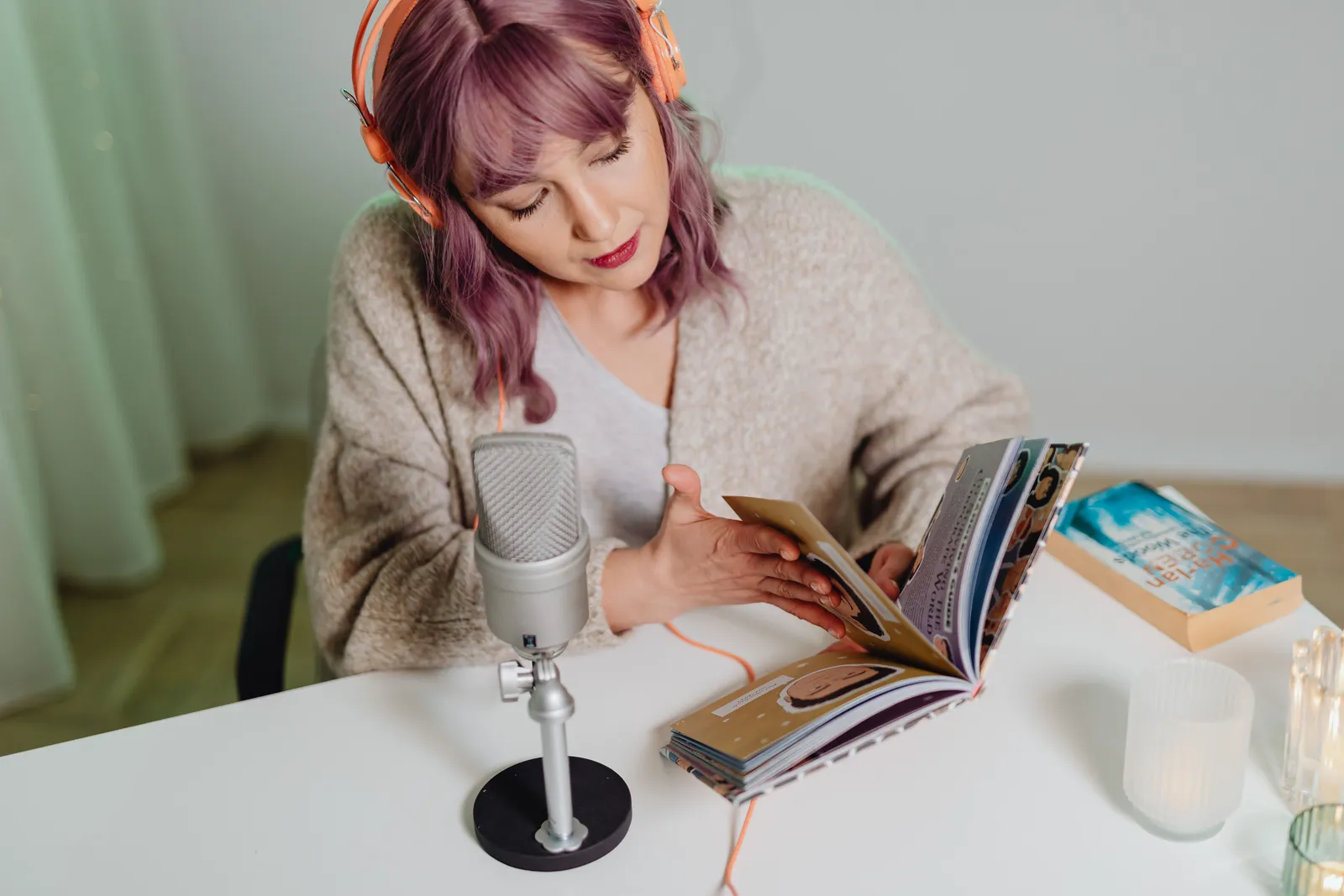
The result feels personal. People trust a face and a voice. Your app does the rest.
How AI video compares to traditional production
Traditional demo videos often need a full crew. You schedule shoot days, rent gear, and book a narrator. Then you edit for days or weeks. If your app changes, you go through the whole loop again. That costs time and budget.
AI video simplifies the human side. You update the narration fast, without a studio. No camera, no lights, no reshoots. Your screen capture stays accurate. You can create or revise a demo in hours, not weeks.
Multilingual support also gets easier. Traditional dubbing or subtitling adds cost and time per language. With Kyndrify, you can generate the host in ten spoken languages from a single workflow. This helps SaaS companies reach global users without multiplying production overhead.
How to make an app demo
Follow these simple steps. Each one is quick.
- Plan the flow. List the features you want to show. Keep it short.
- Record your screen. Capture the real app doing real tasks.
- Write a tight script. One idea per line. Prompt engineering is built in to help.
- Generate the host. Kyndrify creates your narrated talking-head intro and narration.
- Add supporting visuals. Use narrated slides and B-roll where helpful.
- Stitch it together. Place the host clips around your screen recording.
- Publish and share. Post it on your site, app store, or onboarding flow.
That is the full loop. The host and screen capture work as a team.
Best practices for scripting and narration
A strong script makes your demo easy to follow. Here are some guidelines that work well.
- Write for the ear. Use short sentences and conversational words. Read your script aloud while recording your screen; adjust anything that feels unnatural.
- One idea per clip. Let each narrated segment focus on a single feature or screen. This keeps the viewer oriented.
- Sync with screen actions. If your app opens a menu, the narrator should mention it at the same time. Align script timing with your screen recording to avoid confusion.
- Show, don't just tell. Narrate the value while the screen reveals the UI. For example, say "Tap here to invite a team member" as the cursor clicks the button, not before.
- Use built-in prompt help. Kyndrify’s prompt engineering helps you shape the narration. Start with a rough outline and let the tool refine it. Then review and tweak for your voice.
For the host delivery, keep the tone warm and patient. Avoid jargon your users may not know. If you explain a complex panel, break the explanation into small steps. This makes even dense interfaces approachable.
Technical requirements for screen recording
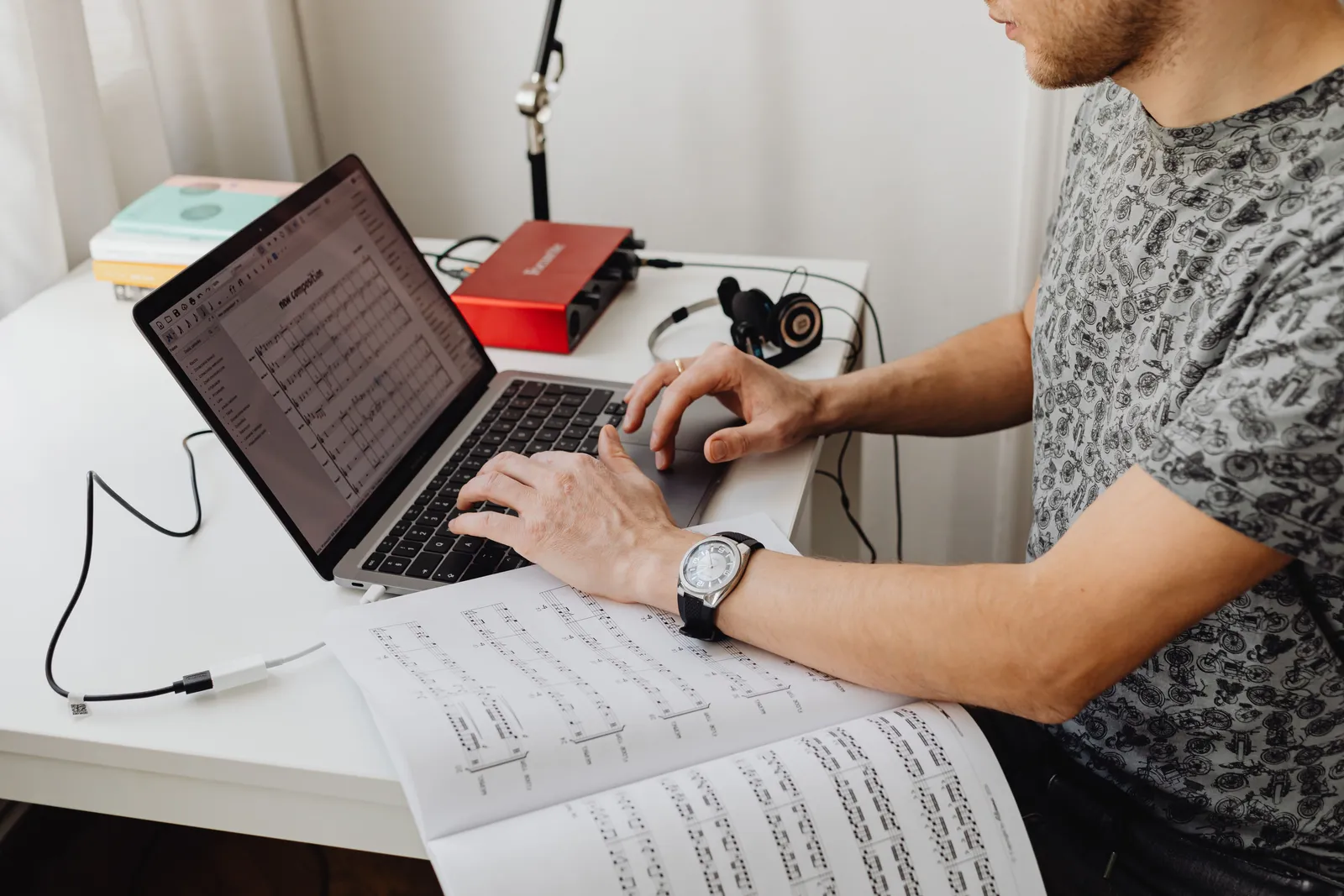
Since Kyndrify handles the host part, you are in charge of the screen capture. A few basics help everything look polished.
- Use a clean desktop. Close extra tabs, hide personal files, and turn off notifications. A distraction-free background keeps attention on your app.
- Record at a smooth frame rate. Aim for 30 fps or higher. Choppy motion distracts viewers.
- Capture a high resolution. 1920×1080 (Full HD) is a safe minimum. If your app has tiny text, record at a higher resolution so the text stays crisp when viewers watch on a bigger screen.
- Use clear audio for voiceover if needed. You might record a scratch track to guide timing. Later Kyndrify replaces it with the generated host.
- Save your recording in a standard format. MP4 with H.264 compression works on almost any editor. This makes stitching with the host clips straightforward.
Once you have the screen recording, combine it with the Kyndrify host video in any basic video editor. No advanced skills required.
Handling complex UIs and dense dashboards
If your app has many panels, dropdowns, or data-heavy screens, a simple wide shot can overwhelm viewers. Try these tactics.
- Zoom in on the relevant area. Crop the screen recording in your editor so only the active part is visible. This hides clutter and guides focus.
- Add simple callouts. Use arrows, highlights, or text labels directly in the video. These are not produced by Kyndrify; you add them in your editing step.
- Break a long workflow into short scenes. Instead of one continuous recording, record small segments for each step. Then the narrator explains one piece at a time.
- Keep narration tight. For data views, explain what the user should notice, not every field. “The dashboard shows today’s sales total, top products, and active users” is enough.
These small adjustments work with any app and keep your demos clear, even for complicated tools.
Real-world examples (no invented numbers)
Many SaaS teams face the same challenge: weekly or biweekly releases make traditional video updates impractical. With Kyndrify, a team can record a new feature walkthrough in the afternoon. One person writes the script, captures the screen, generates the host, and combines them. The video is ready for that week’s changelog. Before AI video, the same update would have waited for a narrator’s availability and an editor’s schedule.
Mobile app developers use the same approach. When a new onboarding flow ships, they record the screen, let Kyndrify produce the narration in minutes, and embed the video in the first-run experience. This keeps the user guide fresh without a production backlog.
These examples reflect common use cases that teams report in community discussions and social sharing. The pattern is consistent: faster updates, less coordination, and demos that always show the real product. Kyndrify’s own customer-stories page notes that its agency, training, and sales workflows represent no outside organization or person, so treat these as illustrative patterns rather than verified customer results.
What does Kyndrify handle, and what do you supply?
Kyndrify handles the human parts. It makes the narrated host and intro. It builds narrated slides and B-roll too.
You supply the screen recording of your app. That is the live product footage. Combine both for a complete demo.
This split keeps your demo accurate. Your screen capture always shows the true app. The host adds warmth and clarity.
For a related guide, see TTGC's AI Avatar vs. Screen Recording: A Practical Comparison.
Why teams choose Kyndrify
App teams move fast. Your product changes often. Your videos must keep up.
Here is why teams pick Kyndrify for the narration:
- Be on camera. Without the camera. Use your own face as the host on an eligible plan such as Plus.
- Easy to update. Re-record narration when the app changes.
- Multilingual. Reach users in ten spoken languages.
- Built-in prompt engineering. Get help shaping your script.
- Free tier. Start with no credit card.
You focus on the product. Kyndrify handles the host.
Next steps: integrate with your marketing stack
After you create a demo, you need to share it and measure its impact. Here is a simple flow that works for most tools.
- Export the final video from your editor.
- Upload to a video host. Popular choices include YouTube, Vimeo, or Wistia. These give you embed codes.
- Embed on your landing page. Put the demo above the fold so visitors watch it right away. Many teams also add it to app stores, onboarding flows, and release notes.
- Track performance. Use UTM parameters on the video link if you share it in emails or social posts. Video hosting platforms often give view counts and drop-off points. Connect those to your analytics to see how demos affect signups.
- Keep a version log. Name each demo video clearly with the release number. This makes it easy to replace old clips when the app changes.
No special integration with Kyndrify is needed. The output is a standard video file that fits any modern marketing pipeline.
Frequently Asked Questions
Does Kyndrify record my app screen? No. You record your own screen. Kyndrify makes the narrated host and supporting visuals. Pair them for the full demo.
Can I use my own face as the host? Yes, on an eligible plan such as Plus. Free renders use preset avatars and voices. Your face presents the narration once you have an eligible plan.
How many languages does Kyndrify support? Kyndrify documents ten spoken and dubbing languages: English, Spanish, Portuguese, French, German, Italian, Japanese, Korean, Russian, and Chinese. Script translation lists additional text-only languages such as Hindi, Filipino, Indonesian, and Arabic, but the saved voice cannot speak those targets yet.
Is there a free option? Yes. There is a free tier with no credit card. Free uses preset avatars and voices. Custom Digital Twins and up-to-1080p talking-head video are on an eligible plan such as Plus. See our pricing page for details.
How do I update a demo when my app changes? Update the narration in Kyndrify. Then swap in a fresh screen recording. Your demo stays current.
Ready to make your app demo?
You bring the screen recording. Kyndrify brings the narrated host. Together they make a clear app demo video.
Start on the free tier today. No credit card needed. See pricing for plan details.
Kyndrify is built by Through the Glass Creatives.
Related reading
More from Kyndrify
The tools that do this
Make your first video without filming.
Say what you need and the studio makes it: video, images, voices. Start free, no credit card.