

How to Make Real Estate Listing Videos With AI
Make real estate listing videos with AI. Add an on-camera intro, narrate real photos, and publish in minutes. Free tier, no credit card.
You can make a real estate listing video with AI in minutes. Start with a short on-camera intro. Then narrate real property photos and footage. Add neighborhood B-roll for mood. End with a clear call to action.
Kyndrify helps you be on camera. Without the camera. You appear in your own face. AI handles your presence, narration, and supporting visuals. The home itself stays real.
This guide walks you through each step. It is built for busy agents. No film crew needed.
Why use AI for listing videos?
Video sells homes. Buyers watch before they visit. But filming yourself is hard. Lighting, retakes, and editing eat your day.
AI fixes the slow parts. You record once, or not at all. Your digital twin delivers the intro. Renders finish in minutes, not hours.
You can also reach more buyers. Kyndrify documents ten speech and dubbing languages: English, Spanish, Portuguese, French, German, Italian, Japanese, Korean, Russian, and Chinese. One script can become several spoken versions. That widens your audience fast.
How to script a listing video that grabs attention
A weak script loses viewers in seconds. A strong one guides buyers straight to a showing. Here are the best practices, plus a template you can adapt.
Scripting best practices for real estate videos
- Open with a single sentence that names the home’s strongest selling point. Not “nice house.” Say “sun-drenched corner lot with a chef’s kitchen.”
- Use plain, active words. “You step into a bright living room” beats “one will notice a living room.”
- Talk about the property, not the buyer. Describe square footage, room count, and finishes. Avoid phrases that imply who belongs there. Fair-housing rules demand neutral language.
- Keep the pace quick. Aim for 15 to 20 words per image or clip. Buyers lose focus after 90 seconds. Trim anything you can.
- Write for the ear. Short sentences. Simple grammar. If it sounds stiff aloud, rewrite it.
- Include one neighborhood detail that matters. A park down the street. A top-rated school zone. A walkable coffee shop.
- End with exactly one action. Usually “book a showing.” Never bury the CTA under three options.
A simple 5-part script template
- Hook, One line that stops the scroll. Example: “Welcome to 452 Maple Street, a mid-century gem with a brand-new roof.”
- Key feature walk, Three to five sentences matched to photos. Example: “The living room opens to a deck through sliding glass doors. The kitchen has granite counters and a gas range. The primary suite includes a walk-in closet and a tiled shower.”
- Neighborhood moment, One sentence plus B-roll. Example: “You are two blocks from Riverside Park and the farmers market.”
- Emotional close, One sentence that sums up the feeling of living there. Example: “It is a quiet, light-filled home made for easy weekends.”
- Call to action, One line from your on-camera Twin. Example: “Call me to see it in person. 555-0123.”
Step 1: How do you plan the listing video?
Use the template above as a starting point. Then pull together your raw materials.
- Write a one-line hook for the property.
- List three to five top features.
- Note one neighborhood highlight.
- Add your contact details and the CTA.
Keep total runtime under 90 seconds. Short videos hold attention better.
Use fair-housing language in every line. Describe the home, not the buyer. Avoid words like “perfect for a young family” or “bachelor pad.” Stick to facts about the space.

Step 2: How do you create your on-camera intro?
Your face builds trust faster than any logo. Lead with a friendly hello.
- Open Kyndrify and start a new project.
- Choose or set up your talking-head Twin. Free renders use preset avatars and voices. Own-face rendering and own cloned voice are on Plus and above. Free can build one Starter Twin and view a short preview, but it cannot render arbitrary own-face scripts.
- Type your intro script. Two sentences are enough. Example: “Hi, I’m Alex with Coastal Realty. Today we are touring a three-bedroom craftsman near downtown.”
- Review the preview. If you spot a mistake, edit the text and re-render in minutes.
Your Twin speaks the lines for you. No reshoots needed. You get a personal, face-forward introduction without turning on a camera.
Step 3: How do you add real property photos and footage?
This step matters most. Use only real media of the actual home.
- Gather high-quality photos and any walkthrough clips.
- Upload them into your video timeline.
- Order them room by room. Front exterior first. Then living areas. Then kitchen, bedrooms, bathrooms, outdoor space.
- Place each image on screen for 3 to 5 seconds. That gives viewers enough time to scan the room.
Do not use AI to fake the home. Show the kitchen as it is. Show the yard as it is. Honesty protects your license and your reputation.
Simple equipment that works You do not need a DSLR to get good results.
- Use any modern smartphone. Clean the lens before you shoot.
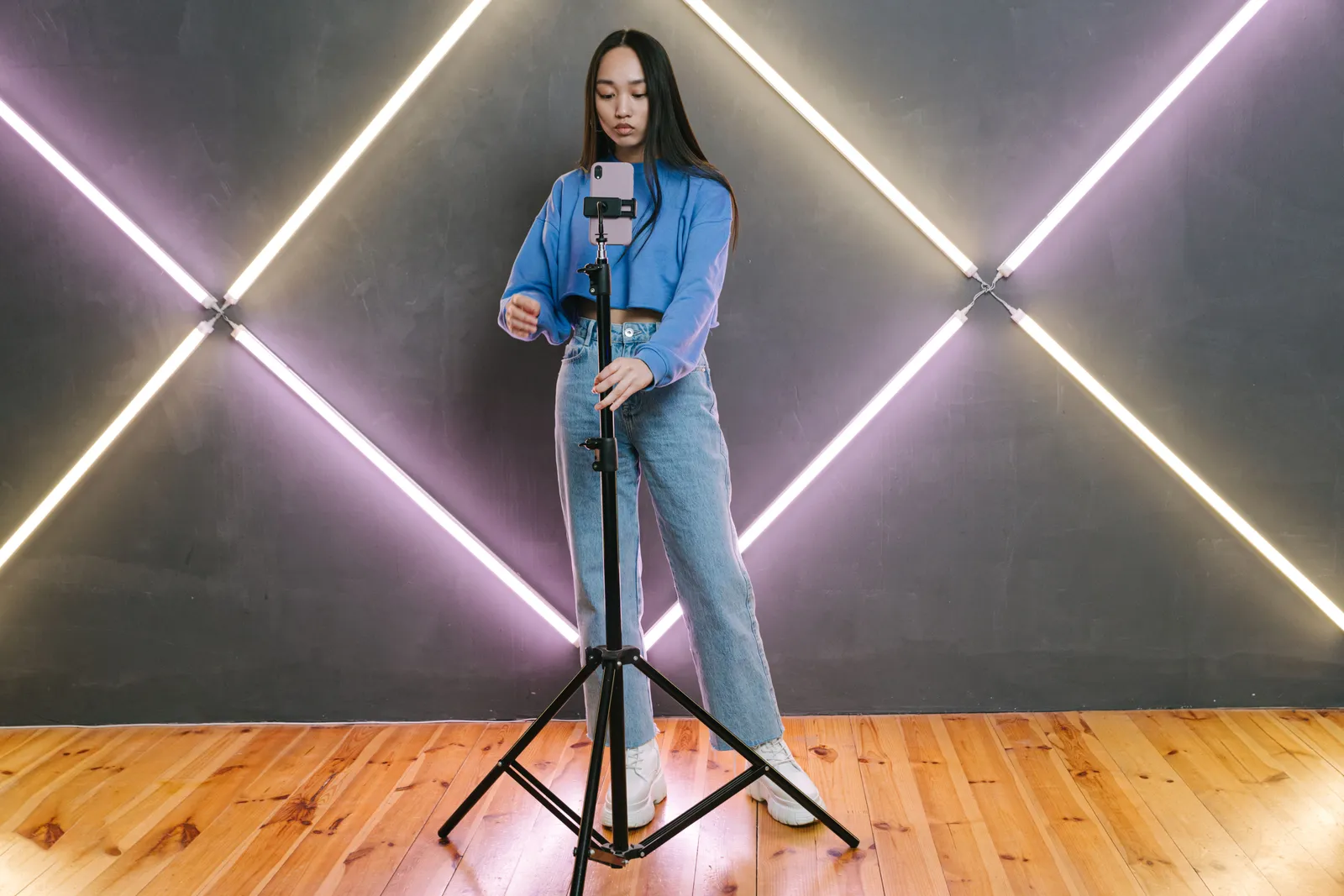
- Mount the phone on a basic tripod. Steady footage looks more professional.
- Shoot during the golden hour if you can. Morning or late afternoon light makes rooms feel warm and inviting. If that is not possible, turn on every lamp and overhead light inside.
- For walkthroughs, move smoothly. Hold the phone with both hands and take small, slow steps.
Step 4: How do you narrate the highlights?
Now add voice over the visuals. Let the narration guide the eye.
- Write one short line per photo. Example: “A gas fireplace anchors the living room. The windows look out to a private backyard.”
- Name the room or feature shown.
- Mention real measurements where they matter. Square footage, lot size, ceiling height.
- Generate the narration in your chosen voice. Kyndrify syncs it to your timeline.
Match each line to the matching image. Talk about what viewers see. Keep claims accurate and verifiable.

Kyndrify narrates in ten documented speech and dubbing languages. Create a Spanish version next. Then add others your market needs from that list. One property can reach multiple buyer communities.
Step 5: How do you add neighborhood B-roll?
B-roll sets the mood. It frames the lifestyle around the home.
- Add real footage of nearby streets, a community pool, or a popular cafe.
- Or use AI images for general ambiance. A wide shot of a leafy avenue. A slow pan over a farmers market. Keep these clips short, just a few seconds.
- Place them between property shots to give the video room to breathe.
Label ambiance visuals honestly. Never imply an AI-generated image is the actual property. Use them only for tone and feel.
Step 6: How do you add the call to action?
End with one crystal-clear next step. Tell viewers exactly what to do.
- Return to your on-camera Twin.
- Invite viewers to book a showing. “Schedule a private tour this weekend.”
- Show your phone number and email on screen.
- Add a listing link or QR code that stays visible for the last three seconds.
Keep the CTA to one ask. Too many choices confuse viewers. Make scheduling the obvious move.
Step 7: How do you render and publish?
You are ready to export. Kyndrify renders in minutes.
- Preview the full video once. Check the order and audio levels.
- Render the final file.
- Download and post it.
Share it on the MLS where allowed. Add it to social and email. Pin it to the listing page. One video, many channels.
Handling tricky listings and tight schedules
Not every property photographs easily. Some homes have small rooms, dated finishes, or no natural light. You can still make a video that invites buyers in.
When the home has a clear drawback Do not ignore it. Mention it briefly and pivot to a strength.
- Small bedroom: “A compact guest room with built-in storage. It works well as an office or nursery.”
- Busy street: “The home sits on a lively avenue, a short walk from the elementary school and three restaurants.”
- Dated kitchen: “The kitchen is clean and functional. There is room to update and add your own style.”
Focus on what the space offers right now. Location, layout, price, potential. Buyers value honesty. A script that acknowledges a trade-off builds more trust than one that hides it.
When your schedule is packed Kyndrify is built for speed. You can plan, script, and render a full video between appointments.
- Write the script on your phone while waiting for a client.
- Upload photos directly from your MLS or camera roll.
- Edit the script by typing. No need to re-record audio. The AI narration updates instantly.
- Many agents produce a listing video in under 30 minutes, from first draft to final file.
How Kyndrify compares to other AI video tools
Not all AI video tools work the same way. Here is where Kyndrify fits.
Tools that generate slideshows from data Some platforms turn a listing link into an automated video. They pull in photos and public details, then add stock music and a generic voiceover. These are fast but often impersonal. There is no agent face. The script sounds identical across listings. Buyers scroll past.
Tools that use stock AI avatars Other services let you pick a realistic presenter from a library. That adds a face, but not your face. Buyers may wonder who the person is. The connection between agent and viewer weakens.
Kyndrify’s approach Kyndrify creates a digital Twin that looks and speaks like you. You do not film each video. You do not rely on a stranger’s likeness. Your clients see the same person they will meet at the showing.

Your Twin delivers the intro and the CTA, while real property photos keep the video truthful. You can edit the text anytime and re-render fast. The tool focuses on the agent, not on automated templates.
Other on-camera AI options Per publicly available information, some competing avatar services require professional studio footage to build a custom avatar, or they sell you a seat-based license. Kyndrify lets you create a Twin from a simple video clip. The free tier lets you test the workflow without a credit card. Commercial use requires rights and current plan and Terms confirmation, so check the pricing page and Terms before client-facing work.
No video tool replaces good judgment. You must still follow fair-housing rules and MLS guidelines. But Kyndrify removes the camera anxiety and the editing slog.
A note: always show the real property
This rule is non-negotiable. Your video must show the true home. AI is for your presence and polish only.
Use AI for your on-camera intro. Use it for narration and ambiance B-roll. Never use it to alter the property. Do not stage rooms that do not exist.
Follow your MLS rules closely. Follow fair-housing law in every word. Honest videos build lasting trust.
Pricing and commercial rights
Kyndrify offers a free tier. No credit card is required to start. Test it on your next listing today.
Commercial use requires rights and current plan and Terms confirmation. See the pricing page and Terms for current details.
Frequently asked questions
Can I make a listing video without filming myself? Yes. Your Twin appears on camera for you. You still get a personal, face-forward intro.
Will AI fake the property in my video? No. You upload real photos and footage. AI only powers your intro, narration, and ambiance.
How long does rendering take? Renders finish in minutes. You can fix a line and re-render quickly. No long export waits.
Can I make versions in other languages? Yes. Kyndrify documents ten speech and dubbing languages: English, Spanish, Portuguese, French, German, Italian, Japanese, Korean, Russian, and Chinese. Script translation lists additional text-only languages, but the saved voice cannot speak those targets yet.
Is the free tier really free? Yes. The free tier needs no credit card. Commercial use requires rights and current plan and Terms confirmation.
Ready to try it?
Make your next listing video the easy way. Plan your script with the template above. Upload real photos. Let your AI Twin handle the on-camera parts. Publish fast and build a connection that feels like a handshake.
Kyndrify is built by Through the Glass Creatives. Start free today. Be on camera. Without the camera.
This guide covers general video production practices. Real estate advertising must comply with fair-housing laws and your local MLS rules. Review your content with your broker or legal advisor before publishing.
More from Kyndrify



The tools that do this
Make your first video without filming.
Say what you need and the studio makes it: video, images, voices. Start free, no credit card.