

AI Video for Teachers
Learn how teachers can create checked welcomes, lesson intros, recaps, assignment routes, and family reminders with an approved AI Twin.
AI Video for Teachers
A teacher can use an approved AI Twin for a source-checked welcome. A lesson intro, recap, assignment route, or family reminder may also fit. The Twin reads a script you supply and creates a video. Lesson plan accuracy and school approval stay separate. So do student records, minors’ privacy, access, third-party media, assessment, feedback, and learning outcomes. Finish the checks required by your school before you share the clip.
What the tool actually documents
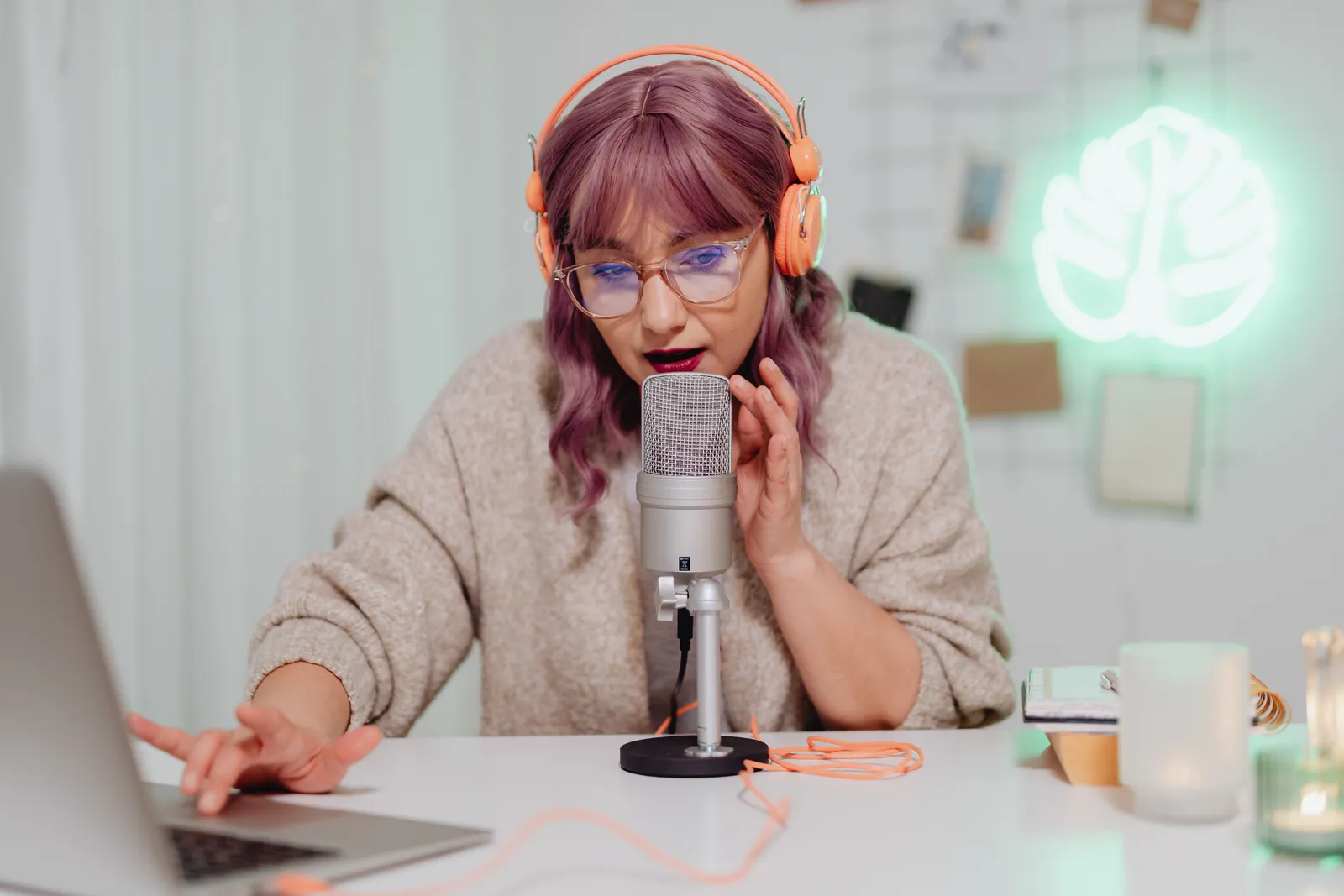
Kyndrify creates a face-and-voice Twin. You use a headshot and a short voice clip. You write a script. The service renders a video of your Twin speaking it. Each Render gives a download and a hosted link. Longer scripts can be split and stitched. The vendor records consent. Plans use shared credits, and pay-as-you-go credit packs are also available. It adds an AI disclosure. Signed Content Credentials and invisible provenance are rolling out and are not guaranteed on every file. You can find current details on its pricing page and Responsible AI page.
The vendor pages do not document many things. Teaching templates are absent. Lesson plan import is absent. Document import is absent. Built-in captions and transcripts are not documented. Quizzes are absent. LMS integration is not mentioned. Student tracking is not mentioned. School approval workflows are not shown. Minors’ privacy steps are missing. Analytics are not listed. Render speed is not listed. Learning outcomes are not documented. Any claim about those features would lack support. Treat the tool as a script-to-video renderer. Build every other safeguard yourself.
Kyndrify documents ten speech and dubbing languages: English, Spanish, Portuguese, French, German, Italian, Japanese, Korean, Russian, and Chinese. Script translation also lists Hindi, Filipino, Indonesian, and Arabic for text only. Plus lists talking-head video up to 1080p; Basic and Starter have their own output scopes. A Free plan exists. It uses preset avatars and voices, provides 8,400 one-time signup credits that never expire, and requires no card. Customers retain ownership of uploads and generated renders subject to the Terms, other rights, and applicable law. That is not blanket copyright clearance or proof of commercial-use entitlement.
Start with the legal and policy floor
Confirm the rules before you record a single frame.
- FERPA and education records. A student photo or video may be an education record. It depends on whether it is directly related to a student. It also depends on who maintains it. An educational agency or school counts. A party acting for the agency counts too. The analysis depends on the context. Follow your school’s approved privacy process. Do not assume classroom media is safe for public reuse. Read the full FAQ at studentprivacy.ed.gov.
- COPPA and children’s data. COPPA applies to covered operators. It covers personal information from children under 13. School consent on a parent’s behalf is limited. It can only cover collection for the school’s educational use. It cannot cover another commercial purpose. The FTC recommends a school-level service check. Do not leave this decision to an individual teacher. See the FTC COPPA FAQs.
- Access. Accessible media may need captions and transcripts. It may need a description of key visual information. Sign language may be needed for some audiences. An accessible player may also be part of the plan. Select and test what fits the lesson, learners, and delivery setting. Start with the W3C WAI media guidance.
- AI disclosure on platforms. YouTube requires disclosure of synthetic content. This applies when the content appears realistic. An example is a real person shown giving advice they did not give. Check the rule at support.google.com/youtube. Other platforms may set their own rules.
C2PA credentials can provide a signal about AI use and content origin. They do not prove lesson plan accuracy, school approval, student privacy, media rights, assessment quality, learning value, access, or platform compliance. Keep those checks in the lesson release record.

A lesson-video workflow you can defend
Use this sequence for every video you share with students or families.
- Choose one objective and one audience. Decide if the video is a unit introduction. It could be a homework walkthrough. It could be a recap for a substitute. It could be a family update. Narrow the purpose before you write.
- Freeze the approved materials. Gather the approved lesson plan, facts, and examples. Include instructions, dates, links, and the answer key. Write the script from reviewed materials. Do not improvise facts.
- Obtain subject and school approval. Use the lesson plan, privacy, and distribution reviewers named by your school or district. Record their decisions.
- Check student records. Remove student data that is not approved for the task. Decide through the school’s process whether any photo, clip, voice, or other media is an education record. Do not assume classroom media is safe for public reuse.
- Check minors and service data practices. Confirm whether your school reviewed the AI service under COPPA. Check your local data-governance rules. Do not upload any child’s personal information.
- Check text, images, music, and clips. Follow the school’s rights process for each third-party asset.
- Plan access. Decide how you will supply captions. Plan for a transcript and visual descriptions. Build them separately if the tool does not generate them.
- Set the disclosure. Add a clear label. State the video was produced with AI. Follow the disclosure rules of every platform.
- Approve, render, and watch. Render the video. Watch the entire output. Check pacing, tone, factual accuracy, and disclosure.
- Publish to the authorized audience only. Post the video in the approved LMS. Use the classroom app or family channel. Do not make it public unless school policy allows it.
- Record version, set expiry, and plan takedown. Log the version. Set a check or expiry date. Know who will remove or replace the video.
Release record template
Keep a short record for each video. It helps during a lesson plan audit or a privacy check.
- Class, lesson, and version
- Audience and channel
- Source material owner and date
- Objective, lesson plan, and fact-check sign-off
- Instruction, date, link, and answer-key check sign-off
- School approval sign-off
- Student-record and minor-data decision
- Media rights clearance
- Access plan and QA result
- Platform label confirmation
- Approval date
- Expiry or check date
- Archive location
- Replacement link
- Takedown owner
Cost inputs, not promises
Kyndrify uses shared subscription credits plus pay-as-you-go credit packs. Subscription credits reset monthly and do not roll over, while packs last three months. Use the current credit allowance and your actual Render count. Add the time or cost for lesson-plan and school review, privacy checks, rights work, captions, transcripts, visual descriptions, sign language when needed, player tests, approval, hosting, and later updates. Do not add sample students, completion, scores, engagement, time savings, or budget arithmetic. The checked sources do not document those outcomes. Check the official pricing page for current fees and rights.

A fictional lesson-route script
The script below is an illustration only. It uses placeholders. No real teacher, school, or student is included. No real minor, grade, or record is included. No real credential, lesson fact, or date is included. No real platform, result, or learning claim is included.
Hello, this is [Checked Teacher Name]. This guide is for [Checked Class or Audience] and covers [Checked Lesson Topic]. Check [Checked Lesson Source] for the objective, facts, examples, instructions, dates, links, and answer-key rules. Use [Checked School Channel] for the current materials and [Checked Contact Route] for help. This message is current through [Checked Expiry Date].
This sample names no real teacher, school, student, minor, grade, record, skill, lesson fact, date, platform, result, completion, or learning claim. Replace a bracket only after the proper school owner approves it. Add and test the access features and label required for the actual audience and channel.
Frequently asked questions
1. Can I use an AI Twin for any classroom video? You can use it for a scripted message. Your reviewed lesson plan must be complete. School approval must be done. Privacy checks are required. An access plan is required. It does not replace live instruction. It does not handle assessment or individualized feedback.
2. Does the AI disclosure satisfy platform rules? Kyndrify is rolling out signed Content Credentials and invisible provenance, but they are not guaranteed on every file. YouTube and other platforms have their own rules. Check the current rule for each platform. The label alone does not guarantee compliance.
3. What privacy steps are mandatory before I render a script? Use your school’s privacy and records process. Remove student data that is not approved for the task. Decide whether any photo, video, voice, or other media is an education record in context. Confirm that the school or district completed the service check required for the planned use.
4. How do I make the video accessible? Plan for captions and a transcript. Describe key visual information. Create these with a separate tool if the renderer does not produce them. Test the final video with the player your students will use.
5. How much does it cost? Kyndrify uses shared subscription credits plus pay-as-you-go credit packs. A Free plan is listed with 8,400 one-time signup credits. Visit the official pricing page for current fees. Treat any example arithmetic as an illustration.
Related reading
More from Kyndrify

The tools that do this
Make your first video without filming.
Say what you need and the studio makes it: video, images, voices. Start free, no credit card.