

AI Product Photos for Online Stores
Create clean product photos with AI in one shot. See how small stores use ai product photography for ecommerce.
Small online shops need great product photos. A pro photographer can cost too much. AI product photos are a smart fix.
You can make clean, sharp images from one shot. This works best for simple items like jewelry or small gadgets. For complex items, you might still need a real shoot.
This guide walks you through the whole process. You will see how AI product photography works. You will explore useful tools. You will learn to prep your shot. You will find out how to use the final images on your store.
How AI Product Photos Work
AI product photography uses machine learning to improve your pictures. You take one photo of your product. The AI then cuts out the background. It adds a soft shadow and studio lights. The process is fast and cheap. It works best for goods with solid colors and simple shapes. Many small stores now use AI product photos. They list new items in hours, not days.

The AI was trained on thousands of ecommerce images. It knows how a pro photo should look. It finds the product's edges. It separates the item from a messy background. It builds a clean, balanced scene.
Choose the Right AI Tool
Several platforms now offer AI product photo generation. Here is how a few common options compare. All of them can remove backgrounds and improve lighting. Pricing varies. Pick the one that matches your volume and budget.
Kyndrify – Built for small stores that want quick video, image, and voice content. Its current tools include real-person Digital Twins, synthetic Avatars, video, images, and voice. Pricing is on the Kyndrify plans page and the plans flex to match your needs.
Claid.ai – Good for batch work. Claid offers background removal, color correction, and scene generation. According to their website, plans start at $10 per month for 100 images.
Pixelcut – Popular with sellers who use phones. Pixelcut provides background removal and templates. A Pro plan costs $9.99 per month. You can export images straight to Shopify.
Canva (Pro) – Canva has a background remover and simple editing tools. Pro costs $12.99 per month. The platform is not built only for product photos. It works best if you already use Canva for other design tasks.
Kyndrify stands apart for store owners who want to make product videos and voiceovers from one workflow. You can create a Digital Twin or synthetic Avatar, then turn a script into a talking-head video. Other tools may need more steps for that same clean finish.
Prepare Your Source Image
A better original photo helps the AI work better. Follow these steps and you will get steady results every time.
- Use a plain background. A white sheet, poster board, or clean wall works great.
- Shoot in soft, even light. Natural daylight near a window is best. Steer clear of strong sunlight. It makes harsh shadows.
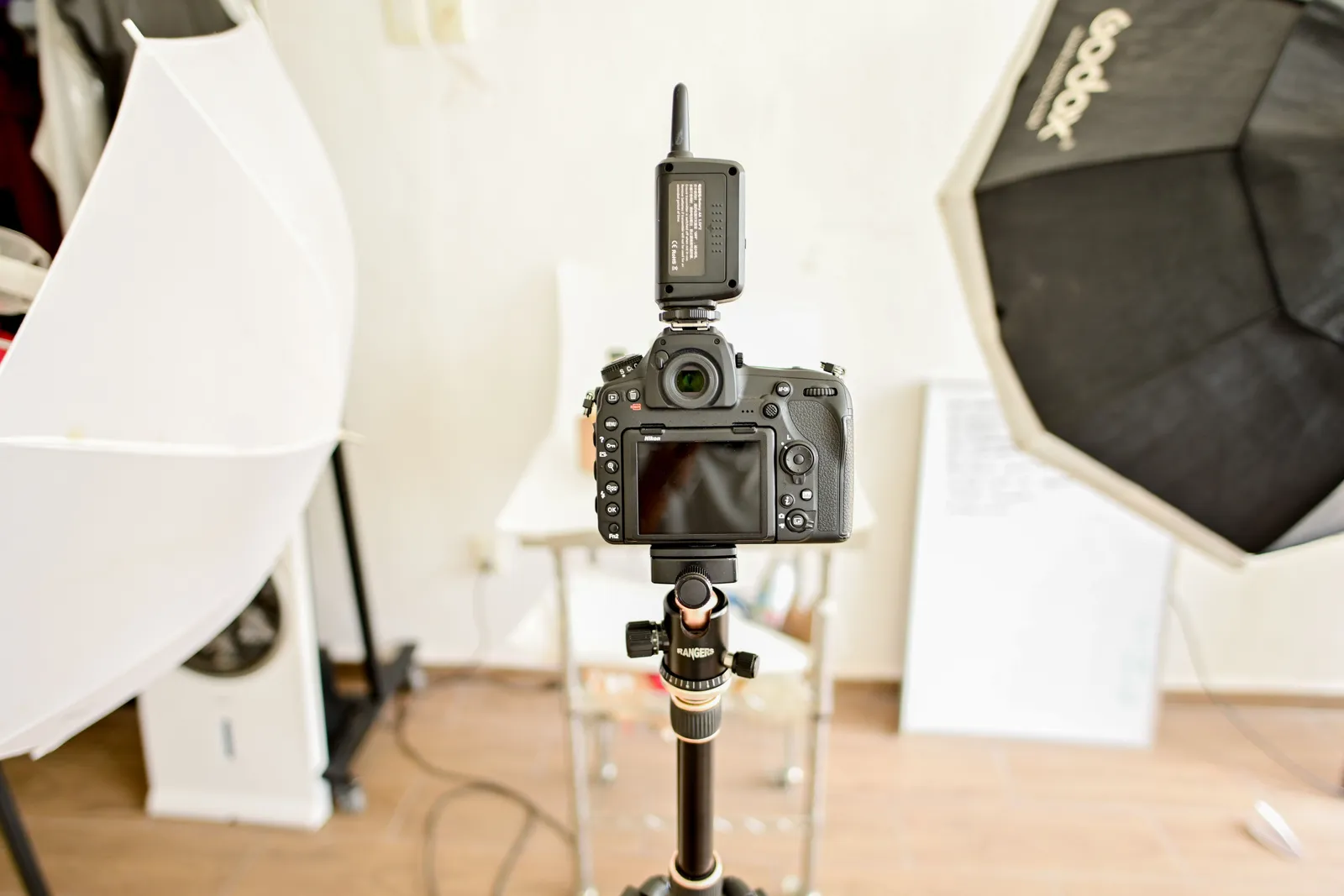
- Center the product and keep the focus sharp. Use a tripod or hold your phone very still.
- Avoid reflections. For glossy or clear items, use a light tent. Or place the product on a matte surface.
- Resolution and format. Take the photo at the highest resolution your device allows. At least 1500 pixels on the longest side is a safe starting point. Save the file as JPEG or PNG. Most AI tools accept both.
If your product has moving parts or a 3D shape (like a handbag, shoe, or gadget), shoot the most familiar front angle. For very detailed 3D objects, you may need a few separate shots. Process each one with the AI. Later, combine them into a 360-degree gallery on your product page.
Step by Step: From Phone Snap to Finished Image
Here is how a typical AI product photo session works with a dedicated product-photo tool. The same steps apply to most tools.
- Take your photo. Follow the preparation tips above. A single, well-lit shot on a clean surface is all you need.
- Upload to the AI tool. Drag your image onto the tool's dashboard. Processing starts right away.
- AI does the work. The tool removes the background. It finds the product's edges. It adds a soft shadow. It fixes the lighting to match a studio. All this happens in seconds.
- Download the enhanced image. You get a high-res file back. The background is clean white or see-through.
You will see a clear change. Think of a silver bracelet resting on a messy desk. The before photo shows the bracelet with cords and papers around it. The AI after photo erases the desk. It gives the bracelet a pure white backdrop. It adds a gentle drop shadow. The metal looks brighter. The details stand out. That is the magic AI product photos deliver.
AI Product Photos for Complex and 3D Items
AI shines on simple products. Many sellers also try it with harder items. Knowing the limits saves time and stress.
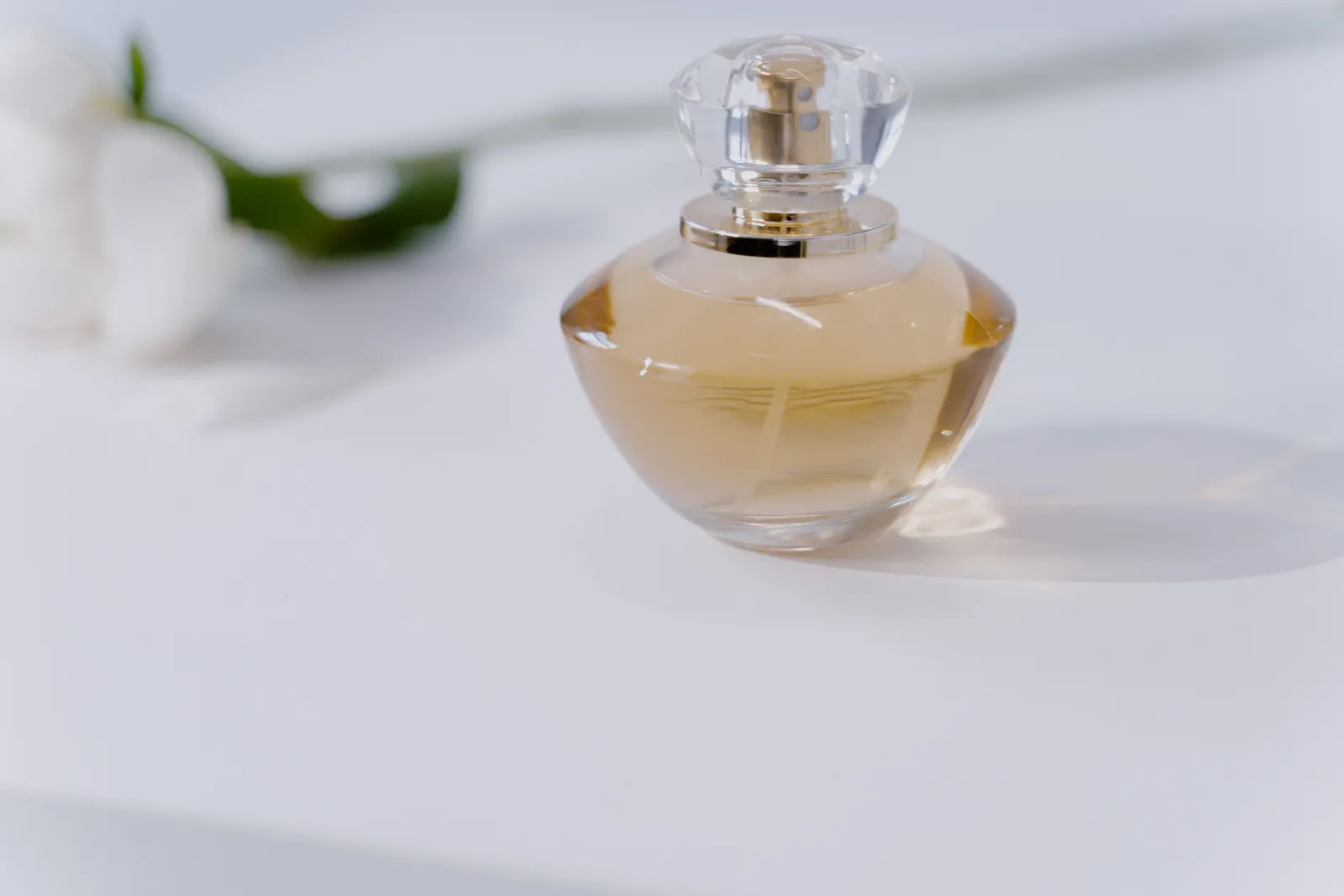
Transparent or reflective surfaces. Glassware, clear bottles, or shiny watches can confuse the AI. To help, set the product on a solid white surface. Place a light source behind it. Let the AI remove the background. You may then tweak the image a bit by hand. Some dedicated product-photo tools handle light reflections better. This works best when the original photo has soft, even light.
Soft goods and clothing. Clothing often needs drape, texture, and movement that a single 2D photo can miss. AI can still clean up the background. It can adjust colors. But the result may look flat. For a true sense of the fabric, use AI for flat-lay shots. Then add one real lifestyle image.
3D products like shoes, bags, and electronics. One angle may not tell the full story. Shoot from the front, side, and three-quarter view. Run each photo through the AI. Most ecommerce platforms let you show multiple images. That way customers can spin the product in their mind. If you want a rotating 360-degree view, take many photos on a turntable. Process each with the AI. Or use a dedicated 360 product photography service.
When a Real Shoot Is Better
AI product photos are not perfect for every case. A pro shoot is worth the money when:
- Your product has fine details that need careful light.
- You need highly realistic lifestyle shots of the product in use.
- The product is very large, like furniture, and scale matters.
- You sell items with complex textures, like handwoven scarves, where the AI might over-smooth.
Many successful small stores use a mix. They use AI for clean hero shots on white. They add one or two real in-context images. This mix keeps costs low. It gives shoppers a full view.
Optimize Your Images for SEO and Speed
Once you have your final AI product photos, small tweaks help your store appear in search results. They also help it load fast. Search engines reward fast, well-labeled images.
- Rename the file. Do not use
IMG_4321.jpg. Use something clear, likesilver-bangle-bracelet-front.jpg. Include your main keyword in a natural way. - Write alt text. Every product image needs an alt attribute. Describe the product and one key feature. Example: “Front view of polished silver bangle bracelet with hammered finish”.
- Compress the image. Tools like TinyPNG or the export settings in your AI tool can shrink the file size. You can do this without clear quality loss. Aim for under 200 KB for web use.
- Choose the right format. WebP gives very small file sizes with great quality. JPEG is the most compatible. Many ecommerce platforms accept both now. If your AI tool exports PNG, you can convert to JPEG or WebP before upload.
- Match platform dimensions. Shopify recommends square images at 2048 by 2048 pixels for zoom. Etsy suggests at least 2000 pixels on the shortest side. Square images look clean and even across your catalog.
Export and Upload to Your Ecommerce Platform
After you finalize your AI product photos, going live is simple.
Most product-photo tools let you download the processed image to your computer. Then you upload it to your store's product dashboard. Most platforms, including Shopify, WooCommerce, BigCommerce, and Etsy, accept bulk uploads.
Some AI tools, like Pixelcut, offer a direct “Publish to Shopify” button. Kyndrify keeps things simple. It focuses on fast video, image, and voice generation. You just drag and drop the downloaded file into your store's media library or product page.
Remember to upload multiple angles when you can. A main hero image, a close-up of a key detail, and a shot of the back or side go a long way. Name each file clearly. Add specific alt text for every image.
Real Results from Small Stores
Many small stores now rely on AI for day-to-day product photos. One jewelry seller we talked to used to wait a week for a freelance photographer. She now uses an AI product-photo tool. She makes 20 fresh listings in an afternoon. All shots look even and clean on white. Her site feels more professional. She launches products the moment they arrive.
Other store owners use AI to test product versions fast. They photograph a sample. They adjust the color in a separate editor. Then they run it through the AI for final polish. This speed was not possible a few years ago.
Each business is different. But small teams and solo sellers often find that AI product photos free up time and cut costs. The result is a catalog full of crisp, buyer-friendly images. These images help close the sale.
Kyndrify’s AI Product Photos
Kyndrify makes store content easy. You can create a real-person Digital Twin or a synthetic Avatar. You can turn a script into a talking-head video. You can also generate images and voiceovers in one workflow.
This works well for product explainers, quick social clips, and store promos. You do not need to learn tricky software. You do not need to buy a lightbox. Just a well-taken photo and Kyndrify’s tools do the rest.
Through the Glass Creatives built Kyndrify to help small stores create great content fast. Try it today!
Frequently asked questions
Can I use AI product photos for my entire store?
Many small shops use AI for simple goods like jewelry, gadgets, and boxed items. Complex or very detailed products often need a few real photos. A mix works well: AI product shots plus one or two real lifestyle images.
How long does it take to create AI product photos?
The process is fast. Once you have a clean source photo, you can get a finished image in minutes with the right tool. Many dedicated product-photo tools process most photos in seconds.
Do I need special equipment to take AI product photos?
No. A smartphone with a decent camera and good natural light are often enough. A plain background helps. You do not need a studio setup.
Can I use AI product photos for lifestyle shots?
AI works best for clean product shots on plain backgrounds. For true lifestyle scenes that show a product in use, a real photographer is still the strongest option.
Are AI product photos good enough for ecommerce?
Many teams find they work well for simple goods. Complex items may still need real photos. When in doubt, try a few AI test shots. Compare them to your current images.
How much do AI product photos cost?
Kyndrify offers plans to fit your budget. Check our pricing page for details. Other tools also offer free trials or per-image plans. You can start small.
What image format and size should I use for my ecommerce store?
Aim for square images at least 1500 pixels wide. Shopify recommends 2048 by 2048 pixels for zoom. Save files as JPEG or WebP. Keep them under 200 KB. Always name the file in a clear way. Add alt text.
More from Kyndrify
The tools that do this
Make your first video without filming.
Say what you need and the studio makes it: video, images, voices. Start free, no credit card.